iPhones are known for their distinct haptic feedback, which is tuned to produce little jitters according to different situations. But, after the iOS 26 update, there are some issues involving many iPhones producing delayed haptic feedback during the notification delivery system. If you are also facing such sort of haptic issue with the iPhone, here are the fixes that you can apply to fix this problem.
Fix 1 – Refresh the Master Vibration Switch
There is a vibration control switch in the Accessibility page of the iPhone that you can use to refresh the vibration settings.
Step 1 – Open the iPhone Settings. Proceed to the Accessibility tab.
Step 2 – Proceed to the Touch tab.
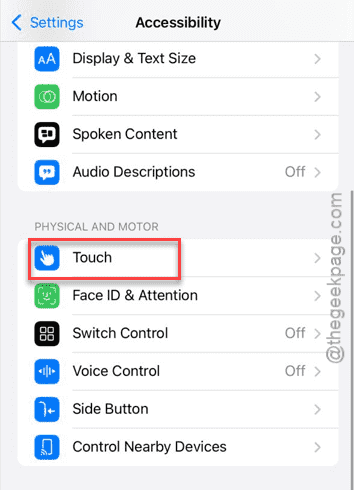
Step 3 – Scroll down to the Vibration settings.
Step 4 – Toggle it to OFF mode and then to ON.
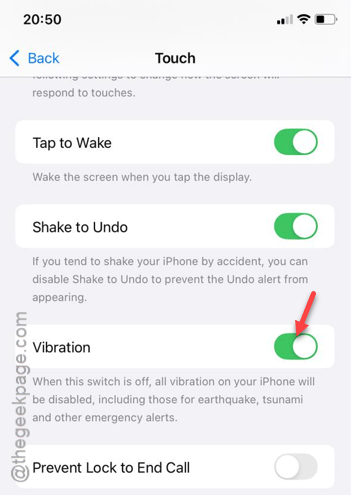
This way, you can refresh the vibration settings for all the iPhones. See if this fixes the lack of vibration issue that you are having on the device.
Fix 2 – Tweak the Haptics Settings on iPhone
The ‘Synchronize with Ringtone’ settings may cause this problem on the iPhone after receiving the iOS 26 update.
Step 1 – Proceed to the Sounds & Haptics tab.
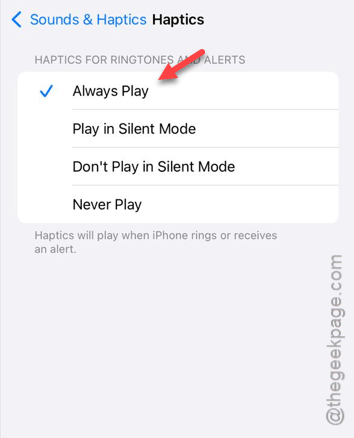
Step 2 – Open the Haptics settings.
Step 3 – Set it to Always Play.
Step 4 – Return to the Ringtone > Haptic tab.
Step 5 – Set it to Standard or Prominent mode.
After changing these settings, see if the haptics are working or not.
Fix 3 – Disable the Haptic Lock in Phone App
Wrong haptic settings can cause the vibrations to cease in case of the incoming calls but function properly for other alerts.
Step 1 – Open the Apps tab. Then, go ahead and open up the Phone app in there.
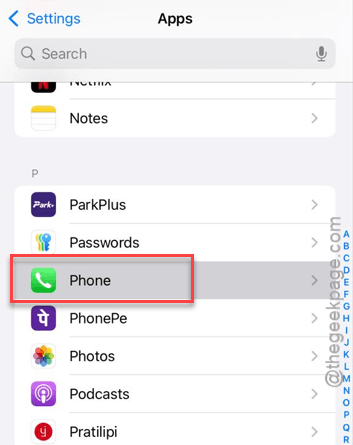
Step 2 – Go to the Haptics tab.
Step 3 – Toggle it to OFF mode.
Step 4 – Then, press and release the Volume Up button. Next, press and release the Volume Down button. Finally, press and hold the side button of the iPhone until the device restarts.
Step 4 – Then, turn it ON.
After restarting the haptic vibration settings, this problem will be fixed.
Fix 4 – Verify Per-Contact Vibration Patterns
If the vibration settings are not working properly for a few particular contacts, you can follow these steps to set up the vibration settings for the contacts individually.
Step 1 – Go to the Contacts app. Then, open the person’s contact that is not vibrating.
Step 2 – Then, tap Edit button. Choose the Ringtone or Text Tone.
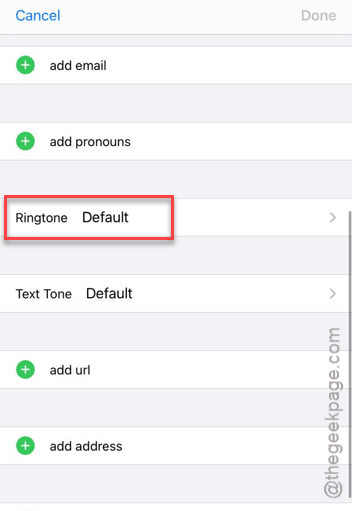
Step 3 – Tap the Haptics and set it to anything but None.
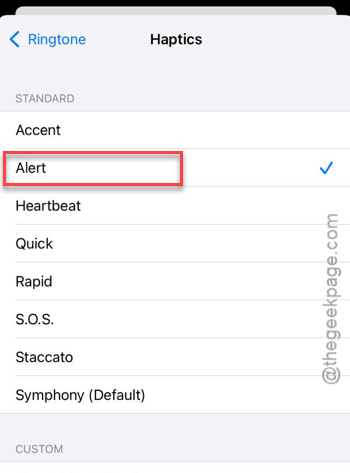
Check whether the haptics are working properly or not.
Fix 5 – Reset All Settings
Perhaps a settings modification that you have done is influencing this haptic issue. Reset all the iPhone settings.
Step 1 – To reset all the iPhone settings, proceed to the General tab.
Step 2 – Load up the Transfer or reset iPhone.
Step 3 – Tap the Reset button next.
Step 4 – Later, tap the Reset All Settings option.
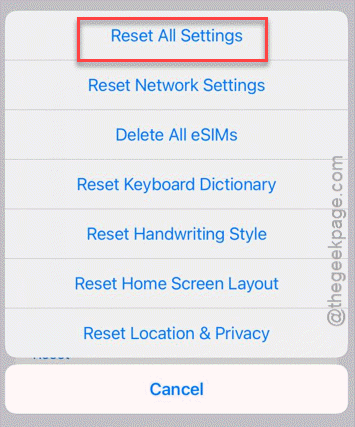
Step 5 – You must input your Apple passcode to verify your access.
Once you have verified it, the iPhone will be restarted automatically. During the iPhone restarts, all the settings modifications will be removed.
Check whether this work out for you!