You open the Camera app. Black screen. Or worse — “We can’t find your camera.” Like the thing isn’t even there.
Your HP Spectre’s IR webcam was working fine. Then KB5050009 installed. Now Windows Hello won’t recognize your face and the camera’s just gone.
Why This Happens
Short story. A Windows update — KB5050009 — broke the driver link to your Spectre’s camera. Windows stops seeing it entirely.
And it hits the IR camera hardest. That’s the one Windows Hello uses for face login. So you lose the webcam and face unlock in one shot.
Sometimes it’s not purely the update’s fault, though. The Spectre has a physical kill-switch and a privacy shutter. An update can reset things so a closed shutter looks like a missing camera.
So is your camera dead? Almost certainly not. Annoying that it broke at all — but the fix is usually quick.
Fix 1 – Check the Kill-Switch and Privacy Shutter
Check this first. Always (it takes ten seconds and saves an hour). The Spectre has hardware that physically blocks the camera, and it’s the most-missed cause of a “not detected” error.
1 – Look along the right and left edges of the laptop for a small physical camera switch. Slide it to the on position.
2 – Check the top row of keys for a privacy shutter key — usually F2 or F10 with a little camera icon.
3 – Press it to open the shutter. You may need to hold Fn with it.
4 – Open the Camera app and see if it’s back.
Feels too simple, I know. But people spend an hour reinstalling drivers when a shutter was closed the whole time. Rule it out first.
Fix 2 – Force the Generic USB Video Device Driver
This is the trick that fixes most cases. There is a chance that this latest update has conflitcted with the camera driver.
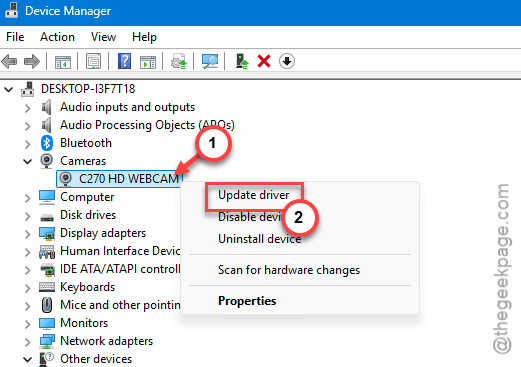
1 – Start by right-clicking the Start button, and choosing Device Manager.
2 – Next, tap Cameras to expand it. (You should also take a look at the Imaging devices section.)
3 – Then, right-click the webcam and tap Update driver.
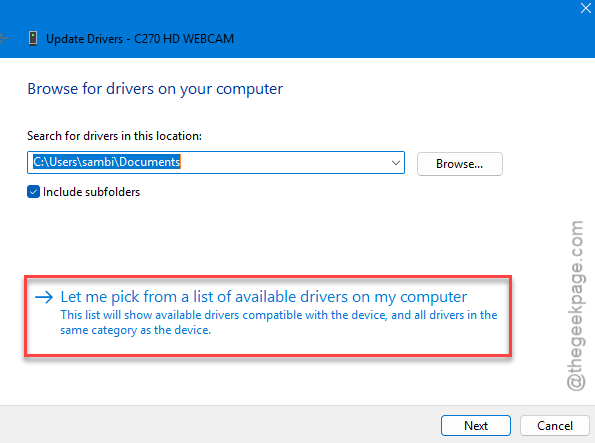
4 – Later, choose the Browse my computer for drivers.
5 – Select the Let me pick from a list of available drivers on my computer on the next screen.
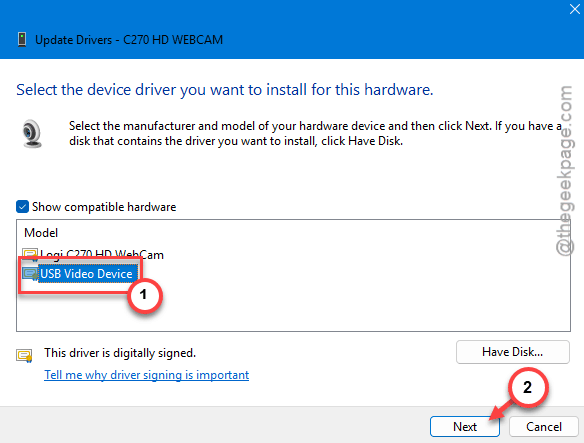
6 – Then, choose the USB Video Device from the list, then click Next.
7 – Click Close, then restart.
And now Windows runs the camera on its own generic driver (the one it ships with). It sidesteps whatever the update broke.
Fix 3 – Reinstall the Camera Driver
Can see the camera in the Device Manager? You should consider reinstalling it.
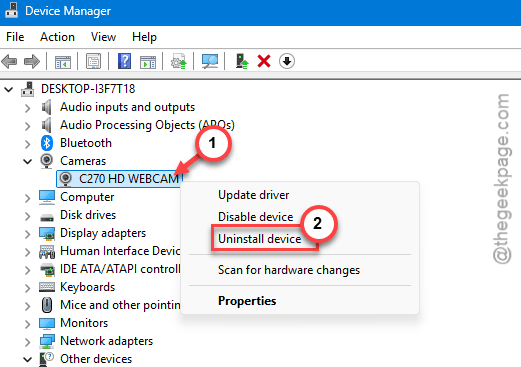
1 – On the Device Manager, expand Cameras.
2 – Right-click the camera and choose Uninstall device. Leave the “delete driver” box unticked.
3 – Click the Action menu at the top, then Scan for hardware changes.
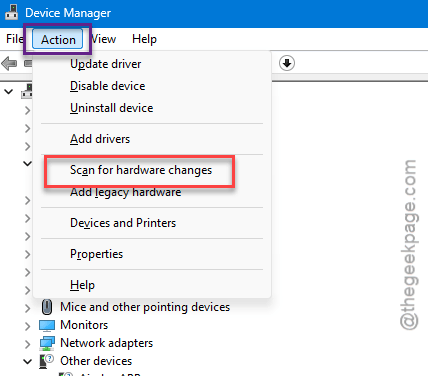
4 – Windows finds the camera and reinstalls it clean.
5 – Restart to be safe.
This way, you can stay away from any possible driver conflicts with the Windows update package.
Fix 4 – Uninstall KB5050009
Driver tricks not sticking? Pull the update that started it.
1 – Load the Windows + I to open Settings.
2 – Next, proceed to Windows Update > Update history.
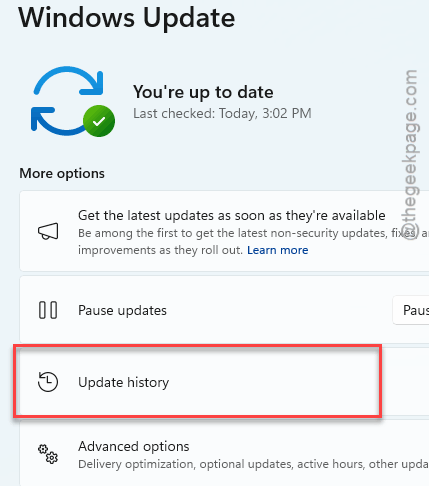
3 – Go to the bottom on the right-hand pane, and click Uninstall updates.
4 – Locate the update KB5050009 in the list and tap Uninstall.
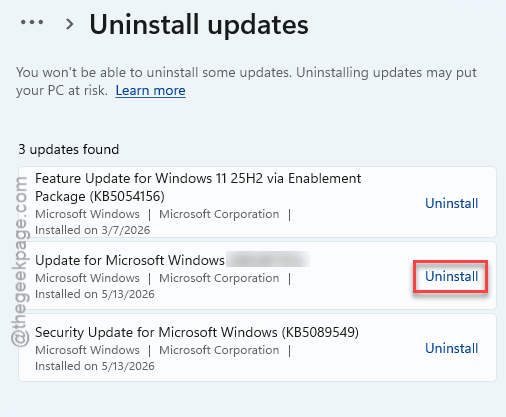
5 – Restart.
After you have uninstalled the update, you should halt it for the longest peiod of time possible.
Fix 5 – Install a Newer Cumulative Update
Going the other direction can work too. Microsoft often patches these conflicts in a later update. So instead of rolling back, you roll forward.
1 – Open Settings > Windows Update.
2 – Click Check for updates.
3 – Install any newer cumulative or preview update — something like KB5058499 or later.
4 – Restart and test the camera.
If a newer build already includes the fix, this gets you current and working in one go. Worth a look before you commit to rolling back.
How to Prevent This
- After any big update, do a quick camera test. Catch the break early, before an important call.
- Get to know your Spectre’s kill-switch and shutter key. Half of all “camera dead” panics are just those.
- Pause updates for a week when a patch drops. Let the camera-breaking ones get caught by everyone else.
- Note the KB number when something breaks. Then you know exactly what to uninstall or block.
People Also Ask
Why is my camera not working on my HP Spectre?
Check the physical switch and shutter key first. If those are fine, swap to the generic USB Video Device driver in Device Manager.
Why is my laptop not detecting the built-in camera?
Forcing the generic USB Video Device driver brings it back. If not, uninstall the update that triggered it and restart. Sometimes, an obsolote camera driver or a simply closed privacy shutter can cause this debacle.