Does the Microsoft Outlook Calendar feels too slow to use on your machine? On your Microsoft Outlook client, calendar is one of the most essential tools that you have. Some Outlook users have complained about their calendars have felt very sluggish to use. This ultimately will put a dent on their productivity, increasing the usual time it takes to operate even simpler take such as managing the calendars on their Outlook client. Here are the solutions to fix that.
Quick Fixes –
1. Restart the Microsoft Outlook client if you are having the problem for the first time.
2. Take a look at your internet connection.
Fix 1 – Clear the Calendar cache
Clear your Outlook calendar cache from the system to synchronize the fresh email data.
Step 1 – Tap the Calendar option on your Outlook client to load up the list of calendars there.
Step 2 – Find the calendar that you are using on outlook. Then right-click the Calendar, and tap Properties.
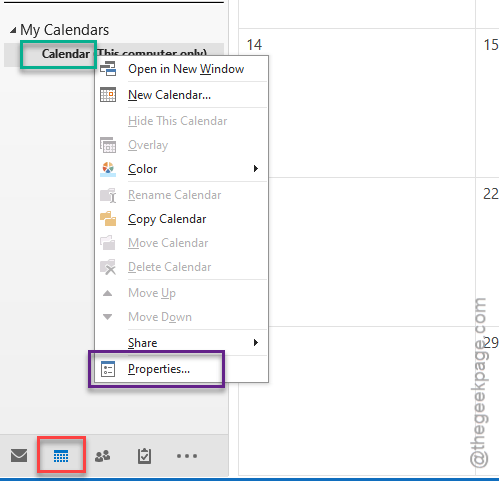
Step 3 – In the calendar properties window, find the Clear offline items option and click that.
This way you can clear up the calendar cache file that have stored on your system locally.
Step 4 – After this, return to the main outlook client page. Go to the Send/receive menu and tap the Send/receive All folders option.
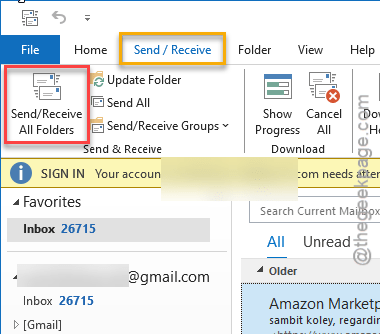
This will refresh the calendar for a smooth performance.
Fix 2 – Update the Outlook client
If you have not updated the Microsoft client in recent times, the chances that a bug is causing this problem.
Step 1 – If the Microsoft Outlook client is already open on your window, tap the File option and reach the Office Account tab.
Step 2 – Next, on the other hand of the page, tap the Update Options and next, use the Enable updates option.
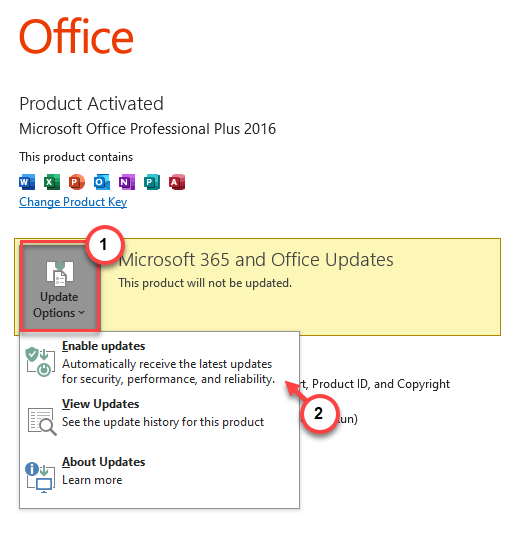
Now Microsoft Outlook will check for any pending update and install it in the due process. Later, go to your calendar page once again and check the performance.
Fix 3 – Disable the Public folder/ Shared calendar caching
If you have many shared calendars on your account, it can delay the synchronization process.
Step 1 – Follow this path on your outlook client—
File —> Account Settings —> Account Settings
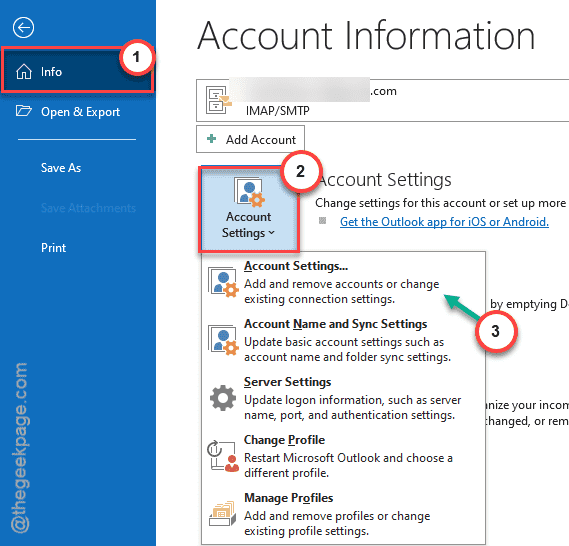
Step 2 – Then, select the email that is correspondent to the calendar. Tap the Change button there.
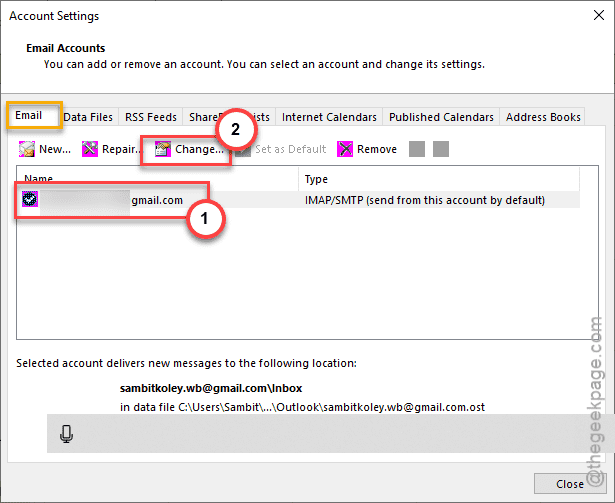
Step 3 – Use the Advanced settings option there.
Step 4 – Finally, uncheck the Download shared folders option from there.
This will significantly shorten synchronization delay that you’re having before.
Fix 4 – Remove or hide any unnecessary calendars
if you have too many calendars associated to your e-mail account, removing or hiding unnecessary calendars can help.
Step 1 – Go to the Calendars section on Outlook.
Step 2 – You will find the entire list of calendars associated to your account there on the left-hand side.
If there are any calendars that you don’t need or don’t use often, you can just hide or delete them entirely.
Step 3 – Right-click any such calendars and tap Hide this calendar or Delete this calendar option.
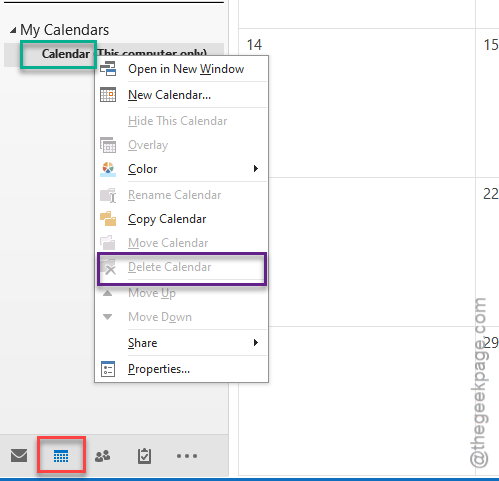
This will not only reduce the clutter of meetings, it will also calendar cache load.
Fix 5 – Remove the Weather display settings of Calendar
Some users have found that the weather widget on the calendar section of the outlook is somehow slowing down the performance of the application.
Step 1 – On the Microsoft Outlook client, follow this path—
File > Options
Step 2 – Go to the Calendar section on the left-hand side.
Step 3 – Now, scroll through the right-hand side to find and uncheck the Show weather on calendar box.
Step 4 – Tap OK to save the changes.
Calendar on your outlook client will not show any sign of lag.
Fix 6 – Use the Outlook in Safe Mode
If you’re still having problem with the calendars on outlook application, you should definitely load outlook in safe mode and test.
Step 1 – Using the Windows and the R keys together, you can call up a Run box.
Step 2 – You can now easily launch the Outlook client using this code there. Click OK.
outlook.exe /safe
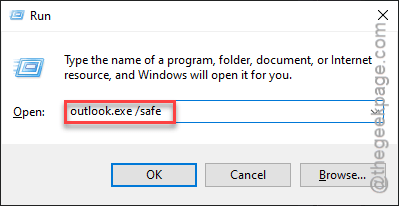
The specialty of the outlook client in same mode is that it prohibits access of any plug-ins or add-ins.