Does the Slack integration not working on your Microsoft Teams account? Slack and Microsoft Teams offers similar products for the Enterprise or business editions. So, you can’t expect the Microsoft Teams and Slack to offer a seamless integration solution for the users. But, there are ways you can achieve a middle ground of this problem and
Fix 1 – Must have a Microsoft Teams business plan
Only the Microsoft Teams account for businesses or enterprise solution offers an intermediary level that allows this cross-platform communication.
Step 1 – Open up the Microsoft Teams application on your system. Then, tap the profile icon in the top right corner.
Step 2 – If it shows the term Personal on the right console, you cannot integrate slack with the Microsoft Teams app.
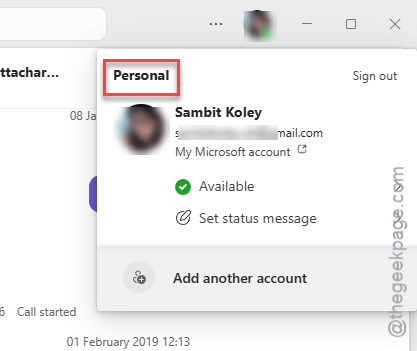
You must get a Microsoft Teams Essentials or a Microsoft 365 Business Basic plan for your account.
But, if you already have an active Microsoft subscription plan for your account, follow the steps mentioned in the next fix to integrate slack and Microsoft Teams.
Fix 2 – Add the Microsoft Teams from Slack
You can integrate Microsoft Teams and slack by granting access of Microsoft Teams to the slack application.
Step 1 – Load up the Slack app on your system.
Step 2 – Go to the Automation section and reach the Slack Apps tab.
Step 3 – Use the search box on the other part to search for teams app.
Step 4 – Look for the Microsoft Teams Calls app. Tap the Install option to install the Teams client.
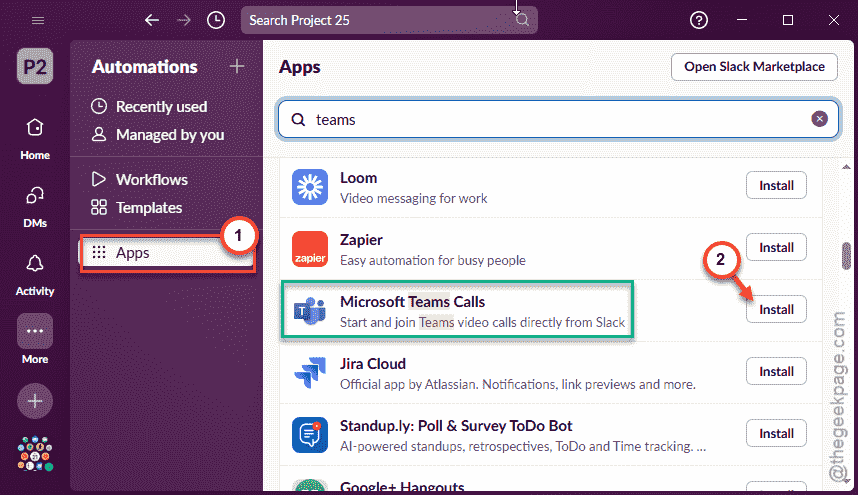
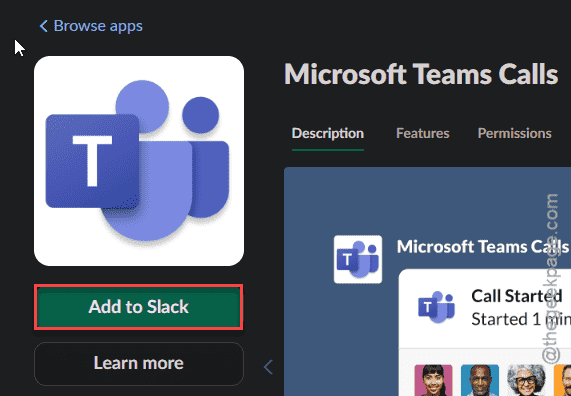
Step 5 – Go to the Slack App Directory on the Slack app. Then, go to the Microsoft Teams Calls section.
Step 6 – In that particular page, tap Add to Slack option.
Step 7 – Tap the Allow button.
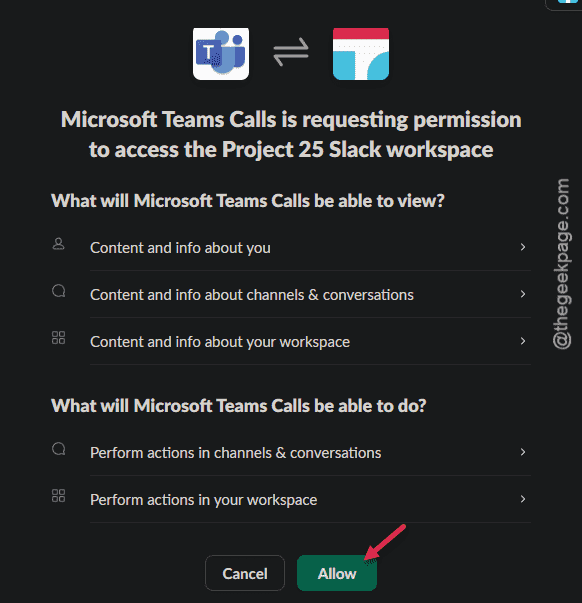
Follow the next on-screen steps to sign in using your Microsoft Teams account that you want to connect.
Step 8 – Microsoft will ask your permission to connect the Slack account to permit your use. Tap the Accept option there.
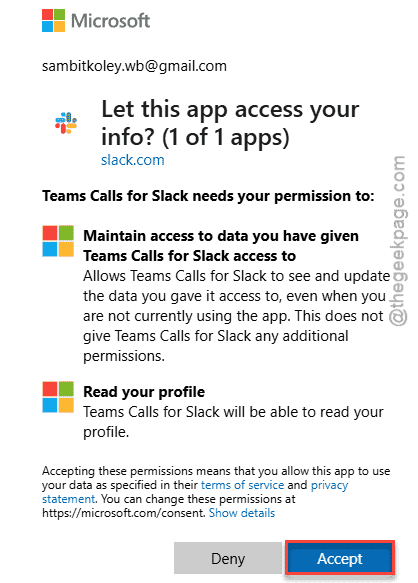
This will try to redirect you to the Slack app. Do that, and it should open up the Microsoft Teams Calls on the Slack application.
If you have connected the correct account, you can attend Teams calls directly from Slack.
Fix 3 – Connect the correct Microsoft Teams account
If you have already installed the MS Teams for Calls plug-in on Slack, you must connect the correct account.
Step 1 – On the Slack app, look for the Apps tab.
Step 2 – Select to load up the Microsoft Teams Calls app in the Slack app.
Step 3 – Go to the Messages tab there. Tap the Connect option there.
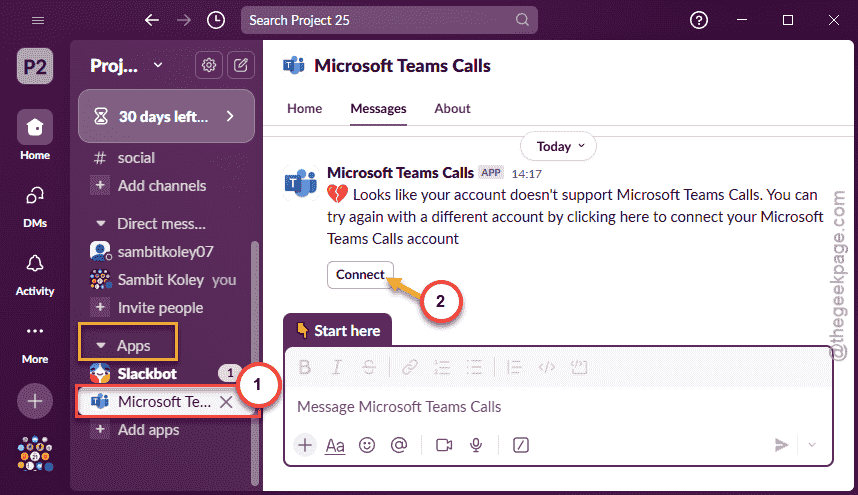
Step 4 – Now, use the correct the Microsoft credentials to log into the correct Microsoft account.
Remember that Microsoft doesn’t allow the slack plug in and cross device communication with a free Teams account.
Once you have logged into it,
Fix 3 – Use third-party extensions
While there is no official integration tool to merge Slack and Microsoft Teams, there are other third party extensions of logins that you can use to mitigate the problem to an extent.
These integration tools can help you bridge the gap in between the platforms.
Fix 4 – Switch to one particular platform
We’ve already mentioned that slack and Microsoft Teams are two different platforms. So, there’ll be problems all complications with the integration between them. There is no native process of integrating these two platforms. So, depending upon your usage of the platforms, you should consider switching to any one of them entirely. Slack and Microsoft Teams both have similar offerings for the users. Migrating your data to one of them should do the job.