Microsoft Edge is widely used for printing documents on the go. But, while printing such files, users may stumble upon some issues with adjusting the margins of document to while printing the file. Normally, the printable area does auto-scale to fit according to the page size. But, if you are having any problems controlling the margins of the printable page, here are some resolutions that will take care of the problem.
Fix 1 – Adjust the Scale in Print Settings on Edge
You have to modify the scale properties directly from the print properties page while you are printing the document in Edge.
Step 1 – Open the Document in Edge and go for the Print option or press Ctrl+P buttons together.
Step 2 – In the Print dialogue box, scroll down and tap the More Settings option.

Step 3 – Next, tap the 100 in the box and decrease it to 90 or so.
Step 4 – Finally, tap the Print option to print the file.
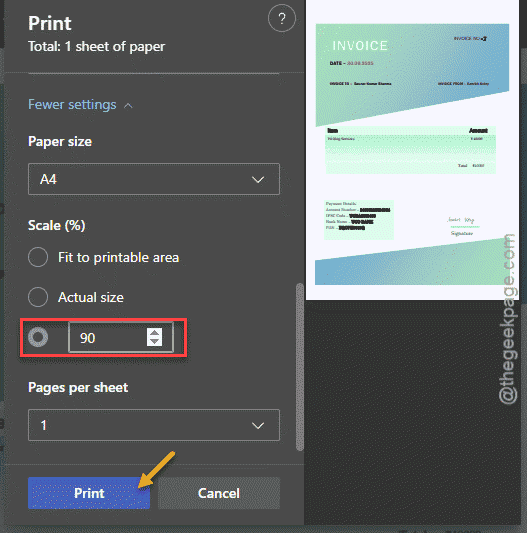
Check whether the file is showing up correctly or not.
Fix 2 – Use the System Print Dialogue to Adjust Margins
Instead of using the native print system in Microsoft Edge, use the Print Dialogue box to do it.
Step 1 – At first, load up the document in Microsoft Edge. Now, press the Ctrl+Shift+P keys together to invoke the Print dialogue box.
Step 2 – Now, select the printer that you are using to print the document and tap Preferences.
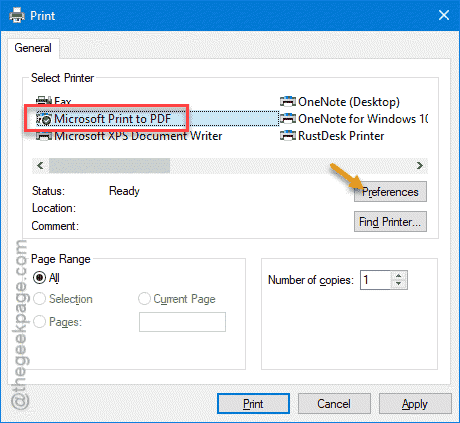
Step 3 – Now, you can adjust the margins according to your choice from the printer settings. Otherwise, you may put the margins to their default settings as well.
This way, you can manage the margins yourself and print the document.
Fix 3 – Adjust the Margins and Print it from Word
If you have created the document on Word, Excel or any other application, try to print it directly instead of relying on Edge to do that.
Step 1 – Open the document in MS Word. Go to File > Print option.
Step 2 – It will be using Normal Margins by default. So, tap that drop-down and choose the margins from the list that you want to apply on the document.
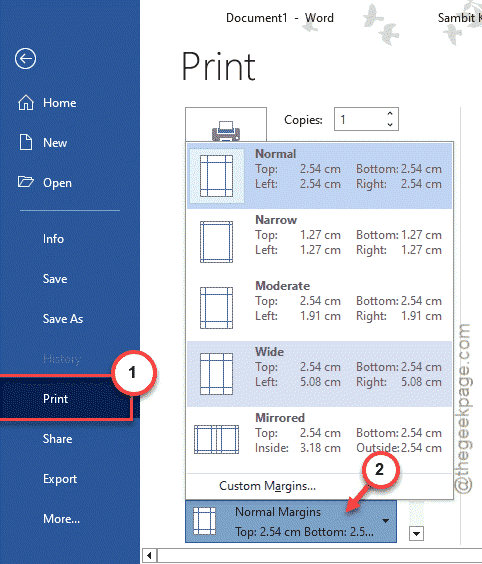
You can directly visualize it on the Preview board.
Step 3 – If you are still not having the entire document, tap to choose the Custom Margins option.
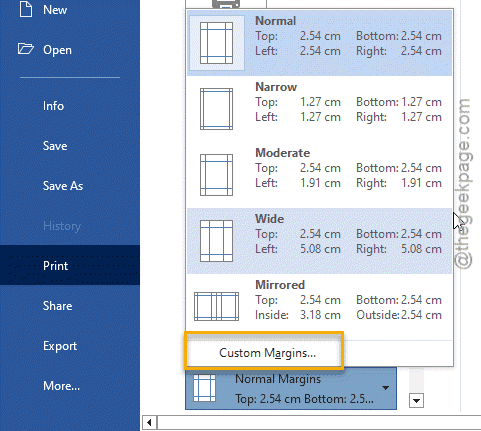
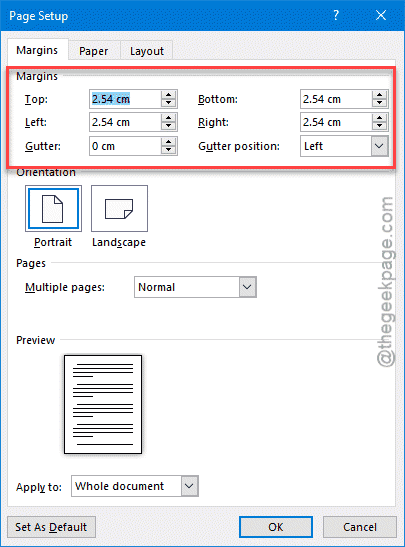
Step 4 – This will open up the Page Setup console.
Step 5 – Adjust the margins according to your need and preference and tap OK.
Step 6 – Once you have applied the margin, try to print it.
See if this helps.
Fix 4 – Use Microsoft Edge Stable Version to Print
If you are using Microsoft Edge Canary or Developer build while trying to print this document, you may run into such issues. Among the four iterations of Microsoft Edge, the Stable version offers the most flawless experience.
Step 1 – Get the latest version of Microsoft Edge.
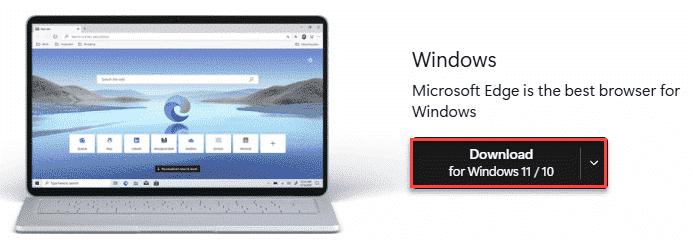
Step 2 – Tap the Download for Windows 11/10 option. It will download a small setup file on your machine.
Step 3 – Next, run this MicrosoftEdgeSetup file and go through the on-screen steps to install the latest version of Edge on your system.
Microsoft Edge stable version can be there on the machine aside the other release channel builds such as MS Edge Dev or Canary builds.
Now, you can use the stable build of MS Edge to print the files.
Extra Tips –
1. You can use other browsers to load up the file and print it from there.
2. If you have a PDF file, use dedicated PDF processors like Adobe Acrobat to open and print the files.
FAQs on trouble finding margins while printing with Microsoft Edge –
1. Why can’t I adjust the margins on my document while printing in MS Edge?
If you are not able to adjust the margins on your document while printing in MS Edge, it can be happening due to the scale issues of the document. There are several workarounds that can fix this problem including using the System Print Dialogue system, usage of Word or other dedicated can resolve the issue.
2. Can I use Microsoft Edge to print a document?
Yes. All the popular, modern browsers can read and print PDF files on the go. Just open up the PDF file in Microsoft Edge or Google Chrome, and you will get the Print option in the web page to print the file.