You’re using Edge and it just dies. Tab gone. Sometimes the whole window. No warning. No crash report. Started right after a Windows or Edge update.
And it keeps happening. Every few minutes. Pages reload themselves. Tabs go gray. The worst.
Why This Happens
Edge updates and Windows updates don’t always play nice with everything else on your PC. Especially security software.
Antivirus tools love to inject themselves into browsers. So do things like Trusteer Rapport, IDM, screen recorders, even some ad blockers. After an update, the hooks they use can break. Edge crashes the moment the bad code runs. Sometimes on startup. Sometimes mid-page.
There’s also a background-process issue. Edge keeps running even after you close it (those Sidebar Hubs and process keepers). When the next update lands, those zombie processes conflict with the new build. Cue random crashes for no obvious reason.
And on top of all that — corrupted profile data. Cached files from before the update don’t match what the new Edge expects. So it crashes whenever it tries to read them.
Most of these have quick fixes. But the conflict-with-other-apps angle is the one most guides skip. So we’re starting there.
Fix 1 – Remove Conflicting Apps (Antivirus, IDM, Trusteer)
Third-party security and download managers are the #1 culprit. Apps to look at first:
- Trusteer Rapport (banking security tool — notorious for this)
- Norton, McAfee, Avast, Kaspersky — any third-party AV with browser injection
- Internet Download Manager (IDM)
- Screen recording or productivity overlays
- VPN clients with browser extensions
To check what’s installed and uninstall the suspect:
1 – Press Windows + I to open Settings.
2 – Click Apps in the left sidebar.
3 – Click Installed apps.
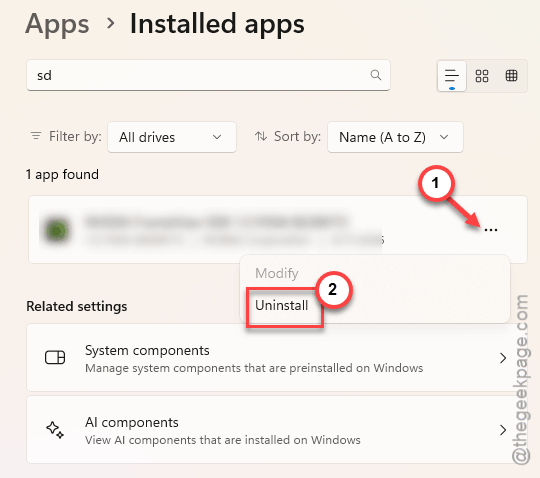
4 – Type the app name in the search box at the top. Way faster than scrolling.
5 – Click the three dots (⋯) next to the app and click Uninstall.
6 – Restart your PC.
7 – Open Edge and use it for a few minutes.
If crashes stop? You found it. Need that app back? Reinstall the latest version — the publisher has usually patched the conflict by now.
Don’t uninstall Microsoft Defender. It’s fine. Only third-party security tools cause this kind of crash.
Fix 2 – Repair Microsoft Edge
Easy one. Windows has a built-in Edge repair that fixes corrupted install files. Doesn’t touch your favorites or passwords.
1 – Press Windows + I to open Settings.
2 – Click Apps, then Installed apps.
3 – Type “Microsoft Edge” in the search box at the top.
4 – Click the three dots (⋯) next to Microsoft Edge and click Modify.
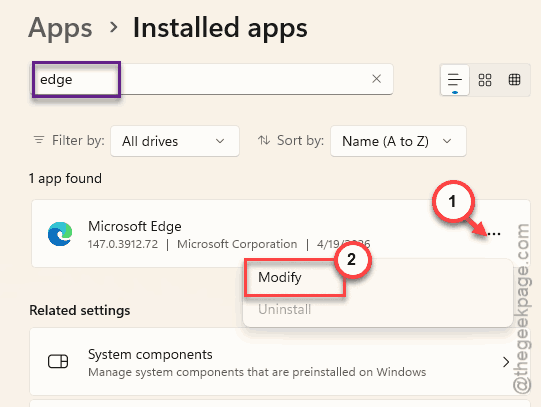
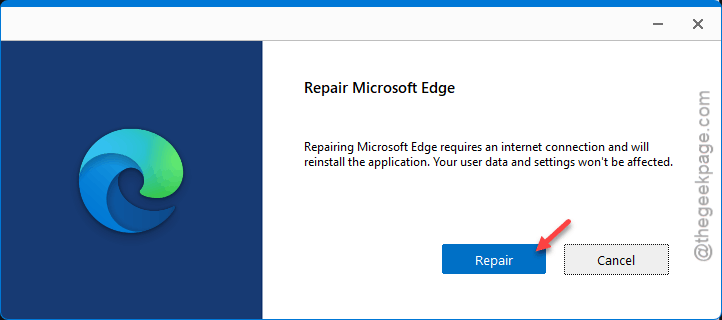
5 – A new window opens. Click Repair.
6 – Edge downloads and reinstalls itself over the top. Takes a few minutes.
7 – Restart your PC when it finishes.
Open Edge after restart and use it normally. If it stops crashing? Done. If not, move on.
Fix 3 – Update Edge and Windows
Quick check. Sometimes the buggy build that started crashing already has a patched version waiting.
1 – Open Edge.
2 – Click the three-dot menu (⋯) in the top-right corner.
3 – Hover over Help and feedback, then click About Microsoft Edge.
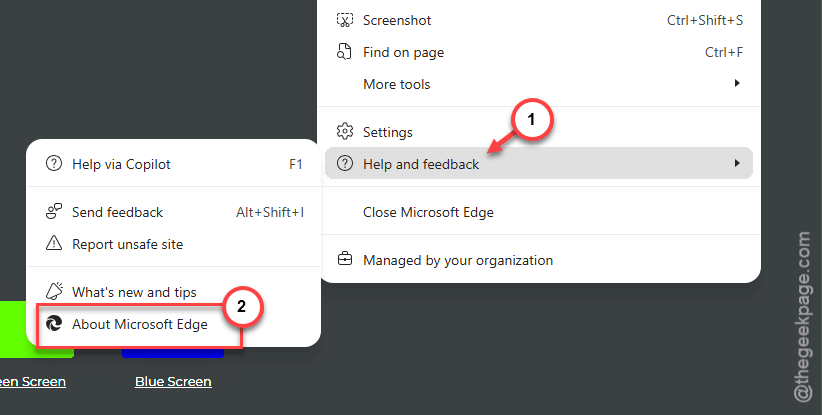
4 – Edge auto-checks for updates. Let it install whatever it finds.
5 – Click Restart when prompted.
Then check Windows:
6 – Press Windows + I, click Windows Update, then Check for updates.
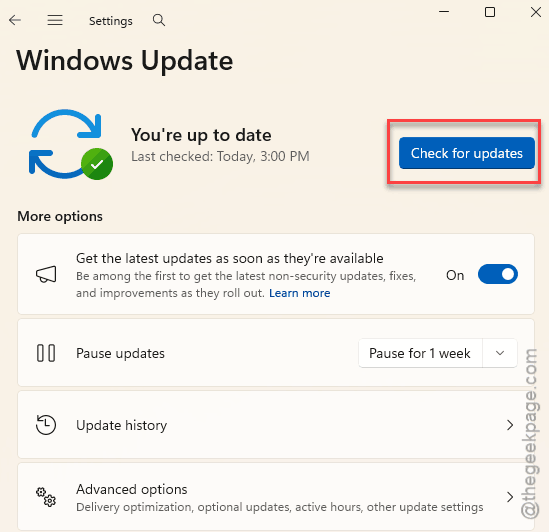
7 – Install everything pending. Restart.
Both Edge and Windows push crash fixes regularly. Don’t sit on old builds.
Fix 4 – Disable Hardware Acceleration
Edge uses your GPU to render pages. Bad GPU drivers plus post-update Edge equals crash city.
1 – Open Edge, click the three-dot menu (⋯), then click Settings.
2 – Click System and performance in the left sidebar.
3 – Find Use graphics acceleration when available.
4 – Toggle it off.
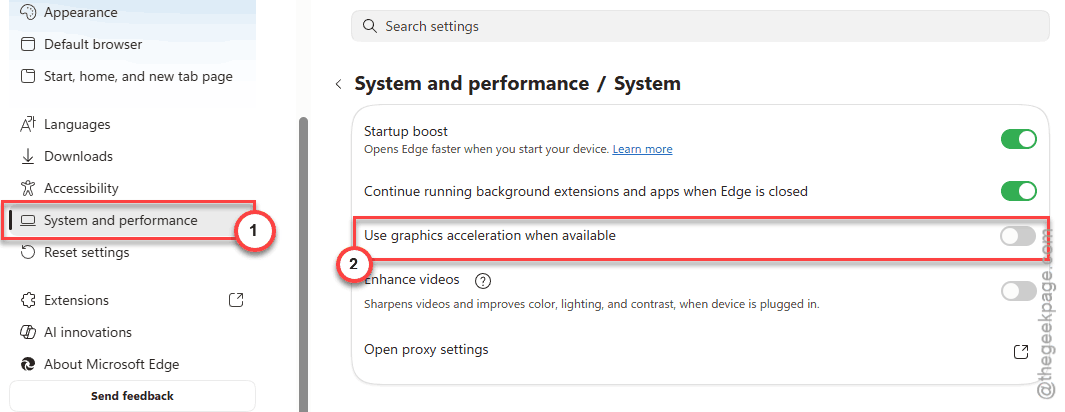
5 – Click Restart when Edge prompts.
If crashes stop? Your GPU driver is the real problem. Grab the latest from Nvidia, AMD, or Intel directly — not Windows Update. Then re-enable hardware acceleration.
Fix 5 – Disable Problem Extensions
One bad extension can crash Edge over and over. After a major update, older extensions sometimes lose compatibility. They keep crashing the browser until you pull them.
1 – Open Edge.
2 – Type this in the address bar:
edge://extensions
3 – Press Enter.
4 – Toggle off every extension (yes, every one).
5 – Restart Edge. Use it for a while.
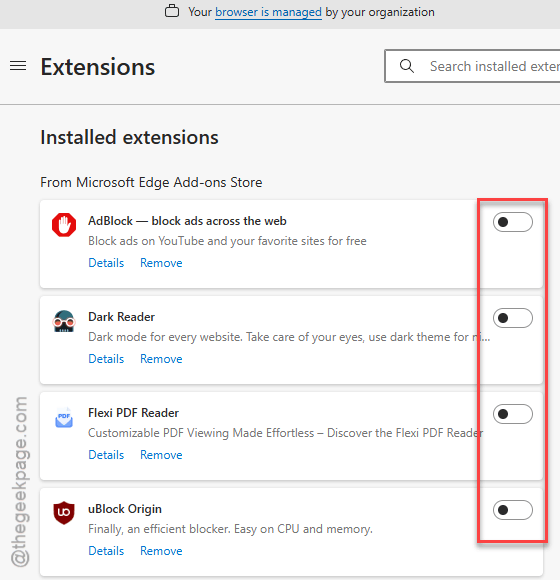
If crashes stop, turn extensions back on one at a time. The one that brings the crash back? Either uninstall it or wait for an update.
Sound familiar? Ad blockers and PDF viewers are the usual suspects.
Fix 6 – Stop Edge From Running in the Background (Registry Fix)
Edge keeps zombie processes running even after you close it. After an update, those old processes fight the new Edge. Crashes follow.
A registry tweak shuts down the worst offender — the Standalone Hubs Sidebar.
⚠️ Registry edits are permanent. Wrong values can break things. Type the path exactly as written.
1 – Press Windows + R to open the Run box.
2 – Type regedit and press Enter. Click Yes if a UAC prompt shows up.
3 – In the address bar at the top of Registry Editor, paste this path:
HKEY_LOCAL_MACHINE\SOFTWARE\Policies\Microsoft\Edge
4 – Press Enter.
If the Edge key doesn’t exist? Right-click Microsoft in the left tree, hover over New → Key, and name it Edge exactly.
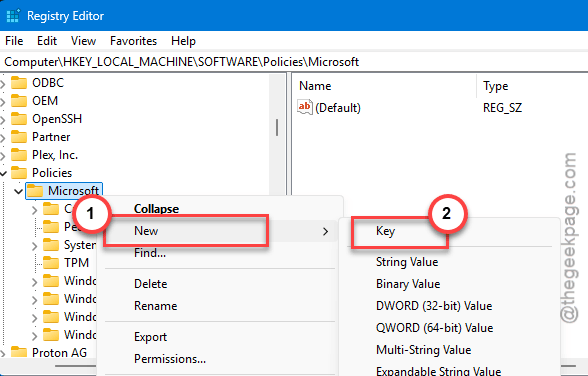
5 – Right-click anywhere in the empty right pane.
6 – Hover New → click DWORD (32-bit) Value.
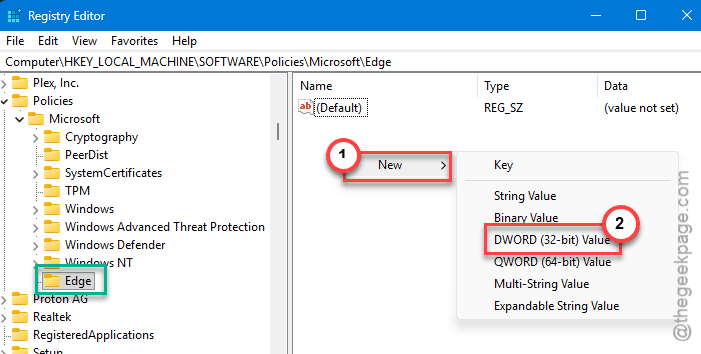
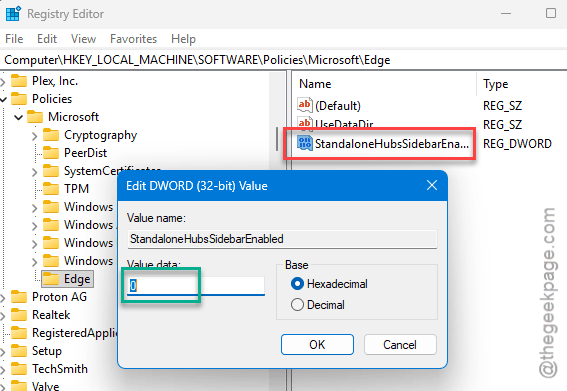
7 – Name it StandaloneHubsSidebarEnabled exactly. Spelling matters.
8 – Double-click the new value. Set Value data to 0.
9 – Click OK.
Close Registry Editor.
10 – Restart your PC.
This stops Edge from spinning up the sidebar process in the background. Big help with random post-update crashes.
Fix 7 – Reset Edge Settings
Nuclear option. Resets Edge to fresh-install behavior in about 30 seconds.
1 – Open Edge.
2 – Type this in the address bar:
edge://settings/reset
3 – Press Enter.
4 – Click Restore settings to their default values.
5 – Click Reset in the popup.
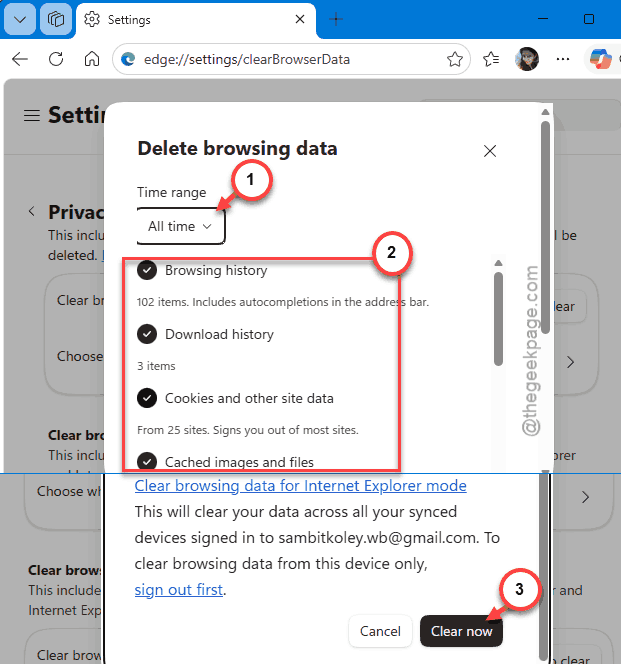
This wipes pinned tabs, startup pages, themes, and extensions. Keeps favorites, history, and saved passwords. So not as scary as it sounds. Reopen Edge — crashes should be gone.
How to Prevent This
- Skip third-party antivirus unless you really need it. Defender is fine for most people. One less browser-injecting app means fewer crashes.
- Update Edge weekly. Don’t sit on old builds. The crash fixes pile up.
- Get GPU drivers fresh from Nvidia, AMD, or Intel directly. Windows Update sends old drivers sometimes.
- Skip random “browser booster” extensions. They cause more crashes than they prevent. Always.
People Also Ask
What to do if Microsoft Edge keeps crashing?
Three things first. Repair Edge from Settings > Apps > Installed apps > Microsoft Edge > Modify > Repair. Then update Edge to the latest version. Then turn off hardware acceleration. If it still crashes? A third-party app — usually antivirus or a download manager like IDM — is the real culprit. Uninstall and test.
How do I repair Microsoft Edge on Windows 11?
Open Settings (Windows + I), go to Apps > Installed apps, search for Microsoft Edge, click the three dots, then Modify. Hit Repair. Edge downloads a fresh install over the top of yours. Doesn’t touch your data. Restart the PC after. Quick fix and it solves a lot.
How do I fix Windows 11 constantly crashing?
Different beast. If only Edge is crashing, see the fixes above. If Windows itself is crashing? Check Windows Update for the latest cumulative update. Update GPU and chipset drivers. Run sfc /scannow in an admin Command Prompt. If you recently installed new software, uninstall it as a test.