Having some problems searching something in Mail on your Mac? The search operation in mail is an extremely powerful tool to quickly find particular mails in your inbox. This is a clear case of misconfigured Spotlight indexing that has led to this problem. Here are some proven solutions that should help you fix the searching problem that you are having on with the Mail app on your Mac.
Quick Fix Table –
| Steps to fix | Time Required |
|---|---|
| System Settings (System Preferences) > Spotlight > Uncheck and check the Mail & Messages box | 3 min |
Open the Terminal > sudo mdutil -E / |
~ |
Here is a detailed explanation of the fixes~
Fix 1 – Uncheck and check the Mail & Messages in Spotlight
The reason you can’t find anything on your mail is the corrupt or poor indexing of email messages on the device. You have to just manually index the Mail & Messages option from the Spotlight.
Step 1 – Tap the Apple logo on the Menu bar. Tap the System Settings (System Preferences for older Macs) to load it up.
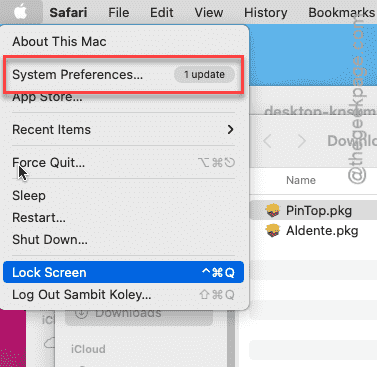
Step 2 – Then, open up the Spotlight settings.
Step 3 – Look for the Mail & Messages option there. Uncheck it once.
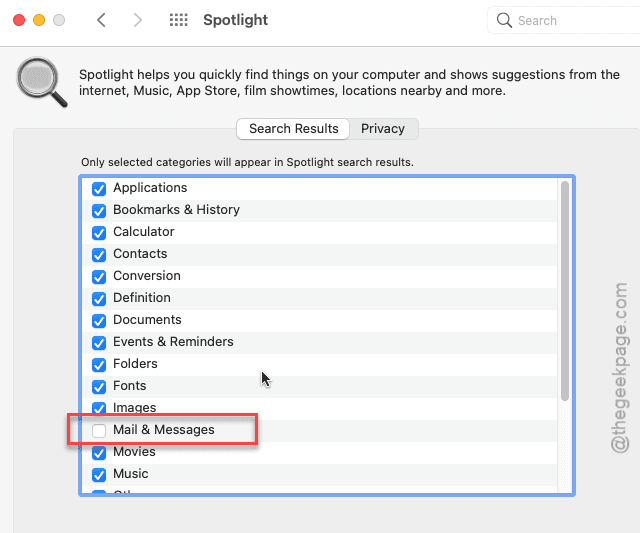
Step 4 – Wait for few seconds, and then, check the same Mail & Messages box.
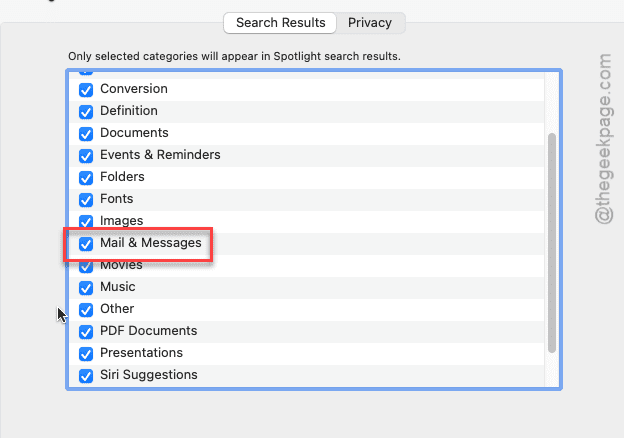
After doing this, you can easily search and find your email messages using Spotlight.
Fix 2 – Rebuild the Spotlight Index using Terminal
The possible corruption in the Spotlight may lead to this issue, that may not just be limited to the Mail app. We suggest rebuild the system index afresh.
Step 1 – Close the Mail app.
Step 2 – Open the Terminal from Finder or Launchpad.
Step 3 – After getting access to the Terminal, paste this code in there.
mdimport ~/Library/Mail
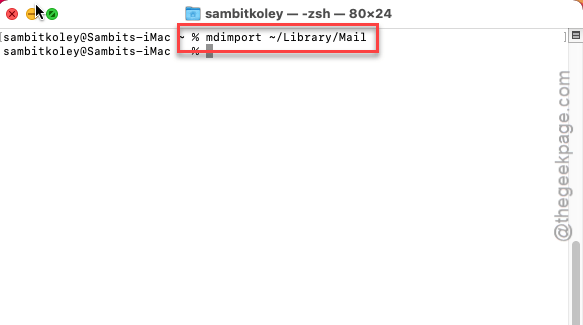
Spotlight will now scan all the Mail messages once again.
Now, try searching for something from your inbox. If you are getting desirable output as search results, you are issue is fixed and good to go.
But, if this does not work, your system index has gone corrupted.
Step 4 – In that case, use this code from your terminal to ask Spotlight to rebuild the index from ground up.
sudo mdutil -E /
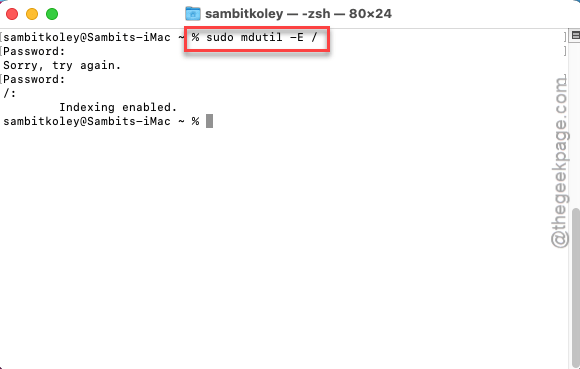
This process may take some time and depends upon the number of files you have on your system.
Wait until you see this message ~
Indexing is enabled
After that, search for mails and you won’t face any issues again.
See if this works for you!
FAQs –
Here are some frequently asked questions with this particular issue on Mac~
1. Why is Mail search not showing results in Mac?
This usually happens when the Mail indexing is corrupted on your Mac. However, it may also appear if the mails are still synchronizing on the machine and the Spotlight is indexing them. Rebuilding the Spotlight Index for mail or the system should solve the problem for you.
2. Why can’t I find older mails on my Mac?
If the local mail database has not properly synced with the mail server database, you may not be able to find older mails on your Mac. Use the Download All Messages function in the Mail settings to download all the messages on your local drive. IMAP accounts users may experience a slight delay if you are looking for your older emails.