You press the Windows key and start typing. Nothing comes back. Or the box opens, spins for a second, and closes itself.
Your files are right there on the drive. Search just can’t see them anymore.
Why This Happens
Windows Search doesn’t look through your files when you type. That would take forever. It keeps a catalogue of everything on the drive and searches that instead.
The catalogue lives in a single database file called Windows.edb. And it breaks. Especially after an update, especially on ARM machines.
Snapdragon X Elite laptops run Windows on ARM chips, which are a very different design from the Intel and AMD processors Windows grew up on. Most of the system runs natively. But a few pieces still get translated on the fly, and Search has been one of the wobbly ones. It crashes quietly in the background. The box stays on screen, empty and useless.
Then there’s battery. Windows pauses indexing when you’re unplugged to save power. On a laptop you rarely plug in, indexing can go days without running. So you search for a file you saved this morning and Windows swears it doesn’t exist.
And the search box itself is a separate app from the search engine. Either one can break without the other noticing. Which is why fixing this sometimes takes two goes.
Fix 1 – Restart the Search Service
Quick one, and it solves this more often than it should.
1 – Press Windows + R.,
2 – Then, type services.msc in there and press Enter.
3 – Scroll down the alphabetical list to Windows Search. Finally, just right-click it and choose Restart.
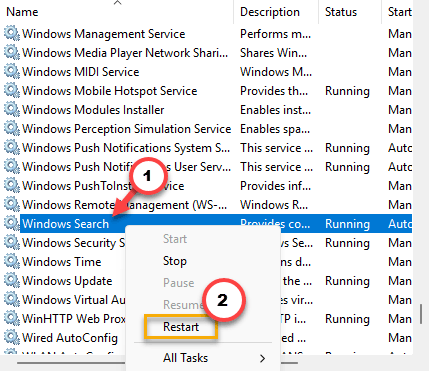
Give it ten seconds, then try searching. If the service is missing from the list entirely, jump to Fix 3.
Fix 2 – Re-Register the Search App
The box you type into is an app, and apps can lose their registration during an update. This tells Windows to install it again from the files already on your disk. Nothing gets downloaded and nothing gets deleted.
1 – Right-click the Start button and choose Terminal (Admin).
2 – Click Yes on the permission prompt.
3 – Paste this in as one single line and press Enter:
Get-AppxPackage -AllUsers -Name Microsoft.Windows.Search | Foreach {Add-AppxPackage -DisableDevelopmentMode -Register "$($_.InstallLocation)\AppXManifest.xml" -ForceApplicationShutdown}
4 – Wait. A progress bar appears at the top and finishes in under a minute. Red text about a package already being registered is normal and harmless.
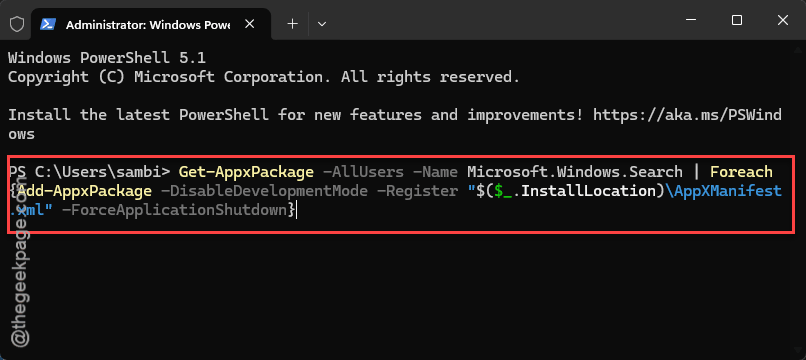
5 – Restart your laptop.
Check if this works.
Fix 3 – Rebuild the Index From Scratch
If Search opens fine but returns nothing, the catalogue is the problem. Throw it away and let Windows build a new one.
1 – Press Windows + R, type control, and press Enter. The old Control Panel opens.
2 – Click the View by dropdown in the top right and choose Large icons.
3 – Click Indexing Options.
4 – Click the Advanced button near the bottom.
5 – Under Troubleshooting, click Rebuild.
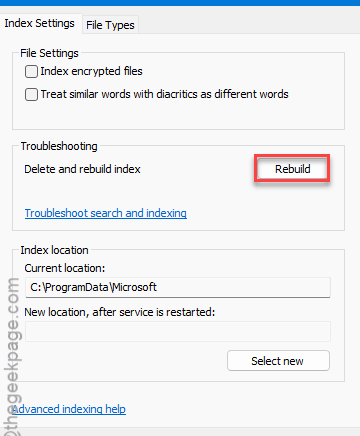
6 – Click OK on the warning.
7 – Plug the laptop in and leave it alone. Indexing stops the moment you unplug.
You can watch progress in that Indexing Options window. It counts items as it goes. When it says “Indexing complete”, you’re done.
Fix 4 – Delete the Database File by Hand
Sometimes Rebuild fails to start, because the database is too damaged for Windows to open and clear. Delete it directly instead.
1 – Press Ctrl + Shift + Esc to open Task Manager.
2 – Find Windows Search or SearchIndexer.exe in the list, right-click it, and choose End task.
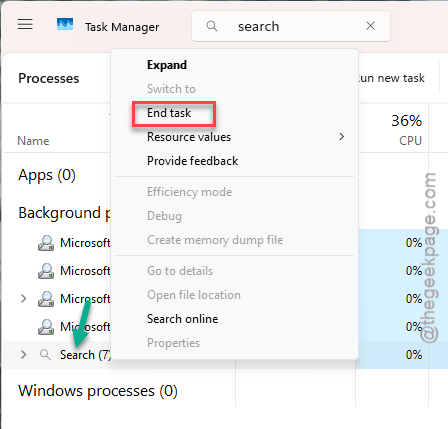
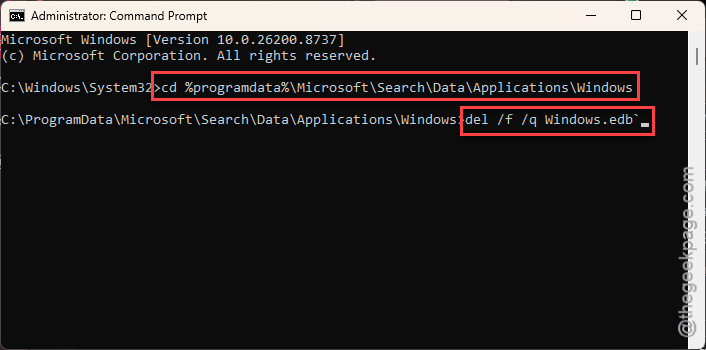
3 – Open Command Prompt as administrator.
4 – Type this and press Enter:
cd %programdata%\Microsoft\Search\Data\Applications\Windows
5 – Then type this and press Enter:
del /f /q Windows.edb
6 – Start the service back up with:
net start wsearch
7 – Restart your laptop.
Windows makes a brand new database and starts filling it. Search will be patchy for a few hours. That’s expected — it’s reading your whole drive.
Fix 5 – If Search Only Breaks on Battery
Plug the laptop in, wait a minute, search again. Works? Then indexing is being paused to save power, and there’s a registry value that stops that.
Export a backup first. In Registry Editor, click File, then Export, and save it somewhere.
1 – Press Windows + R, type regedit, press Enter.
2 – Paste this into the address bar at the top and press Enter:
HKEY_LOCAL_MACHINE\SOFTWARE\Policies\Microsoft\Windows\Windows Search
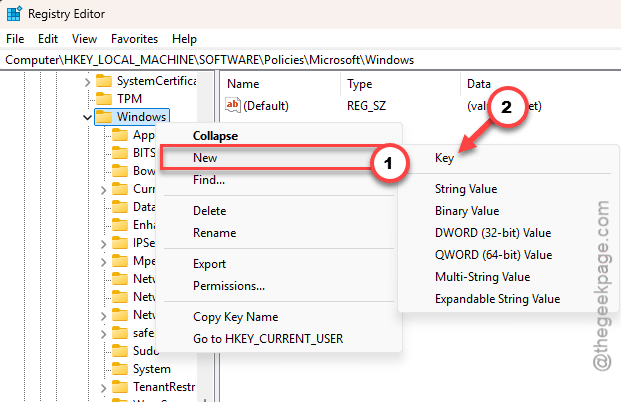
3 – If you can’t find the Windows Search key there, just right-click Windows, choose New, then Key. Then, name it exactly that.
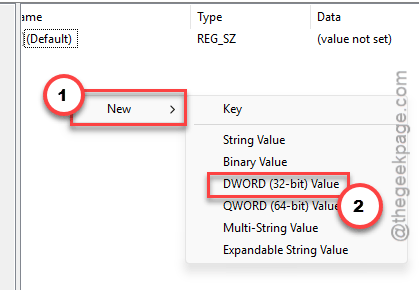
4 – Now, right-click in the empty right-hand pane. Then, choose New> DWORD (32-bit) Value.
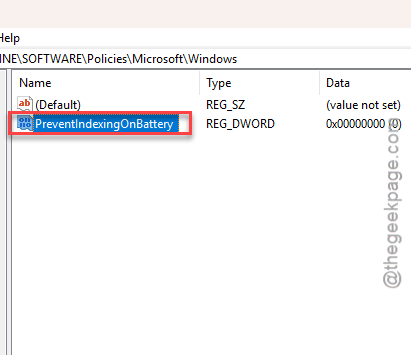
5 – Name it PreventIndexingOnBattery.
6 – Leave its value at 0. Zero means don’t prevent indexing.
7 – Restart.
Your battery will drain a little faster. That’s the deal you’re making.
Fix 6 – Go Back to the Previous Windows Build
Search broke the day a feature update landed, and nothing above helped? Roll it back.
This only works within ten days of the update. After that Windows deletes the old files and the button greys out.
1 – Press Windows + I for Settings.
2 – Click System in the left sidebar.
3 – Click Recovery.
4 – Next to Previous version of Windows, click Go back.
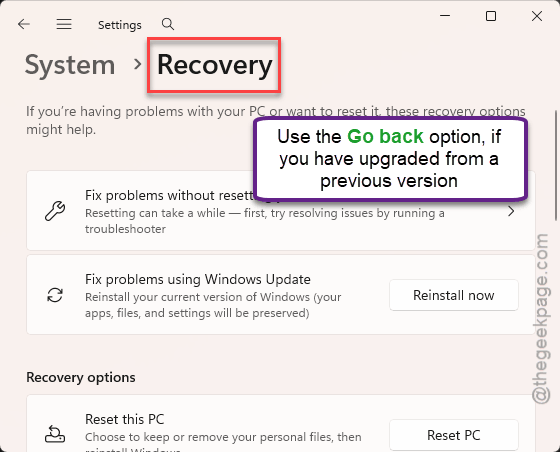
5 – Answer the questions and let it run. Budget about half an hour.
Your files and apps survive. But do a backup anyway, because you always should before something like this.
How to Prevent This
– Trim what gets indexed. In Indexing Options, click Modify and untick folders full of files you never search. A smaller index breaks less often.
– Don’t force a shutdown while indexing is running. That’s how Windows.edb gets corrupted.
– Skip the third-party search replacements on ARM until they say they support it. Half of them install a filter driver and make this worse.
– Wait a week before installing a new feature update on a Snapdragon machine. ARM bugs get found and patched fast, but you don’t have to be the one finding them.
People Also Ask
How to fix a broken Windows 11 search?
Restart the Windows Search service first, through services.msc. That fixes it surprisingly often. If searches come back empty instead, the index is damaged — open Indexing Options in Control Panel, click Advanced, then Rebuild. Leave the PC plugged in overnight while it works through your drive.
Does Snapdragon X support Windows 11?
Yes. Snapdragon X Elite laptops ship with Windows 11 on ARM. Most of the popular apps run quite well on these devices without any hiccups. Older ones get translated automatically through Prism. A handful of things still stumble, and Search has been one of them.