Does your app icons are showing up as plain white grid lines on your iPhone? The app icons are replaced with horizontal, vertical grid lines on the affected device, leaving the users in a status of pure agony. Without the name of the app icons, they can’t even implement basic troubleshooting steps. So, if you are also affected by the same issue, here are quick fixes for you.
| Issue Cause | Quick Fix | Time Needed |
|---|---|---|
| Icon customization bug | Hold the iPhone home screen > Customize > Small > Big (font) | 2 min |
| Temporary glitch | Restart the iPhone | 1-2 min |
| Glitch in Home Screen Layout | Settings > General > Transfer or Reset > Reset iPhone Home Screen Layout | 2-3 min |
Fix 1 – Switch the App Icons to Small and Big module
Switching between App Icons between Small and Big module seems to have resolved the issue for many affected users.
Step 1 – Unlock your iPhone and reach the home screen.
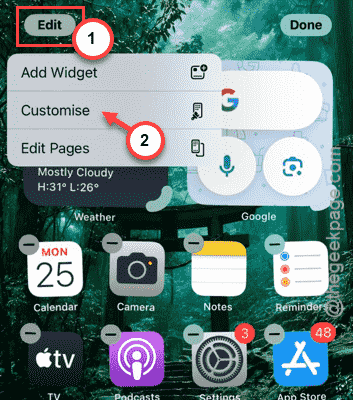
Step 2 – Then, tap and hold the screen for a few seconds. Then, tap the Edit button at the top. Next, hit the Customize option.
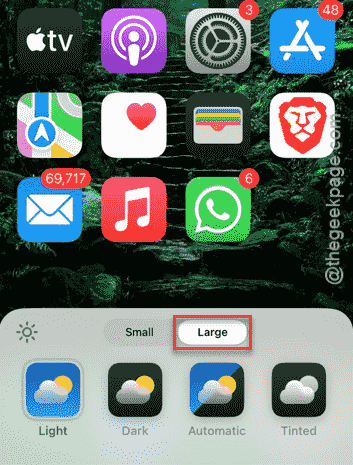
Step 3 – Now, you have to choose the Large font once.
Step 4 – Then, choose the Small font.
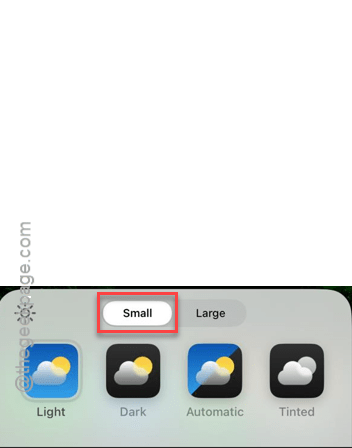
This particular tweak will solve the grid lines issue that you are having with your iPhone icons. See if this works in your case.
Fix 2 – Force restart the iPhone
If the app icons are still appearing in grid lines, force-restarting the device should solve the issue.
Step 1 – At first, hold and release the Volume Up button.
Step 2 – Then, hold and release the Volume Down button.
Step 3 – Finally, hold the Power button on your iPhone until the device completely switched off and then it restarts. The Apple logo shows up while restarting an iPhone, so when that does happen, you can stop pressing the Power button.
Once the device has force-restarted, the app icons won’t show up in grid lines again.
Fix 3 – Reset your iPhone’s Home Screen Layout
Resetting the iPhone’s Home Screen Layout to the default order should help you resolve this problem.
Step 1 – Just go ahead and load up the iPhone Settings screen. Next, follow this path –
General > Transfer or Reset iPhone > Reset
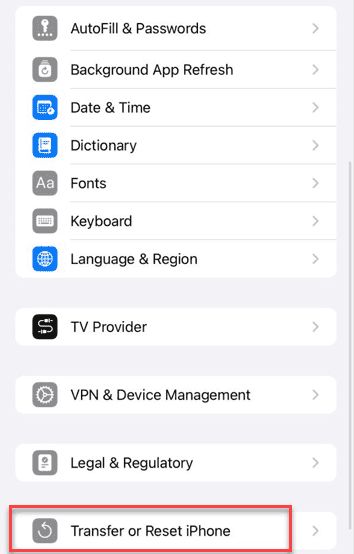
Step 2 – Choose the Reset Home Screen Layout option.
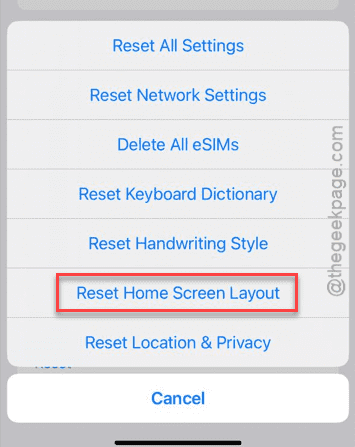
Confirm it and run the command to reset your iPhone’s home screen layout to the default setting.
After resetting the home screen layout, the app icon customizations will be reset to normal. This will also eliminate the grid line app icons as well.
Fix 4 – Install the latest update patch
The new app icon customizations were introduced in iOS 18 update. So, installing the latest version of the iOS should fix the issue that you are having.
Step 1 – Navigate to the General settings on your iPhone’s Settings console.
Step 2 – Next, open up the General Update.
Step 3 – Later, if an update is pending, use the Update now button there to install the iOS updates.
Once you have updated the iPhone, the issue with the grid icons will be gone from the device.
After updating the device, the issue will be resolved. You will no longer get the white grid lines as app icons.
See if this works.
FAQs –
1. Why the app icons are showing up in white grid lines?
Certain iOS glitches or newer iOS customizations can cause grid lines to appear in place of the app icons on your iPhone. Restart
2. Is this hardware problem on my iPhone?
No. The white grid lines that you are getting on your iPhone app icons usually means a temporary iOS glitch or bug. A simple restart or tweaking the display setting should fix the problem and return the original app icons in place.