You click Devices, pick Insert Guest Additions CD image, and VirtualBox throws an error instead. “Unable to insert the virtual optical disk.” Great. The one thing you actually need, and it won’t load. Sound familiar?
Usually a ten-second fix. Here’s what’s going on.
Why This Happens
Short version: the virtual CD drive is already full. Your VM has one optical drive, and it’s still holding the OS installation ISO you used during setup. And VirtualBox can’t swap discs on its own. So when you try to insert the Guest Additions image, it just refuses.
The annoying part? VirtualBox doesn’t say which disc is blocking it. No hint. Why not just name the file? No idea. You’re left guessing while the culprit sits right there in the Storage panel.
And sometimes the guest OS locks the drive too. Linux especially. The system mounts the disc and will not let go until you eject it properly.
Fix 1 – Force Unmount the Old ISO
This fixes it for most people. You’re kicking out the old installation disc so the drive is actually empty.
1 – Switch to the main VirtualBox Manager window. Your VM can stay running.
2 – Click your virtual machine in the list on the left side.
3 – Look at the right panel and scroll down to the Storage section.
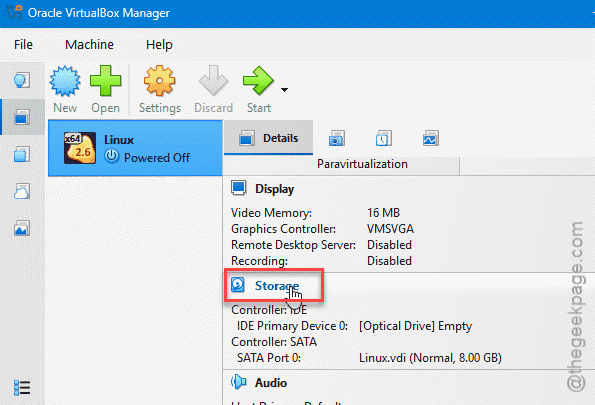
4 – Find Optical Drive. It’ll show the name of whatever ISO is stuck in there.
5 – Click that ISO name, then select Remove disk from Virtual Drive.
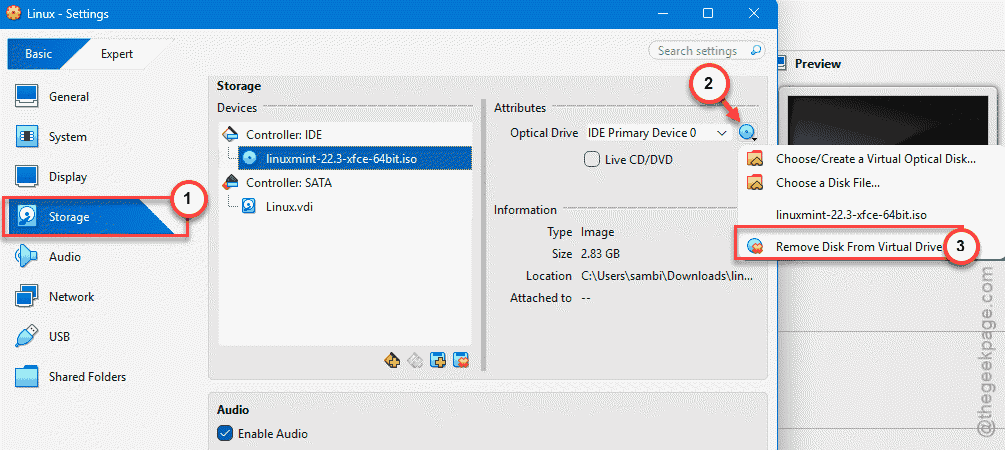
6 – If a warning pops up, click Force Unmount. It is safe — you’re just ejecting a disc.
The drive should now say Empty. Go back to your VM window, click Devices at the top, and pick Insert Guest Additions CD image. Loads right in this time.
Fix 2 – Eject the Disc From Inside the VM
Running Ubuntu or another Linux distro? The guest OS itself can let go of the disc.
1 – Look at the desktop inside your running VM. There’s a CD-ROM disc icon (usually on the desktop or in the file manager sidebar).
2 – Right-click the disc icon.
3 – Click Eject.
4 – Once the disc icon disappears, go to the Devices menu at the top of the VM window.
5 – Select Insert Guest Additions CD image.
Done. The guest released the drive, so VirtualBox can fill it again.
Fix 3 – Remove the Attachment in Storage Settings
Still grayed out? Or force unmount keeps throwing errors? Then drop the disc from the VM’s settings directly. Nuclear-ish option, but it works when the menus do not cooperate.
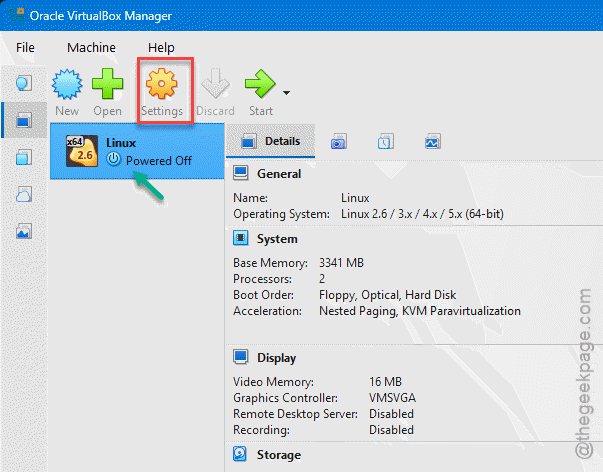
1 – Power off the VM first. (Saving the state works too.)
2 – In VirtualBox Manager, click your VM, then click Settings (the gear icon).
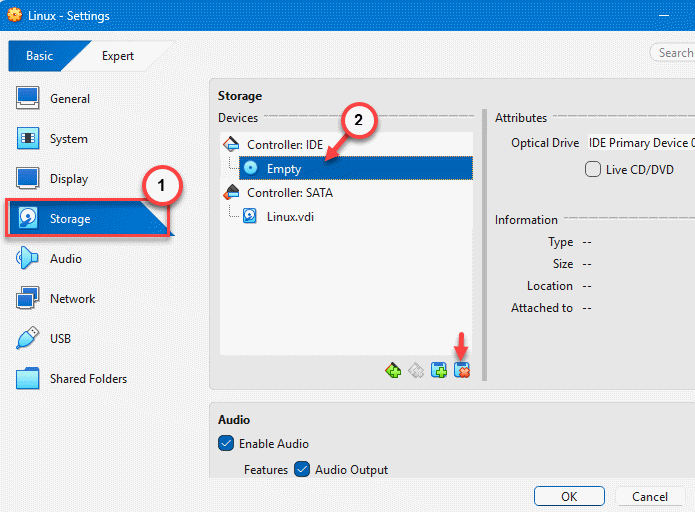
3 – Click Storage in the left sidebar.
4 – In the storage tree, click the stuck image — VBoxGuestAdditions.iso or your OS install ISO. It’s nested under the controller.
5 – Click the Remove Selected Attachment icon at the bottom of the storage tree. The little red minus. Or right-click the disk and choose Remove Attachment.
6 – Click OK to save the change.
Now start the VM, wait for the desktop to load, and go to Devices > Insert Guest Additions CD image. Fresh drive, no leftovers.
Fix 4 – Release the ISO in Virtual Media Manager
VirtualBox keeps its own registry of every disk image it has ever touched. And sometimes the Guest Additions ISO gets stuck in there. (Yes, really.)
1 – Shut down all open virtual machines. If one is in a saved state, start it and shut it down properly.
2 – In VirtualBox Manager, click File in the top left.
3 – Click Virtual Media Manager.
4 – Look for VBoxGuestAdditions.iso in the list. Has a check mark? Uncheck it.
5 – Reboot the VM and try inserting the image again.
How to Prevent This
- Remove the installation ISO right after the OS finishes installing. It just sits there blocking the drive otherwise.
- Eject discs from inside the guest before unmounting from the host. Cleaner. Fewer locks.
- Power off VMs fully instead of leaving saved states around. Saved states keep media attached, and that’s how ISOs get stuck.
- Let Guest Additions finish installing before you touch the optical drive again.
People Also Ask
How do I add an optical drive in VirtualBox?
Open the VM’s Settings, click Storage, and select the controller in the tree. Click the small disc-with-a-plus icon next to it. Choose Leave Empty or pick an ISO right away. Done — the VM now has a second drive it can use.
How do I fix error 0x80004005 in VirtualBox?
That one’s broader — it usually means the VM session failed to open at all. But a locked or broken disk image can trigger it. Check Virtual Media Manager for stale entries first, then make sure no old saved state is hanging around. Discard it if so.
How do I add a virtual disk in VirtualBox?
Same Storage screen. Go to Settings > Storage, click the controller, then click the add-hard-disk icon. You can create a fresh VDI file or attach one you already have. Pick a size, click through the wizard, and format it inside the guest.