Does the Microsoft Store getting stuck with apps downloading on the Store? Some users have experienced this weird problem with the Store app, where the apps downloading or updating process is getting halted without any reasons. This guide will help you resolve this problem. We recommend you try the quick fixes for a swift resolution, but if that does not help, go for the main solutions to solve the MS Store getting stuck on pending mode issue.
Quick Fixes –
1. Check the Network Connection – A stable, high speed internet connection is recommended to download or update apps on Microsoft Store. Choose a different network, if the apps are stuck.
2. Clean up the Store cache – You can clear up the Microsoft Store cache. Write the wsreset in the Windows search box and hit Enter to clear the Microsoft Store cache.
Fix 1 – Force Clear the Microsoft Store Cache
Possible corruption in the Microsoft Store files can lead to this issue.
Step 1 – Close the current instance of Microsoft Store.
Step 2 – Next, open up a Run panel, using the Win+R buttons together.
Step 3 – Copy-paste this address in the Run box and click OK.
%localappdata%\Packages\Microsoft.WindowsStore_8wekyb3d8bbwe\LocalCache
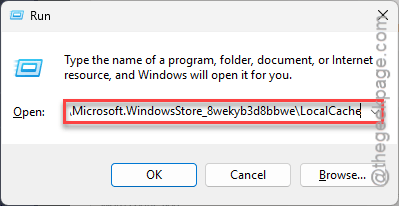
Step 4 – Once you reach the specified Store folder, select all the contents of the folder using the Ctrl+A buttons together. Then, press the Delete key to empty the folder.
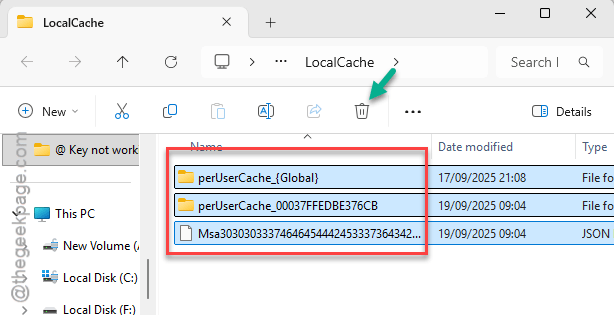
After clearing the contents from the Store folder, close it.
Step 5 – Finally, write wsreset in the search box, and right-click it, and tap Run as administrator.
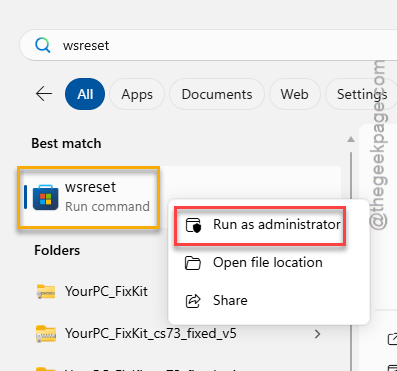
Wait for a bit. Once you have run the resetting command, you can open Microsoft Store once again and try to update/download the apps.
Fix 2 – Flush and refresh the Network Settings
You have to clear the network settings from the terminal.
Step 1 – Search for cmd from the Windows search. Next, right-click the Command Prompt and, tap the Run as administrator to load it up.
Step 2 – Then, paste these four commands in the terminal, and hit Enter to execute them sequentially.
netsh winsock reset
netsh int ip reset
ipconfig /release
ipconfig /renew
ipconfig /flushdns
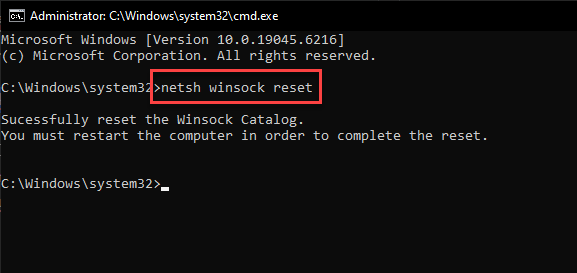
These codes will refresh the network settings on your system and reset the network sockets in the due process.
Once you are done, just close the terminal, and restart your system.
Fix 3 – Run DISM, SFC scans
Some corrupted system files may lead to these issues in Microsoft Store.
Step 1 – Press the Win+R buttons together. Next, write cmd there.
Step 2 – Now, press the Ctrl+Shift+Enter keys together to load it up as an administrator.
Step 3 – Finally, paste this DISM command to fix the system files corruption.
Dism /Online /Cleanup-Image /RestoreHealth
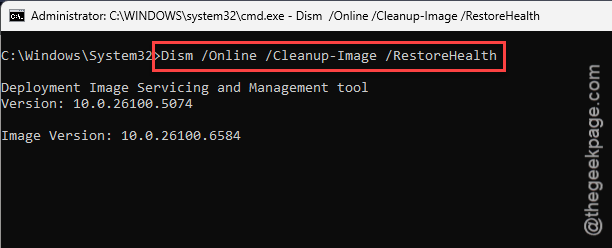
Wait for the DISM scan to finish.
Step 4 – Then, use the system file checker scan code to run a simple SFC check.
sfc /scannow
After running both the codes, you must close the terminal and restart the system.
Microsoft Store will be up and running in no time at all.
Fix 4 – Sign out of the Microsoft Store and Sign back in
You can sign out of the Microsoft Store and sign back with your credentials.
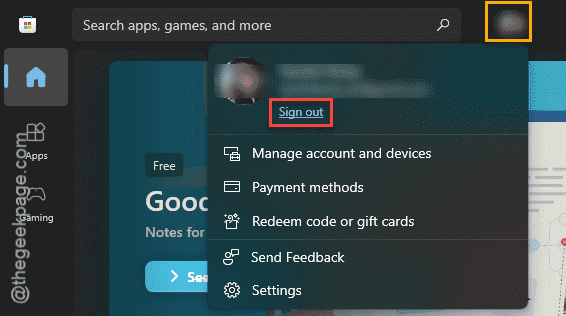
Step 1 – Launch the Microsoft Store. Now, tap the profile icon and tap Sign out to sign out of the Store utility.
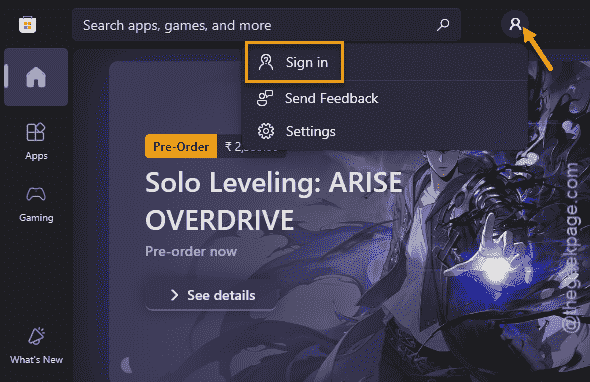
Step 2 – Once the Microsoft Store relaunches, tap the blank profile icon, and tap the Sign in option.
Step 3 – Choose the Microsoft account to sign in and sign in normally.
After you have signed in, try downloading or updating the apps in Microsoft Store.
Fix 5 – Download big apps once at a time
If the Microsoft Store is still halting the app upgrades or new app downloads, you should refrain from queuing too many apps to download/update at the same time.
Step 1 – Open the Microsoft Store. Then, proceed to the Updates and Download section from the left tab.
Step 2 – If any updates are downloading there, tap the three-dot button for any of these updates, and tap Cancel Download option.
Step 3 – Repeat the same steps for all the apps that are stuck in that phase.
Step 4 – Now you can download or update the apps one-by-one.
This should be a good workaround for your issue.
Extra Tip –
Make sure you have enough free space available on your system. Microsoft Store can pause the app downloading process if there are not enough free space available.
FAQs –
1. Why the apps are stuck on downloading in Microsoft Store?
The apps may get stuck at downloading in Microsoft Store due to factors like, corrupted Microsoft Store cache, network limitations, bad system files, etc. Running the Store resetting command should solve the problem.
2. Can I download or upgrade multiple apps in Microsoft Store?
Yes. You can download or update multiple apps in Microsoft Store by queuing them. Microsoft Store can download multiple apps at the same time, but it solely depends on the network capabilities, device storage and several other factors. It can download multiple apps simultaneously.