You pause Spotify on your phone and walk over to your PC. The little Resume pop-up never shows up. There are no badge on the taskbar. Absolutely nothing shows up. The feature Microsoft made such a fuss about just sits there.
Why This Happens
Short version: Resume is a chain of five or six things that all have to be on at once. One of them off, and the whole thing goes quiet. No error message, either.
Accounts are the big one. Your phone and your PC must be signed in to the exact same personal Microsoft account. Work or school account? Blocked. Microsoft doesn’t allow it at all.
Then there’s a background app called Cross Device Experience Host. It listens for the handoff from your phone. But Windows likes to suspend background apps to save power, and once it’s suspended, the handoff lands on nothing.
And Android does its own damage. Battery optimization kills the Link to Windows app, so the phone stops telling the PC what you were doing. Two companies, one feature, both sides breaking it. Great.
Fix 1 – Check the Resume Toggle
Start here. It takes about twenty seconds.
1 – Press Windows + I to open Settings.
2 – Click Apps in the left sidebar.
3 – Click Resume.
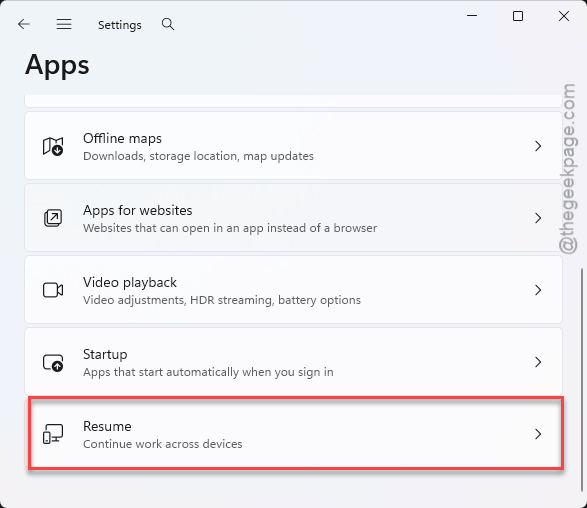
4 – Make sure the main toggle at the top is On.
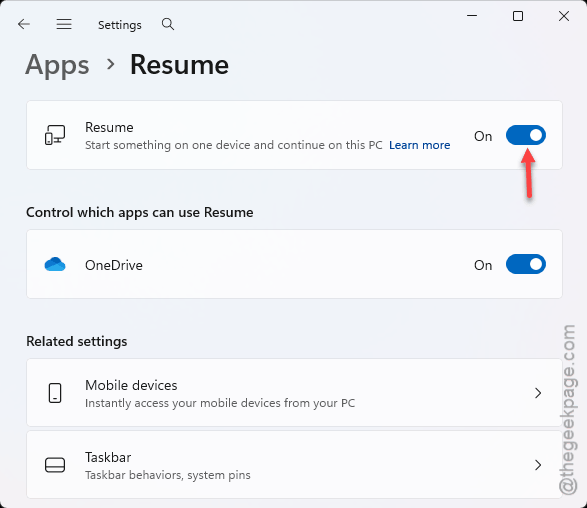
5 – Scroll down to the app list and check that the app you’re testing with (Spotify, for example) is also switched On.
Both toggles matter. And the main one can be on while the per-app one sits off, and you’d never know.
Fix 2 – Use the Same Personal Account on Both Devices
This catches more people than anything else. Resume needs the exact same personal Microsoft account on the phone and the PC. Not a similar one. The same one.
On the PC, open Settings, click Accounts, and look at the email under your name at the top.
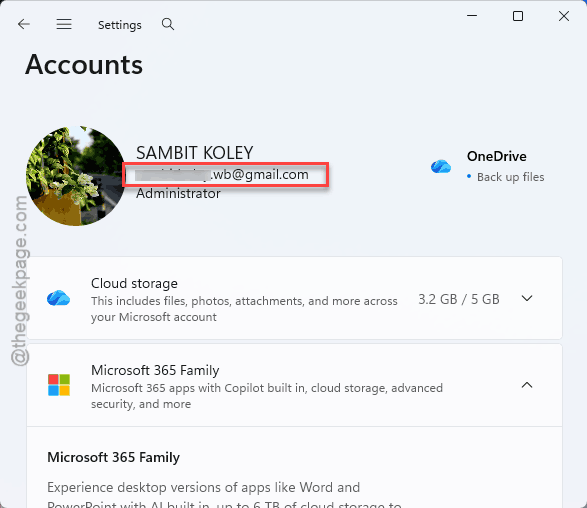
On the phone, open OneDrive, tap your profile picture in the top left, and compare. They have to match letter for letter.
If either one is a work or school account, that’s your answer. Resume will not work with those. Period. So sign in with a personal account on both sides and try again.
Fix 3 – Repair the Cross Device Experience Host App
Resume runs through a hidden app called Cross Device Experience Host. When it gets suspended or its cache goes bad, Windows stops picking up handoffs. Repairing it clears that out.
1 – Press Windows + I to open Settings.
2 – Click Apps, then Installed apps.
3 – Type Cross Device in the search box at the top. Way faster than scrolling through everything.
4 – Click the three dots (⋯) next to Cross Device Experience Host and pick Advanced options.
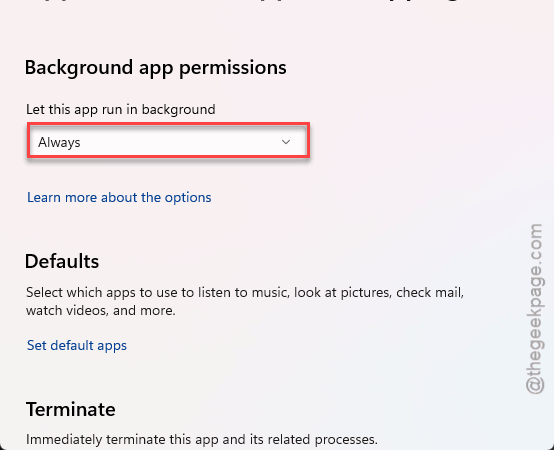
5 – Scroll down to Background apps permissions and set it to Always.
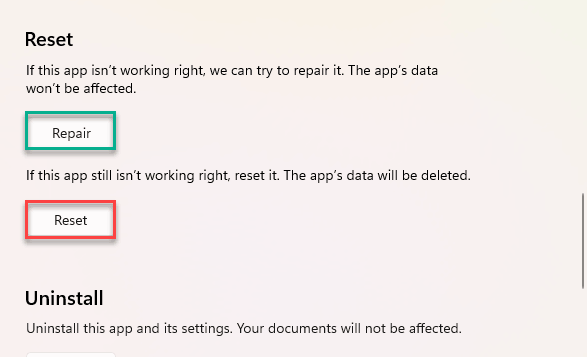
6 – Scroll a bit further and click Repair. Wait for the checkmark to appear next to the button.
7 – Click Reset right below it. This clears the local session cache.
8 – Restart your PC.
The Always setting is the part people skip. Without it, Windows puts the app to sleep again a few hours later. And then you’re back where you started.
Fix 4 – Turn On Share Across Devices
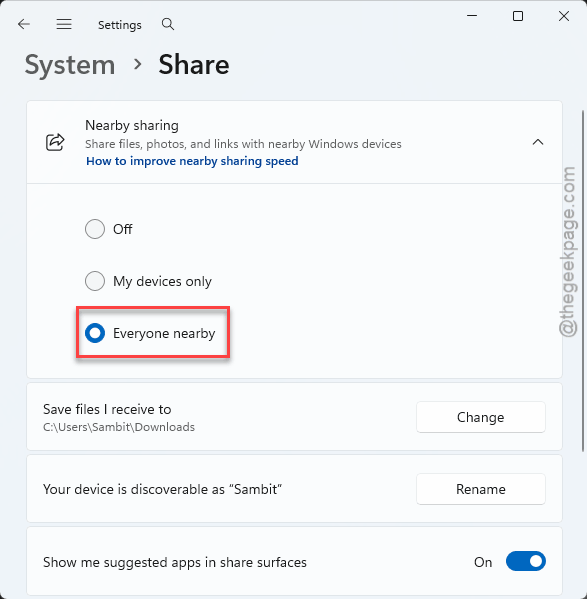
Resume rides on the same plumbing as Nearby sharing. If that plumbing is set to “my devices only” or switched off, the handoff gets dropped. Quietly.
1 – Open Settings and click System.
2 – Click Share and make sure it is turned on.
3 – Go back and click Apps in the left sidebar.
4 – Click Advanced app settings, then Share across devices.
5 – Set the toggle to On.
6 – Pick Everyone nearby as the sharing scope.
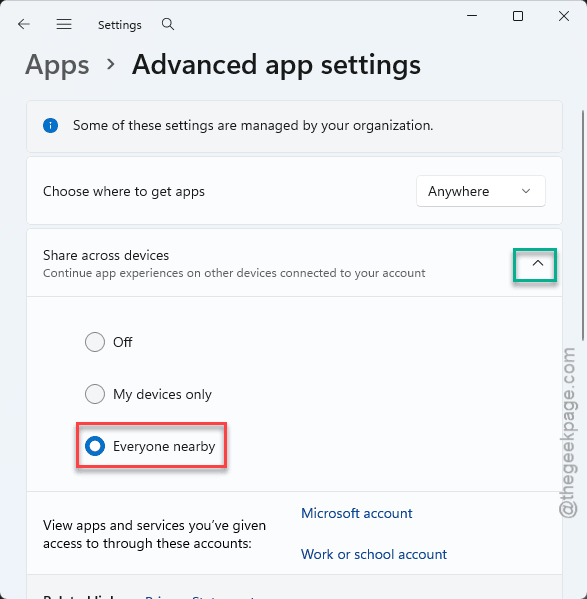
Don’t love the “everyone” setting? You can leave it on “my devices only” as long as Fix 2 is sorted and both devices use the same account. But if it still won’t fire, come back and widen it.
Fix 5 – Stop Android From Killing Link to Windows
Now the phone side. Android’s battery saver is aggressive. It kills Link to Windows in the background, and a dead app can’t broadcast anything to your PC.
1 – On your phone, open Settings, tap Apps, and tap Link to Windows.
2 – Tap Battery (some phones call it App battery usage).
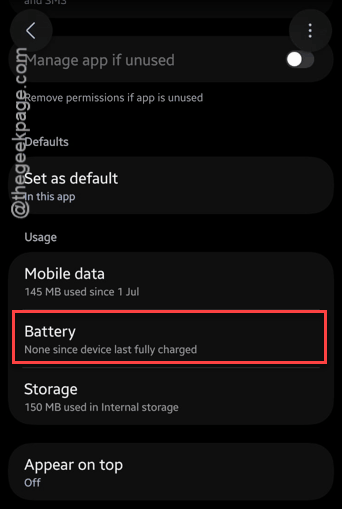
3 – Change it from Optimized to Unrestricted.
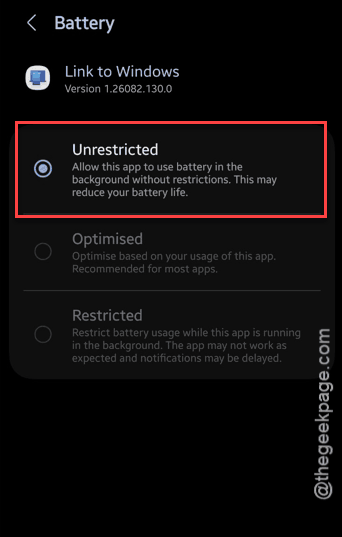
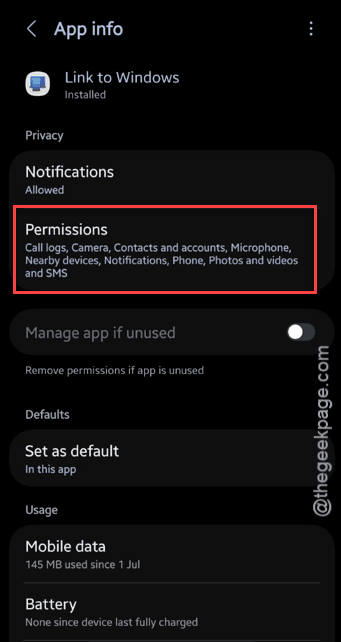
4 – Go back one screen and tap Permissions.
5 – Make sure Nearby devices, Notifications, and Display over other apps are all allowed.
On a Samsung? One more step.
1 – Open Settings, tap Battery.
2 – then Background usage limits.
3 – and make sure Link to Windows is not in the Sleeping apps or Deep sleeping apps lists.
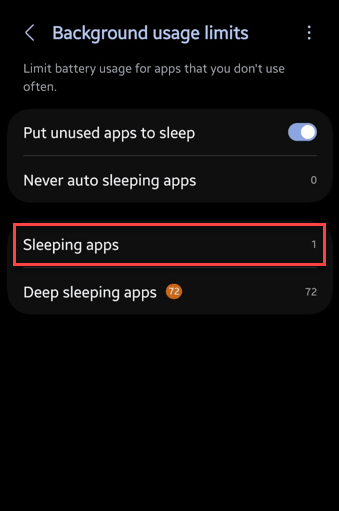
Samsung is extra stubborn about this. Pull it out of both if it’s there.
Fix 6 – Flip the Registry Switch
Still nothing? There’s a value in the registry that controls whether Resume is allowed at all. And sometimes an update leaves it at zero.
1 – Press Windows + R, type regedit, and press Enter. Click Yes when Windows asks.
2 – Click in the address bar at the top, paste this, and press Enter:
HKEY_CURRENT_USER\Software\Microsoft\Windows\CurrentVersion\CrossDeviceResume\Configuration
3 – In the right pane, double-click IsResumeAllowed.
4 – Set Value data to 1 and click OK.
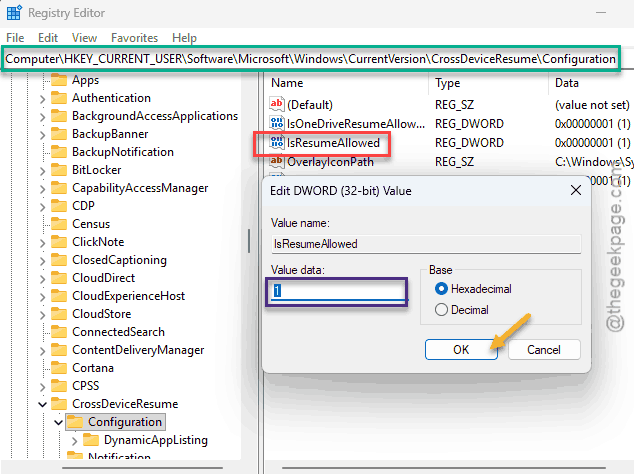
5 – Close Registry Editor and sign out, then back in.
Don’t see the Configuration key or the value? Then this isn’t your problem. Move on.
Fix 7 – Unlink the Phone and Pair It Again
Try unlinking the phone and pairing it up again.
1 – Open Settings on the PC and click Bluetooth & devices.
2 – Click Mobile devices.
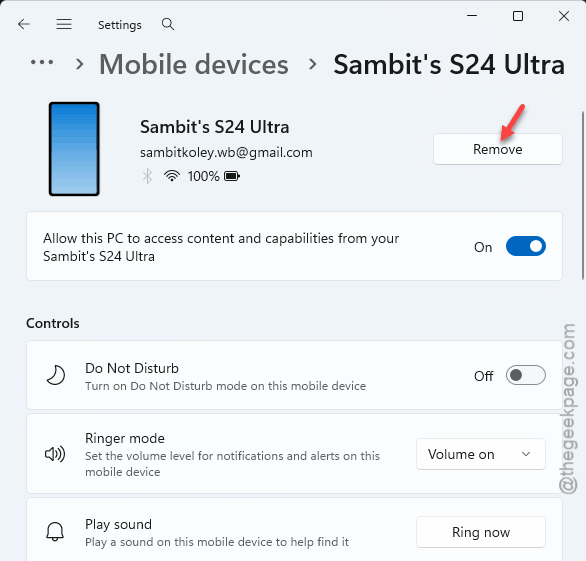
3 – Click Manage devices, find your phone, and remove it.
4 – On the phone, open the Link to Windows app and sign out.
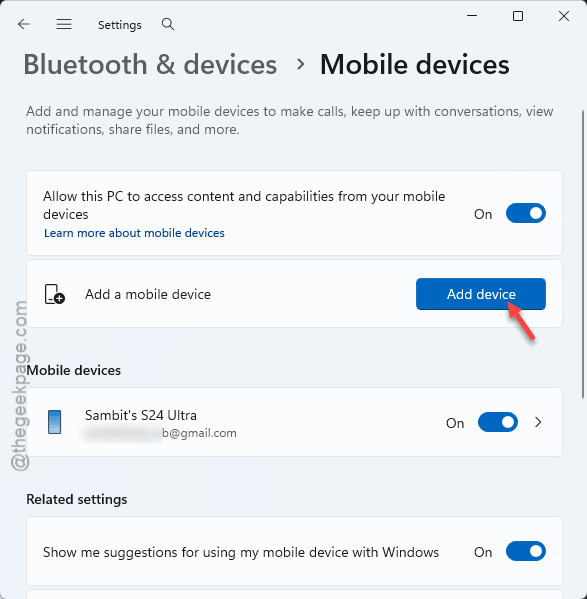
5 – Back on the PC, click Add device and follow the pairing steps on both screens.
Takes a few minutes. And when it’s done, play something on the phone, lock it, and watch the PC taskbar. The Resume badge should appear within about five seconds.
How to Prevent This
- Mixing in a work and personal account breaks Resume every time.
- After a big Windows update, recheck the Resume toggle. Updates reset it more than they should.
- Leave Link to Windows on Unrestricted battery. Always.
- Don’t run “debloat” scripts blindly. Half of them disable the Cross Device Experience Host, and then you’re back here.