Blue screen. And the error names a file: dxgmms2.sys. Your laptop reboots. Maybe mid-game, maybe just browsing.
On a dual-GPU laptop it’s extra annoying. Two graphics chips, and one of them is the problem. But which? Let’s sort it out.
Why This Happens
Basically? Dxgmms2.sys is part of the Windows graphics system.
Windows constantly hands work between them. If either driver is stale or half-installed, the handoff breaks. Blue screen.
But here’s the catch. A plain driver update often doesn’t fix it. Leftover files from the old driver sit there and conflict. So you need a clean wipe, not just an update.
And sometimes — not often, but sometimes — it really is the GPU hardware failing. We’ll get to that.
Fix 1 – Do a Clean Driver Reinstall (DDU)
This is the real fix for most people. A normal update leaves old junk behind. A clean wipe doesn’t.
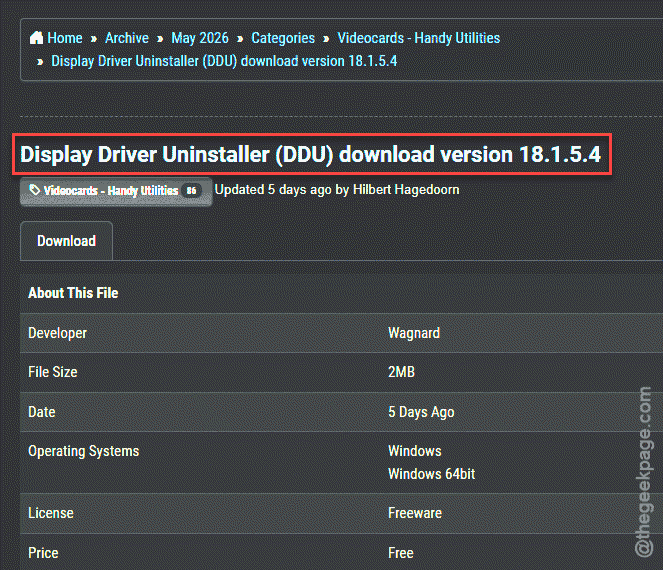
1 – Download Display Driver Uninstaller (DDU).
2 – Grab the latest driver for your dedicated GPU straight from NVIDIA or AMD first. Save it so it’s ready.
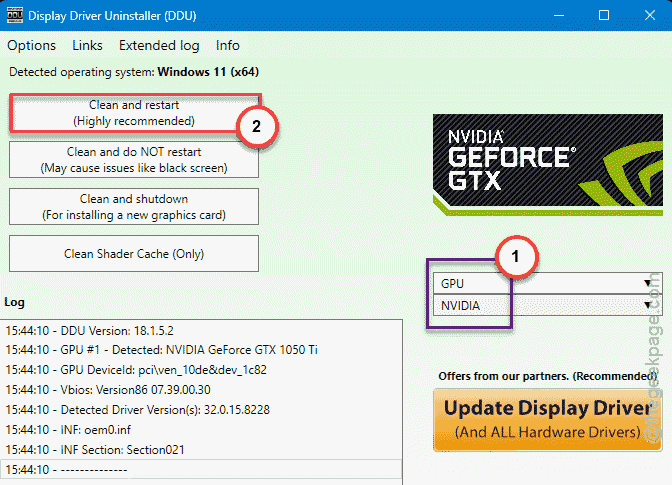
3 – Run DDU. Choose your graphics card, then click Clean and restart.
4 – After the reboot, install the fresh driver you downloaded.
And do the same for your integrated Intel or AMD graphics if the crashes keep up. Both drivers need to be clean on a dual-GPU machine.
Fix 2 – Try the Laptop Maker’s Driver Instead
Here’s a trick a lot of people miss. The generic NVIDIA driver isn’t always right for a laptop GPU. Laptop makers tweak their own versions.
Search your exact model. Download the graphics driver they list, even if it looks older than NVIDIA’s. Install it.
Fix 3 – Disable Hardware Acceleration
If the crashes hit in apps like browsers or Office, this can stop them.
1 – Press Windows + R, type regedit, and click OK.
2 – Paste this path into the address bar at the top and press Enter:
HKEY_CURRENT_USER\Software\Microsoft\Avalon.Graphics
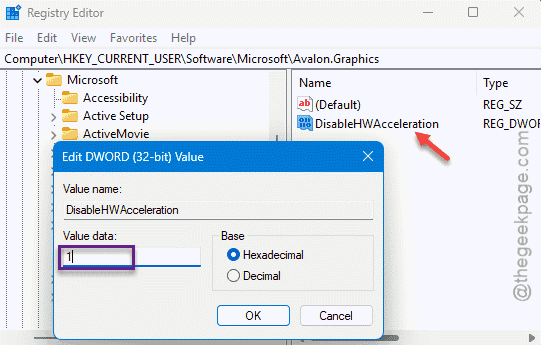
3 – On the right, look for DisableHWAcceleration. Double-click it and set the value to 1.
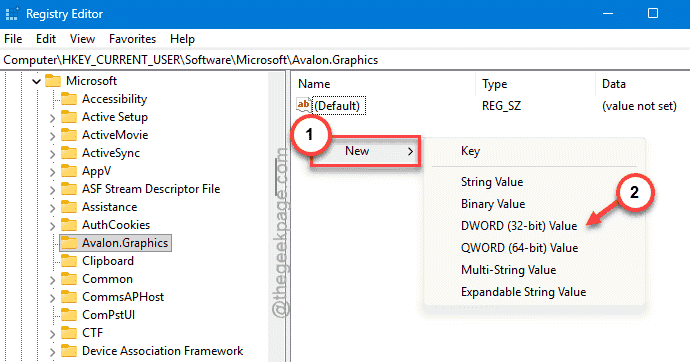
4 – Not there? Right-click an empty spot, choose New > DWORD (32-bit) Value, name it DisableHWAcceleration, and set it to 1.
5 – Restart your computer.
Check if this works.
Fix 4 – Repair System Files
Worth ruling out. A corrupt Windows file can drag the graphics stack down with it.
Quick one.
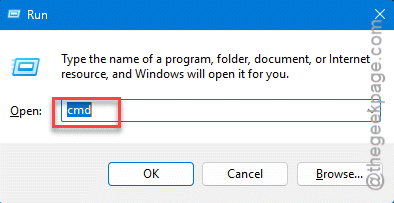
At first, press Windows + R, type cmd, then press Ctrl + Shift + Enter to open it as admin.
Type sfc /scannow and hit Enter.
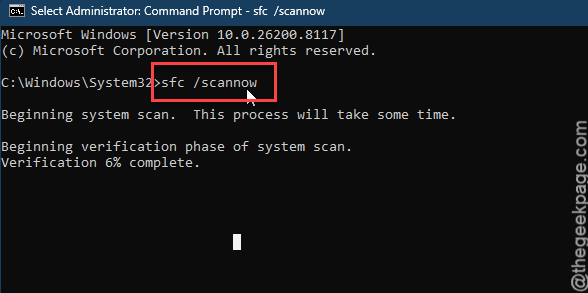
Let it finish, then restart. Heads up — for plenty of people this finds nothing. That’s actually useful info. It points the blame back at the driver or hardware.
Fix 5 – Reset Windows (Last Resort)
You should try to clean Windows reset clears out whatever software mess is left.
1 – Back up your important files to an external drive first. Don’t skip this.
2 – Press Windows + I to open Settings.
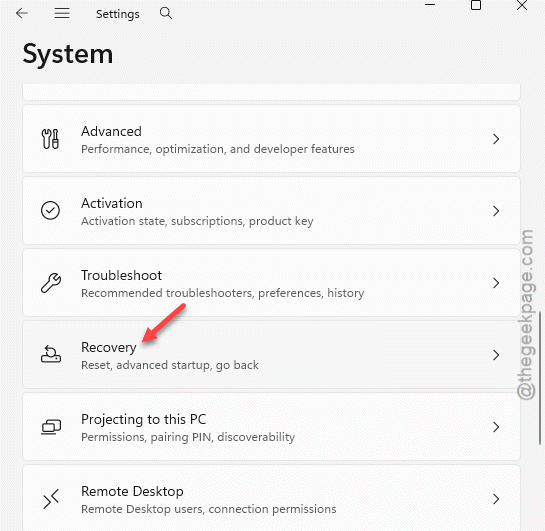
3 – Go to System, then scroll down to Recovery.
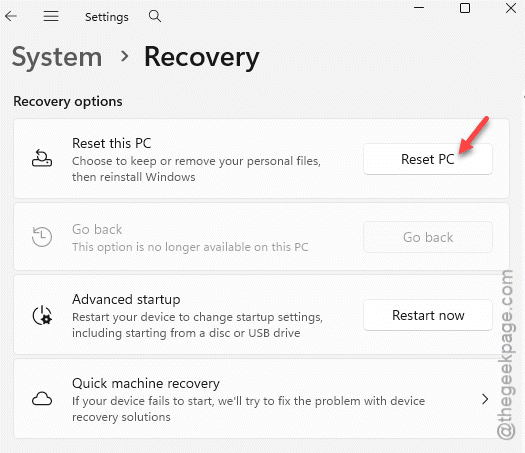
4 – Click Reset PC and follow the prompts. You can choose to keep your files.
If it STILL blue-screens after a fresh Windows? Now you know. It’s the hardware. Time for a repair shop or a warranty claim.
How to Prevent This
– Always clean-install GPU drivers with DDU, not just click update. Leftover files cause half these crashes.
– Keep both GPU drivers current — the integrated one too. Not just the gaming chip.
– Watch your laptop’s temps. Overheating cooks the GPU over time, and a baked GPU throws this exact error. Clean the fans now and then.
People Also Ask
Can a bad GPU cause a blue screen?
Yes, definitely. A failing or overheating GPU throws blue screens, and dxgmms2.sys is a common one. The tell is if it keeps crashing even after a clean driver install and a Windows reset. At that point the software’s ruled out, so the hardware’s the suspect.
Is system_service_exception a hardware issue?
Not usually. SYSTEM_SERVICE_EXCEPTION is most often a driver problem — same root cause as dxgmms2.sys crashes a lot of the time. Update or cleanly reinstall your drivers first. Only if that fails repeatedly should you start thinking about failing RAM or a dying GPU.