You log in. Type your password. And then? Black screen. Maybe a cursor floating there. Maybe nothing.
The desktop never loads. Feels like the whole PC died. It didn’t — it’s an update called KB5083769. And it’s wrecking logins.
Why This Happens
Short version? A Windows update broke your boot. KB5083769 went out, and it doesn’t get along with certain machines.
And it’s not random. It’s hammering specific hardware — Dell and HP laptops got hit the hardest. The update installs fine. You reboot. You sign in. And the screen just goes dark.
There’s a second cause too. Sometimes your system partition is full. The update can’t write what it needs, so the boot files end up half-finished. Windows can’t draw the desktop after that.
Why does Microsoft ship updates that do this? No idea. But until they patch it, the fix is on you.
Fix 1 – Force Your Way Into the Recovery Environment
Your screen is black, so you can’t do anything from inside Windows. You need the Recovery Environment first. There’s a trick to force it open (three hard shutdowns in a row).
1 – Start your PC. Watch for the spinning dots under the logo.
2 – The moment you see them, press and hold the power button for 5 to 10 seconds. The PC shuts off hard.
3 – Do it again. Power on, wait for the dots, hold the power button until it dies.
4 – On the third boot, leave it alone. Windows gives up and loads the Recovery Environment — that blue troubleshooting screen.
This is the gateway for everything below. No black screen here. You can finally do something.
Fix 2 – Uninstall KB5083769
This is the real fix. Pull the update that caused the mess.
1 – In the Recovery Environment, click Troubleshoot.
2 – Click Advanced options.
3 – Click Uninstall Updates.
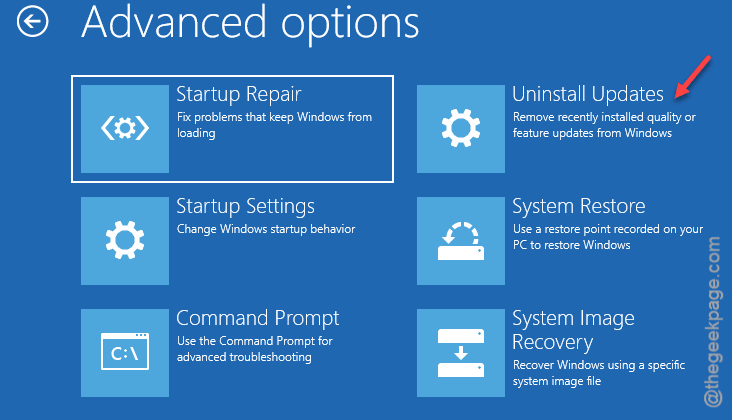
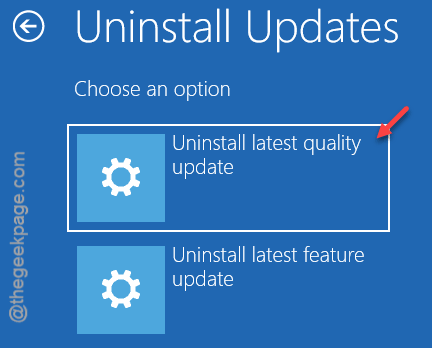
4 – Click Uninstall latest quality update. That’s the one carrying KB5083769.
5 – Confirm and let it run. Don’t touch anything.
6 – Reboot when it’s done.
And once you’re back in? Pause updates. Go to Windows Update settings and pause for about 5 weeks (that’s usually enough time for a patch). Otherwise the same broken update sneaks right back in.
Fix 3 – Roll Back With System Restore
No “Uninstall latest quality update” button? Or it ran and didn’t help? Try System Restore instead. It rewinds your PC to before the update landed.
1 – From the Recovery Environment, click Troubleshoot.
2 – Click Advanced options, then System Restore.
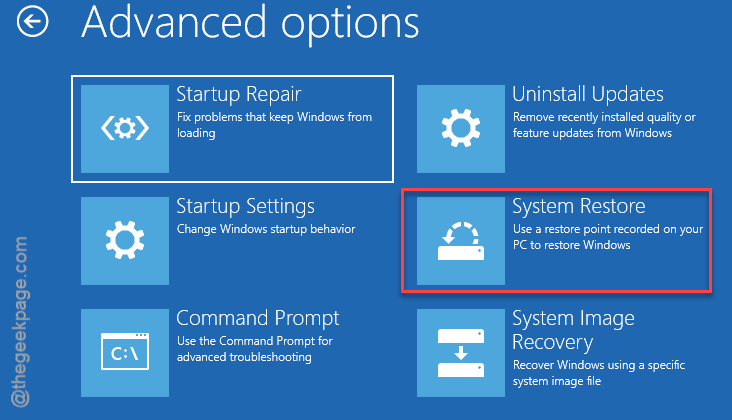
3 – Pick a restore point dated before the update installed.
4 – Click Next, then Finish. Let it do its thing.
Only works if you had a restore point saved (a lot of people don’t). Worth a shot, though.
Fix 4 – Clear a Full System Partition
This one’s for the “partition full” cause. It’s the technical option — you’ll be typing commands. Go slow and copy them exactly.
1 – In the Recovery Environment, go to Troubleshoot > Advanced options > Command Prompt.
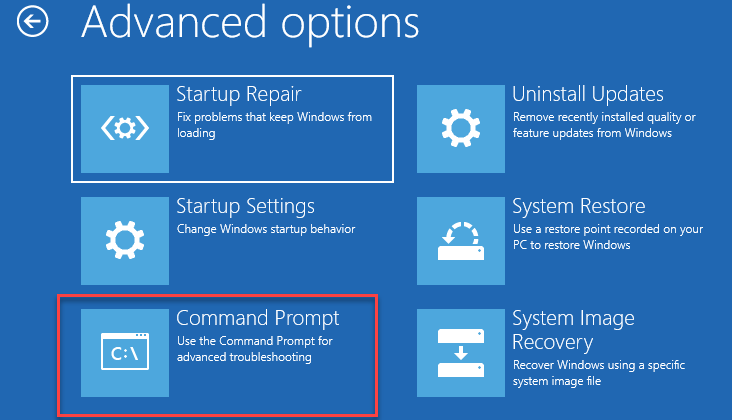
2 – Type mountvol y: /s and press Enter. This mounts the hidden system partition as drive Y.
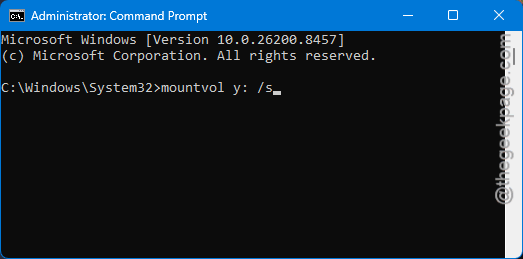
3 – Type y: and press Enter to switch to it.
4 – Type cd EFI\Microsoft\Boot\Fonts and press Enter.
5 – Type del *.* and press Enter. This clears out the font files clogging the partition.
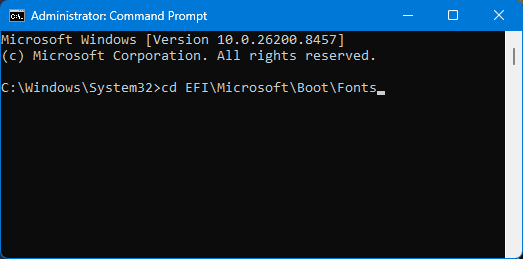
6 – If it asks you to confirm, press Y then Enter.
7 – Type exit, then reboot.
Deleting boot fonts sounds scary. It’s safe — Windows rebuilds them (automatically, on the next boot). But only do this if you’re comfortable in Command Prompt. If not, stick with Fix 2.
Fix 5 – Repair the Update From Safe Mode
If the update is half-installed and that’s the problem, you can let Windows fix itself. But you need to get into Safe Mode first.
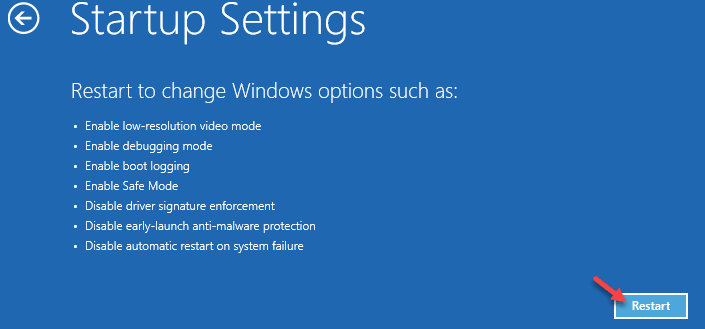
1 – In Recovery, go to Troubleshoot > Advanced options > Startup Settings
2 – Then click Restart.
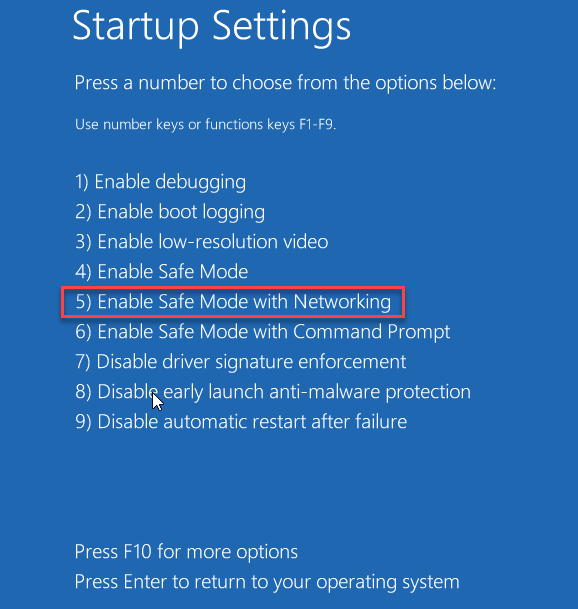
3 – When the menu shows up, press 5 for Safe Mode with Networking.
4 – Once you’re in, press Windows + I to open Settings.
5 – Go to System > Recovery.
6 – Click Fix problems using Windows Update. It re-downloads and reinstalls a clean copy.
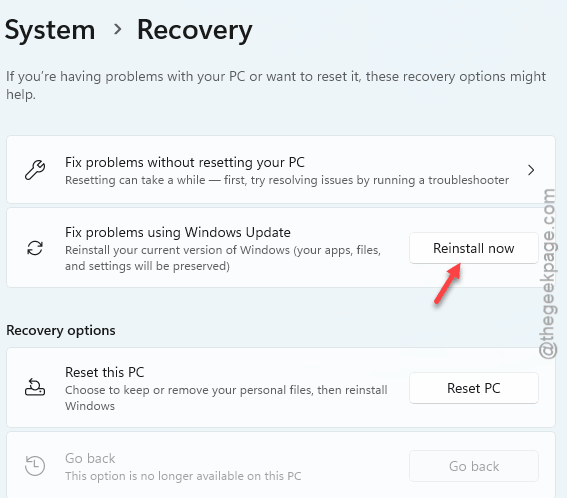
Heads up — this can take up to 2 hours. Plug in the charger and walk away. Don’t interrupt it.
How to Prevent This
- Pause updates for a week or two whenever a big patch drops. Let everyone else hit the bugs first.
- Keep your system partition from filling up. A clogged boot partition causes half these failures.
- Turn on System Restore and let it make points. Costs nothing. Saves you when an update goes bad.
- Write down the KB number of any update that breaks things. Then you know exactly what to block. Trust me — it helps.
People Also Ask
Why am I getting a black screen after login?
Most likely a bad Windows update — right now that’s KB5083769. It installs, you sign in, and the desktop never loads. The fix is to boot into the Recovery Environment and uninstall that update. A full system partition can trigger the same black screen too.
What is the problem with KB5083769?
It conflicts with certain machines, especially Dell and HP laptops. After it installs, the screen goes black right after login. Microsoft hasn’t shipped a clean patch yet. So the move is to remove the update and pause updates for about five weeks.
Why does my laptop screen go black after putting in my password?
Usually the desktop process can’t start — a broken update or corrupted boot files behind it. Force the Recovery Environment open with three hard shutdowns, then uninstall the latest update or run System Restore. One of those gets you back to a working desktop.