Glitches like black screen, screen flickering issues with the wallpaper and lock screen preview are the problems users have shared after updating to the iOS 26. This issue is prevalent in some of the older iPhones like iPhone 12, 13 series. While the transparent UI elements of liquid glass shows adverse impacts on the overall performance, the default clock design can also cause the lock screen preview to flicker or glitch out.
Fix 1 – Refresh the Reduce Transparency
Resetting the transparency factor should refresh the Liquid Glass engine in iOS 26.
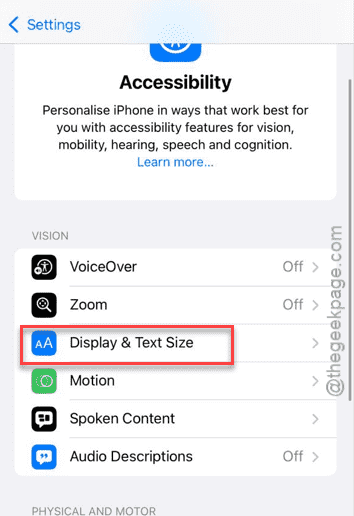
Step 1 – Load up the iPhone Settings. Go to the Accessibility settings.
Step 2 – Next, go to the Display & Text Size panel.
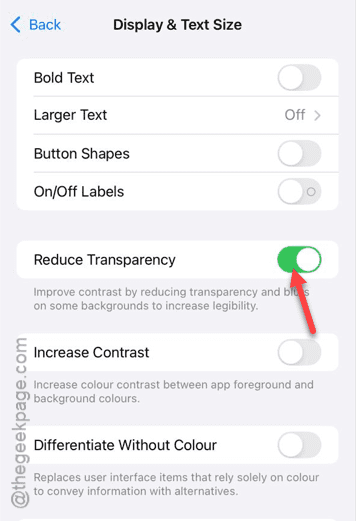
Step 3 – Turn on the Reduce Transparency mode and turn it On. Wait for 5 seconds or so.
Step 4 – Then, turn it off.
You should reboot your iPhone once. This will fix the sudden wallpaper and lock screen preview flickering issues that you are having on the device.
Fix 2 – Remove and Recreate the Wallpaper Pair
Just delete the current wallpaper and lock screen pair, and recreate the same pair.
Step 1 – Go to the lock screen. Hold the empty area on the lock screen.
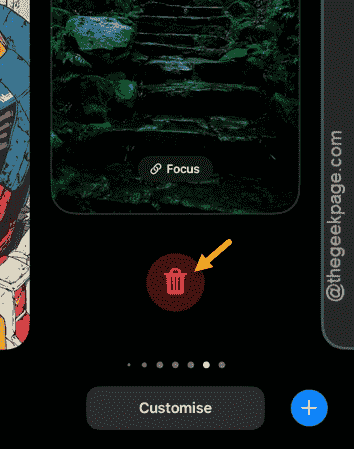
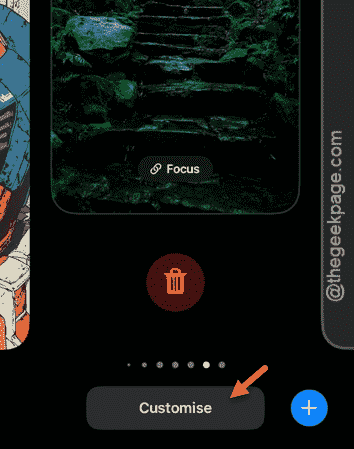
Step 2 – Now, swipe left or right to find the one that is glitching out. Swipe up on the wallpaper, and tap the bin icon to delete it.
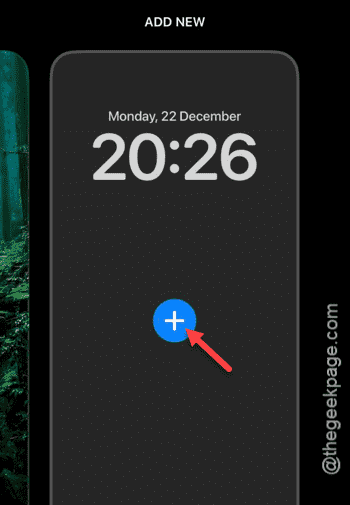
Step 3 – Now, tap the ➕ button to create a new wallpaper.
Step 4 – Tap the Add button and choose the images according to your choice and set them up as home screen and lock screen wallpapers.
This way, you can easily recreate the wallpaper pairs afresh. Check whether this works.
Fix 3 – Use other Clock Font in Lock Screen
The default clock font dynamically scales in the lock screen background that can cause this flickering issue.
Step 1 – Tap and hold lock screen, which is glitching out or showing black screen.
Step 2 – Next, tap the Customize button. Choose the lock screen to edit it.
Step 3 – Select the clock panel in the lock screen.
Step 4 – Choose any other fonts from the list, except the first one, which is the dynamic one.
Step 5 – Tap the Done button in the corner to save the changes.
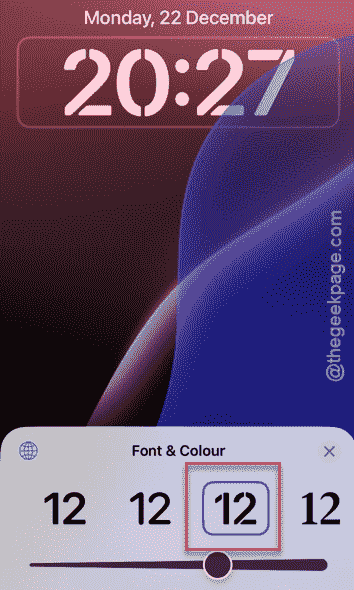
This simple, yet powerful change should resolve the UI issue that you are having in the iPhone lock screen.
Fix 4 – Turn off the Sleep Screen in Focus
The Sleep Focus can dim the lock screen, which may glitch out to black screen. So, disabling the Sleep Focus should resolve the issue.
Step 1 – Go to the Focus Settings in iPhone.
Step 2 – Load up the Sleep tab. Find the Customize Screens option and tap Options.
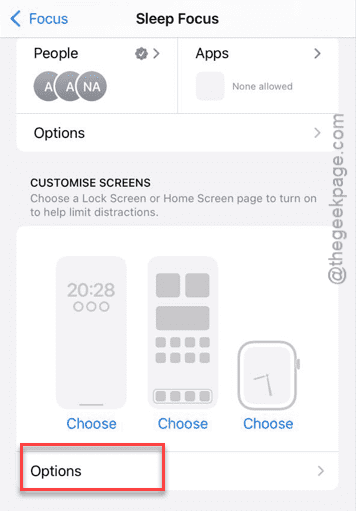
Step 3 – Set the Sleep Screen to Off mode.
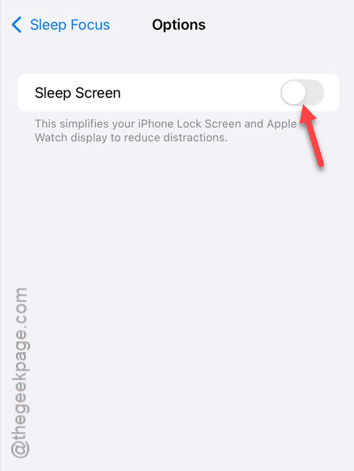
This way, you can still put the device to sleep focus mode, but you won’t notice any of the repercussions such as black screen or flickering issues.
Fix 5 – Install the Latest Version
Apple has already sent out several update patches after the main iOS 26 roll out. Install the latest version of the iOS 26 to fix the issue.
Step 1 – Go to the iPhone Settings. Then, proceed to the General panel.
Step 2 – Open the Software Update.
Step 3 – Next, tap the Update Now button to install the latest version of the iOS.
After updating to the latest version, this issue will be gone.