Garbled colors. Blocky tiles smeared across the screen. Like your desktop got shattered into a mosaic.
Your GTX 1080 Ti was perfectly fine yesterday. Today it’s a mess. And it all traces back to one Windows update.
Why This Happens
Dell and HP laptops running the 1080 Ti are getting wrecked by the recent update. The update changes something low-level. The driver can’t keep up. So you end up staring at that mosaic mess.
Your card going bad? Probably not. The cable? Not that either. It’s the update. Why a security patch would nuke your graphics, beats me. But at least there’s a way out.
Fix 1 – Uninstall KB5083769 From Recovery
This is the root fix. Pull the update that started it. But the distortion makes Windows hard to use, so you’ll force the Recovery Environment open first.
1 – Start your PC.
2 – Press and hold the power button for 5 to 10 seconds to immediately power off the device.
3 – Do that twice. On the next boot, Windows loads the Recovery Environment on its own.
4 – Click Troubleshoot > Advanced options > Uninstall Updates.
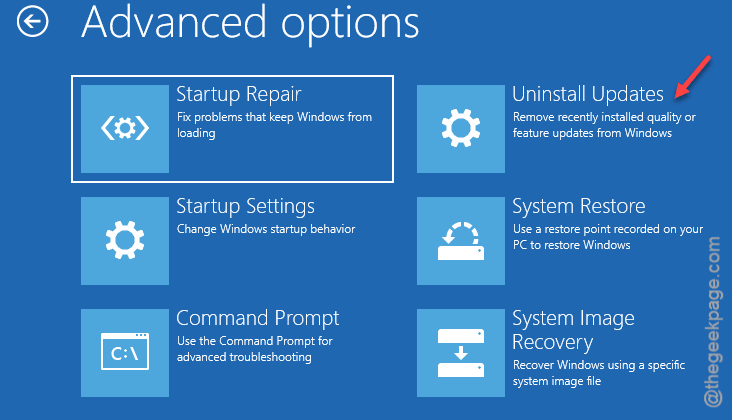
5 – Click Uninstall latest quality update. That’s KB5083769.
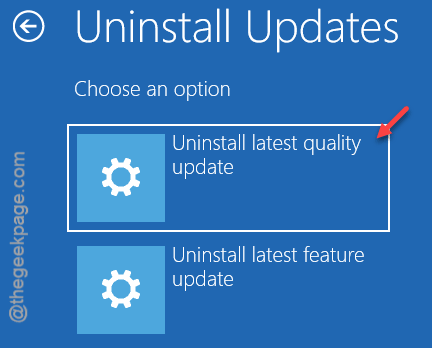
6 – Let it finish, then reboot.
And back in Windows? Pause updates for a few weeks (three or four is plenty). Otherwise KB5083769 reinstalls and you’re right back to the mosaic.
Fix 2 – Roll Back With System Restore
You should take the system restore route, if your computer fails to uninstall the update.
1 – Boot your device into Recovery Enviroment, again.
2 – Then, go this way –
Troubleshoot > Advanced options > System Restore
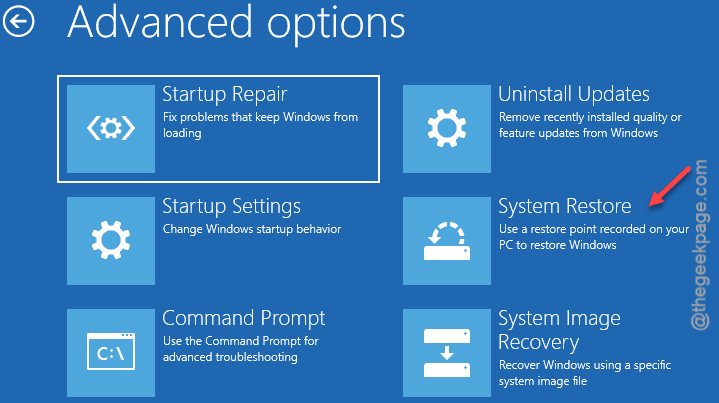
2 – Choose a restore point from before the distortion started.
3 – Click Next, then Finish.
But it needs a saved restore point to work. No point saved? Skip ahead.
Fix 3 – Clean-Reinstall the NVIDIA Driver With DDU
There are confirmed reports of the April update causing this mayham. So, you should use the Display Driver Uninstaller. It wipes the driver completely.
1 – At first, you have to download the DDU (Display Driver Uninstaller). Later, go to the Nvidia Driver downloads and get the latest version of 1080 Ti.
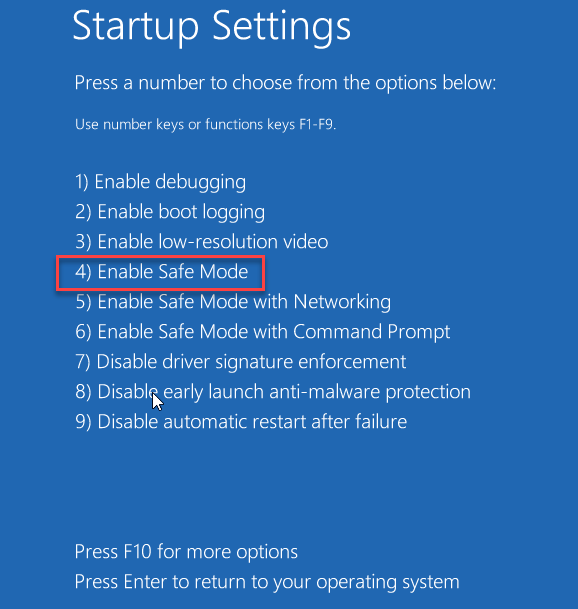
2 – Once again boot the system into Recovery Enviroment and from there to Safe Mode.
You should follow this path –
Troubleshoot > Advanced options > Startup Settings > Restart, then press 4.
3 – Open DDU. Pick GPU, then NVIDIA from the dropdowns on the right.
4 – Click Clean and restart. It scrubs every trace of the old driver.
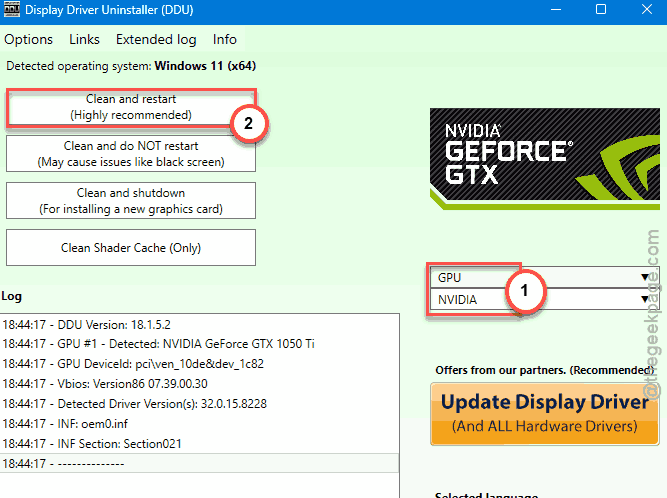
5 – After reboot, run the NVIDIA installer you downloaded. Default options are fine.
Fresh driver, no leftovers. This rules out driver corruption for good.
Fix 4 – Run Startup Repair
Quick one. Startup Repair may help you resolve this issue.
1 – After booting the device into RE mode, go to Troubleshoot.
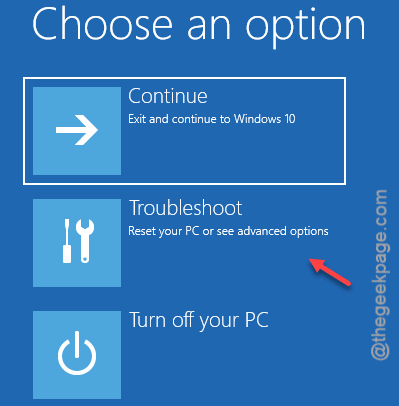
2 – Then, go to the Advanced options mode.
3 – Choose the first option, Startup Repair.
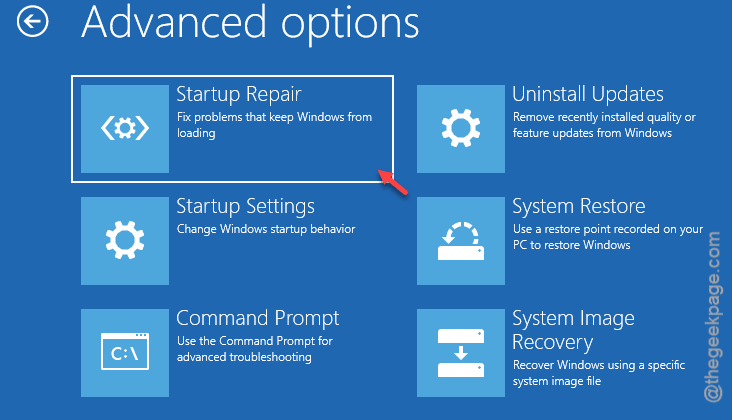
4 – You must choose your account, there and type the password.
Now, the startup repair will scan and eradicate any possible issues. Takes a few minutes.
Fix 5 – Reset This PC (Keep Your Files)
Last resort. Nothing else worked? Reset Windows but keep your personal files. Painful, I know — but it clears out whatever the update mangled.
1 – From Recovery, click Troubleshoot > Reset this PC.
2 – Choose Keep my files. Your documents and photos stay.
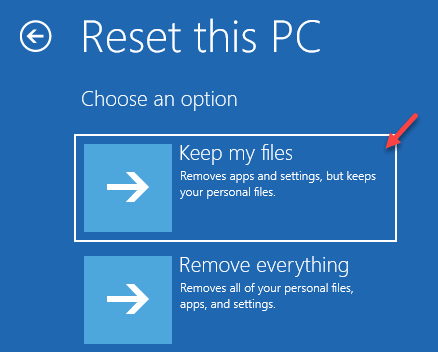
3 – Follow the prompts and let it run. It reinstalls Windows fresh.
You’ll have to reinstall your apps after. But the mosaic will be gone.
How to Prevent This
- Hold off on big Windows updates for a week or two. Let the first wave of users find the broken ones.
- Grab GPU drivers from NVIDIA directly, not Windows Update. Windows loves pushing old or mismatched ones.
- Keep System Restore on. It’s the fastest undo button when an update goes sideways.
- Note the KB number that broke things — KB5083769 here — so you know exactly what to pause.
People Also Ask
Which Windows update is causing problems with NVIDIA?
Right now the update KB5083769, the April 2026 security update is causing some issues with the NVIDIA cards. Some 1080Ti users have reported a mosiac display bug on their rigs. Uninstall it from the Recovery Environment, then do a clean driver reinstall with DDU if the artifacts hang around afterward.
Is the mosaic distortion damaging my graphics card?
No. This is due to the Windows Update KB5083769. Just uninstall the graphics card update. Nothing about this hurts the card long-term.