Does the bedtime alarm volume feel too low on your iPhone? Some users have recently pointed out this problem in various threads. There is no benefit of having set up an alarm that does not wake up you up in time due to low volume. There are some changes in the iPhone Settings since the iOS 26 update which may cause this issue. Here are some quick tips to fix this problem.
Quick Fix Table –
| Issue Cause | Quick Fix | Settings Location |
|---|---|---|
| Internal Slider | Adjust the Wake Up Volume | Clock App > Change > Alarm Options |
| Face ID Sensors | Disable the Attention Awareness | Settings > Face ID & Passcode |
| Button Sync | Enable Change with Buttons option | Settings > Sounds & Haptics |
Fix 1 – Adjust the Dedicated Wake Up Slider
In the latest version of iOS, the Sleep Alarm has a volume slider separate from the Ringer & Alerts volume.
Step 1 – Open the Clock app on the iPhone. Next, proceed to the Alarm tab.
Step 2 – Tap the Change next to your Sleep | Wake Up alarm at the top.
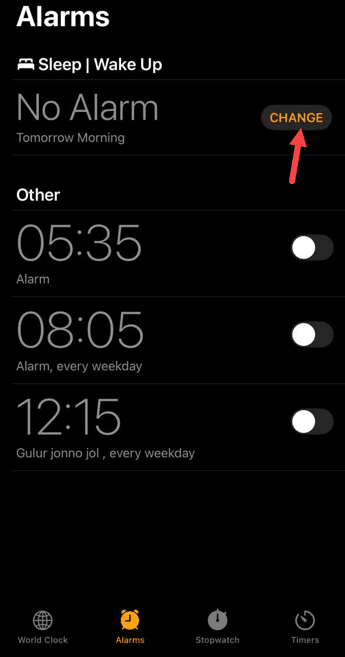
Step 3 – Scroll down to Alarm Options and find the Volume Slider.
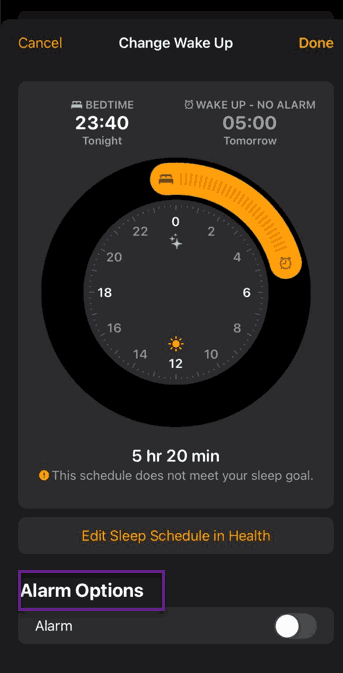
Step 4 – Drag it to your preferred level.
This particular volume level works irrespective of the alert volume level on the iPhone.
Fix 2 – Disable Attention Aware Features
If the iPhone detects you are looking at the device, it will automatically subdue the alarm volume level.
Step 1 – Go to the iPhone Settings. Load up the Face ID & Passcode settings.
Step 2 – Then, locate the Attention Aware Features. Open it up. Toggle this to OFF mode.
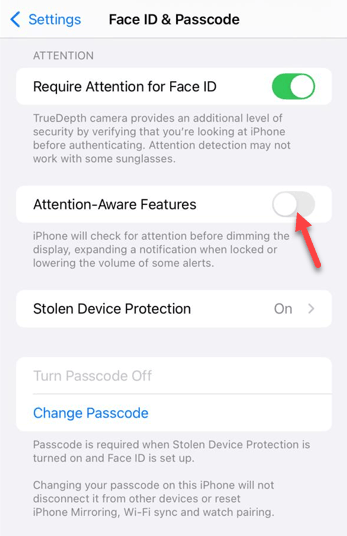
This should prevent the sensors from dynamically adjusting the alarm volume irrespective of whether the device it detects face or active movement.
Fix 3 – Toggle the Change with Buttons
If the update has reset the sound preferences, the side volume buttons might only be controlling media rather than the Ringer and Alerts.
Step 1 – Go to the iPhone Settings. Open the Sounds & Haptics settings.
Step 2 – Then, look for the Change with Buttons toggle in the Ringer and Alerts option.
Step 3 – Toggle this to ON mode.
Set the volume to maximum version so that it sets the alarm volume to that level as well.
Fix 4 – Force-restart the iPhone
If the problem remains unsolved, you must force-restart the iPhone to fix the issue yourself.
Step 1 – Quickly press the Volume Up button and release it.
Step 2 – Then, hit the Volume Down button and release it as well.
Step 3 – Next, hold the Side button of the device until the Apple logo appears.
After rebooting the device, go to the Health app. Make sure the Sleep Schedule is active on the device.
This should fix the bedtime alarms issue.