The reason behind the Formula.Firewall error in Microsoft Excel is a security warning. It happens when the Power Query system tries to combine data from two different levels of sources, like a local Excel file and a website. Microsoft Excel halts the query system in fear of one data source leaking potentially sensitive data to another source in the middle of the process. To counter this problem, either you have to modify the privacy levels to ignore the query options or create two separate queries for each level and merge them. Here are step-by-step instructions for all the possible solutions to counter this issue.
| Symptom | Recommended Fix |
| Error triggers on Combine | Fix: Set Privacy Levels to Ignore in Query Option |
| Merging Local+ Web data | Fix: Standardize Privacy Levels to Organizational or Public |
| Dynamic File Paths Fail | Fix: Split the query into Source Query and Processing Query |
Fix 1 – Tweak Excel to ignore privacy levels
If you are working on a private Excel worksheet in a secure environment, you can ask Excel to stop checking the firewall.
Step 1 – Go to the Data tab in Microsoft Excel. Then, tap the Get Data tab, and click the Launch Power Query Editor option.
[Or else, go this way –
New Query > Combine Queries > Launch Power Query Editor
]
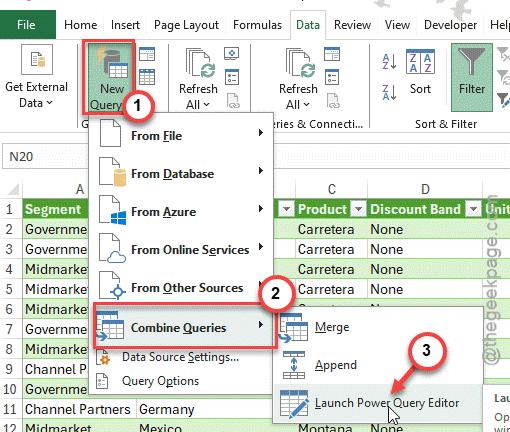
Step 2 – Go to the File tab.
Step 3 – Open the Options and Settings. Subsequently, open up the Query options.
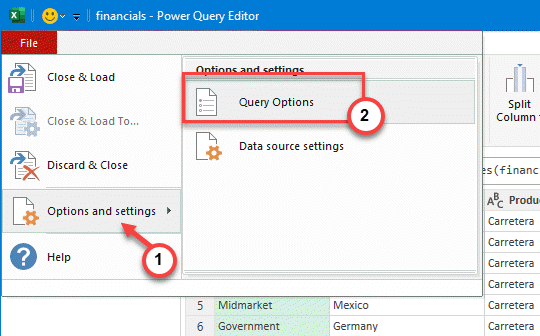
Step 4 – Under the Current Workbook, go to the Privacy tab.
Step 5 – Choose the Ignore the Privacy Levels and potentially improve performance option there. Save the changes.
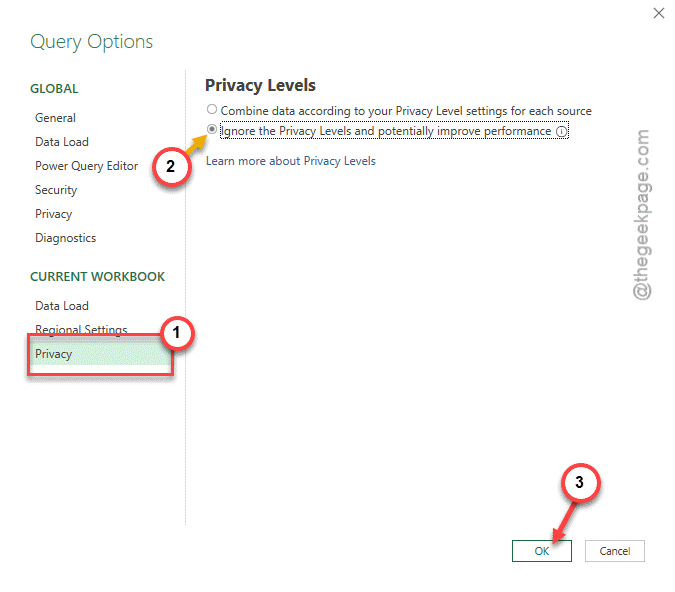
Check if this resolves the issue or not.
Fix 2 – Standardize the Privacy Levels
The firewall often triggers because the one source is marked as Private and the other is set to Public mode. The communication gap between these two can cause such issues.
Step 1 – Launch the Power Query Editor.
Step 2 – Once again, proceed to the File tab. Tap the Options and Settings option. Use the Data Source Settings option.
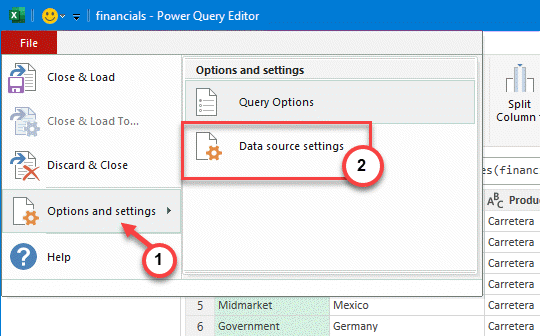
Step 2 – Select each source and click Edit Permissions.
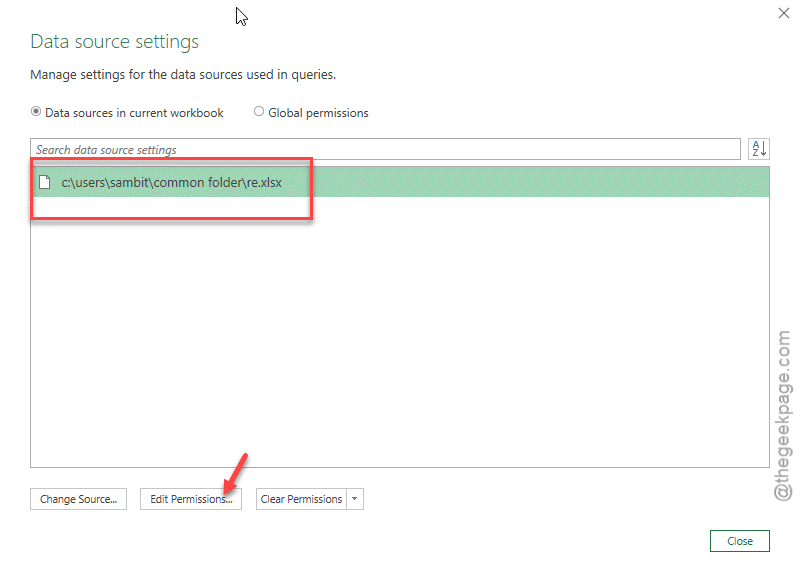
Step 3 – Set all sources to the same level (like Organizational or Public).
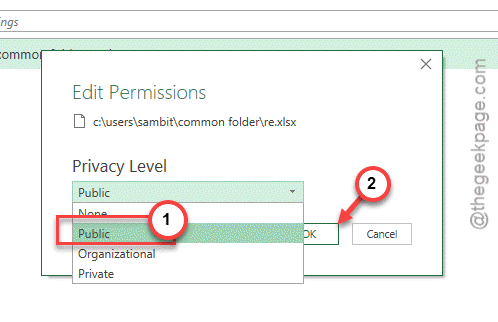
Once you have set the sources to the same level, this problem won’t happen again.
Fix 3 – Use the Staging Query Method
Without lowering the security of the worksheet, you can create two separate queries that will source the data from individual sets.
Step 1 – Create the Query A that pulls data from the Source 1 only.
Step 2 – Create the Query B that pulls data from the Source 2 only.
Step 3 – Now, for the Main Query, reference the Query A and B to merge them.
This way of separating way of pulling the data won’t incur a security risk.
Fix 4 – Enable the Fast Combine System
You can set Excel queries to ignore the privacy level settings on the document.
Step 1 – Go to the File tab. Then, go to the Options and settings tab.
Step 2 – Open the Query Options.
Step 3 – Under the Global section, go to the Privacy tab.
Step 4 – Choose the Always ignore Privacy Level Settings feature.
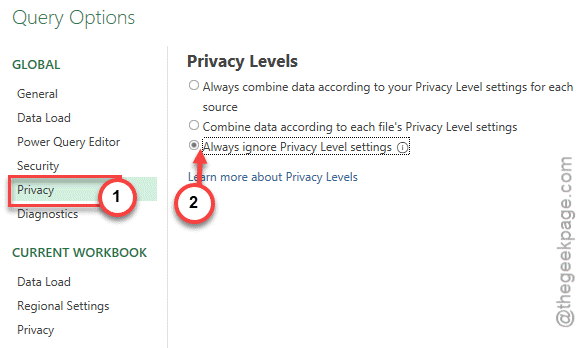
NOTE – Beware that this setting change also applies to the files, if you are handling sensitive data.
Fix 5 – Clear and re-authenticate the Data Sources
Sometimes the firewall error is caused by a wrong permission settings in Microsoft Excel.
Step 1 – Proceed this way to open up the Power Query Editor –
New Query > Combine Queries > Launch Power Query Editor
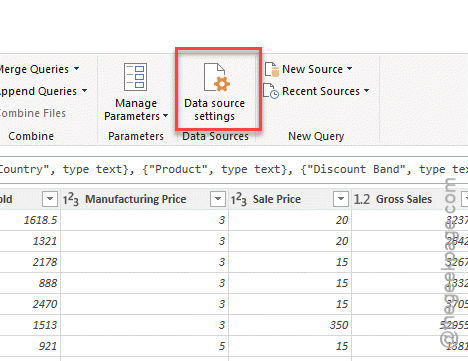
Step 2 – Tap the Clear All Permissions option.
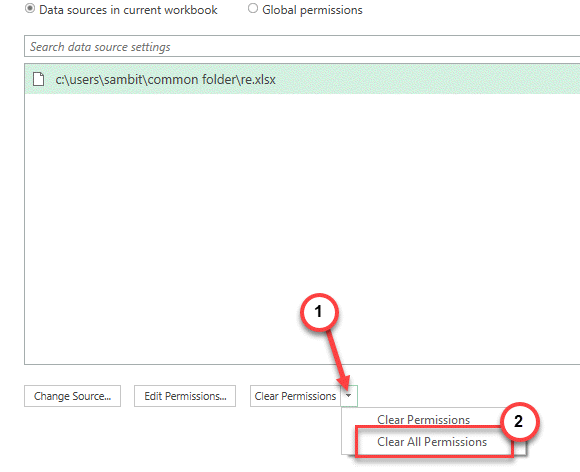
Step 3 – Then, re-run your query.
Check if this helps you resolve the issue.