Are the notification sounds getting delayed or playing very late on iOS 26? Many users have escalated this matter to various subreddits, where they have witnessed a significant notification sound delay in their devices. According to these users is notification sounds are playing extremely late, and sometimes the sound is not even playing for some app notifications. Here are the steps you can follow to fix this problem on your iPhone.
Fix 1 – Turn Off Notification Prioritization
The priority notification feature of the iPhone may sometimes delay the notification sound on the device.
Step 1 – Go to the Notifications tab on the iPhone.
Step 2 – Next, load up the Apple Intelligence tab.
Step 3 – Tweak the Priortize Notifications to OFF mode.
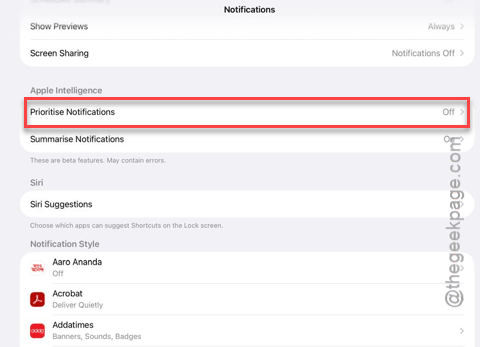
This will fix the huge notification sound lag that you are getting on the device.
Fix 2 – Disable the Scheduled Summary
If you have enabled the scheduled summary feature that delivers the notifications in a bundled format, there will be an obvious delay for the summary.
Step 1 – Proceed to the Notifications tab in the iPhone Settings.
Step 2 – Then, go to the Scheduled Summary tab.
Step 3 – Toggle it to OFF.
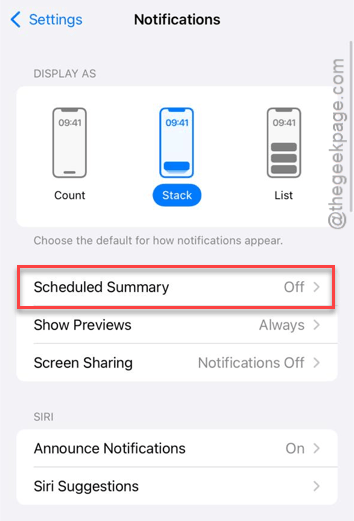
You can set the Immediate Delivery settings for the apps if you are having app-specific issues.
Fix 3 – Enable the Reduce Motion Feature
Sometimes the new iOS 26 UI may behave unexpectedly and can cause such issues.
Step 1 – In the iPhone Settings, go to the Accessibility tab.
Step 2 – Then, load up the Motion tab.
Step 3 – Set the Reduce Motion to ON.
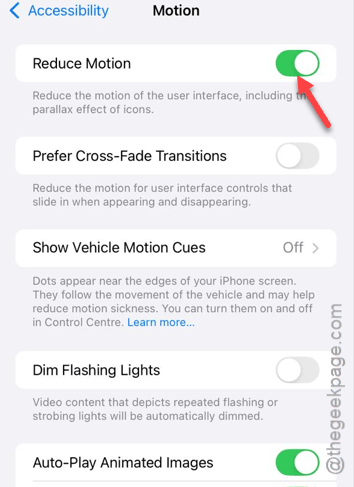
This way, the notification sound should work just fine.
Fix 4 – Turn OFF the Automatic Airplay
The AirPlay feature does activate automatically on iPhone. But, sometimes, it can cause the sounds to play delayed when the device screen is turned off.
Step 1 – Go to the Bluetooth settings on iPhone.
Step 2 – Toggle the Bluetooth settings to OFF.
Step 3 – Additionally, proceed to the General tab in Settings. Open the AirPlay & Continuity tab.
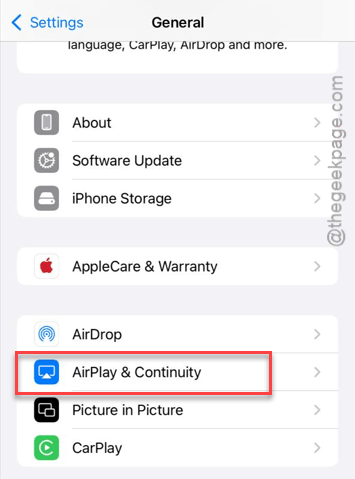
Step 4 – Set the Automatic AirPlay to Never.
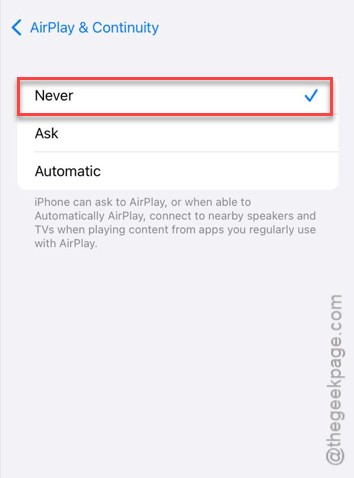
After disabling the airplay settings, the delay issue in the notification issue will be resolved.
Fix 5 – Refresh the entire notification system
If you are getting the notification settings delayed after unlocking the iPhone, a forced refresh of the notification settings should help.
Step 1 – Open the iPhone Settings one more time. Proceed to the Notifications tab.
Step 2 – Now, find the affected app from there and open it up.
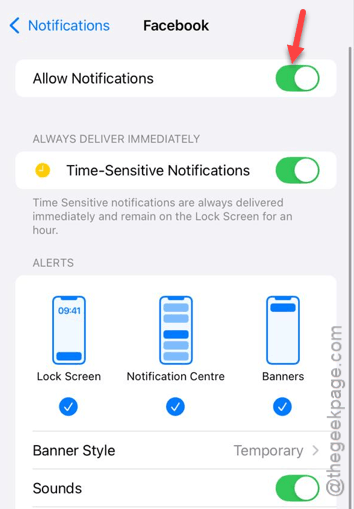
Step 3 – Toggle the Allow Notifications to OFF mode.
Step 4 – Then, press and release the Volume Up button.
Step 5 – Next, press and release the Volume Down button.
Step 6 – Finally, press and hold the side button of the iPhone until the device restarts.
Step 7 – After force-restarting the iPhone, switch the Allow Notifications toggle to ON mode.
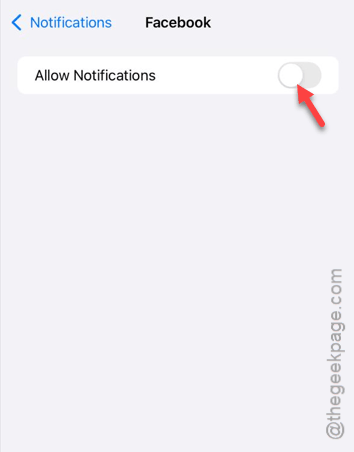
After refreshing the notification system, the notification issue will be resolved.