Several iOS 26 users have reported some issues with the dictation process just after getting the iOS 26 update. In the majority of these affected cases, the dictation feature is stopping in the middle of a conversation. It seems there are some issues between the Apple Intelligence and the background microphone noise, which is leading to sudden stops during the dictation process. Refreshing the keyboard language or resetting the keyboard dictionary should fix the issue.
Fix 1 – Use the Language Flip Refresh
When you change the dictation language, it automatically re-downloads the speech-recognition assets.
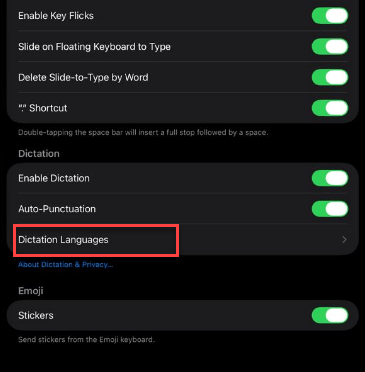
Step 1 – Open the General settings in the iPhone Settings. Load up the Keyboard settings.
Step 2 – Then, open the Dictation Languages tab.
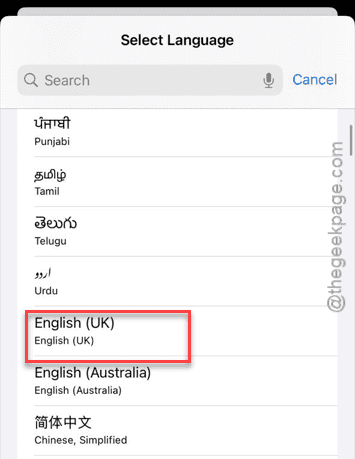
Step 3 – Switch to a different variety of language that you are already using. Like, switch to English US, if you are using English UK.
Step 4 – Use the dictation anywhere you prefer. Use the dictation for a minute or so.
Step 5 – Now, revert to your original dictation language.
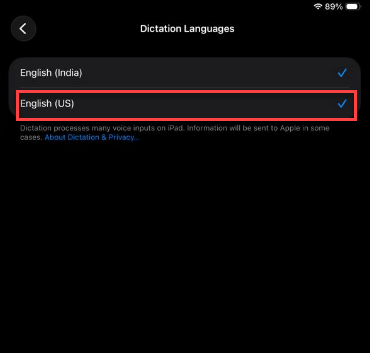
This simple alteration should fix the dictation issue.
Fix 2 – Reset the iPhone’s Keyboard Dictionary
Sometimes a corrupted keyboard dictionary on an iPhone can lead to such issues with the dictation system.
Step 1 – Load up the General tab.
Step 2 – Then, go to the Transfer or Reset iPhone tab.
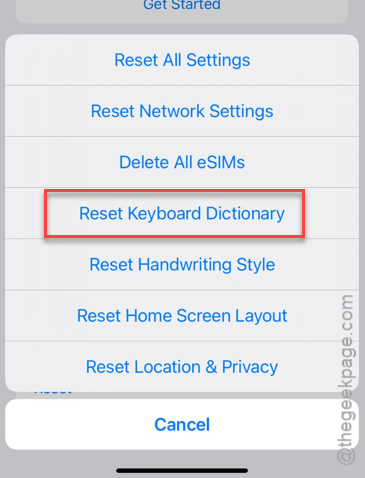
Step 3 – Use the Reset button. Then, tap the Reset Keyboard Dictionary feature.
Step 4 – Finally, use the Reset Keyboard Dictionary option. It may require your Apple passcode. Input that, and, confirm resetting the dictionary cache.
The dictation won’t stop in the middle of the process again.
Fix 3 – Disable and re-enable the Dictation
A simple refresh of the dictation feature should resolve the issue.
Step 1 – Proceed to the General tab in the iPhone. Open the Keyboard tab.
Step 2 – Toggle the Enable Dictation to OFF.
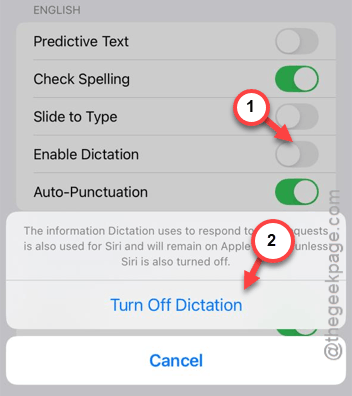
Step 3 – Then go forward and force-restart the iPhone. Then, quickly press and release the Volume Up, Volume Down keys. Finally, hold down the side button until the screen completely shuts down, and the Apple logo shows up there.
Step 4 – Once the iPhone reboots, turn ON the Enable Dictation feature.
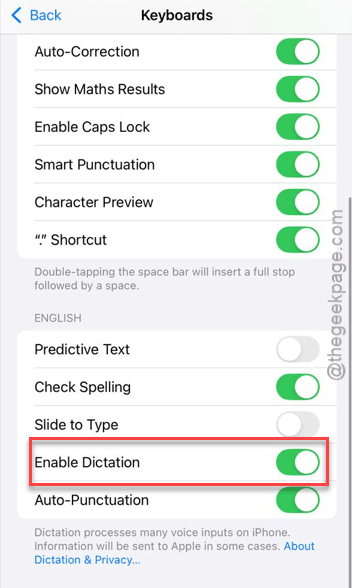
After re-enabling the dictation, try it at once. See if it is stopping in the middle of a conversation or not.
Fix 4 – Refresh the Siri and Microphone Permissions
Siri’s microphone permission can lead to dictation problems.
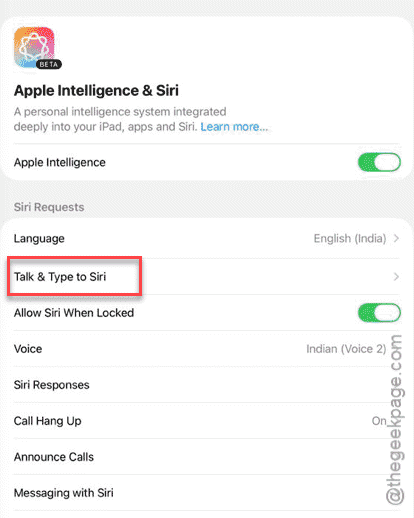
Step 1 – Open the Apple Intelligence & Siri tab in iPhone Settings.
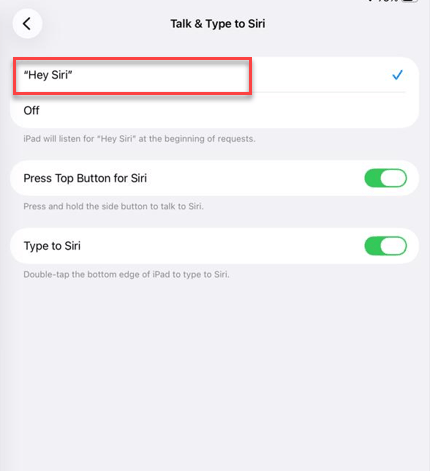
Step 2 – Load up the Talk & Type to Siri feature. Turn it OFF.
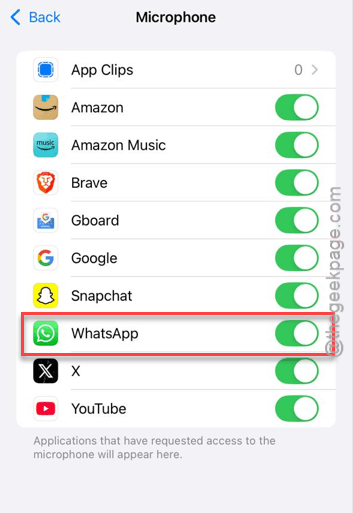
Step 3 – Next, open the Privacy & Security tab. Open the Microphone settings.
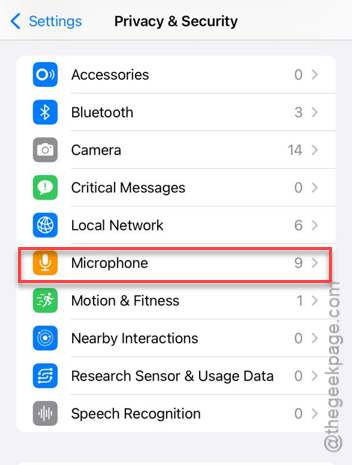
Step 4 – Find the app where the dictation is failing. Toggle it OFF. Then, wait for a few seconds and turn ON the settings.
Step 5 – Re-enable the Siri settings.
Try to use the dictation feature again.
Fix 5 – Turn Off the Auto-Punctuation Feature
The auto-punctuation feature can sometimes break the entire dictation engine on the iOS 26.
Step 1 – Proceed to the Keyboard tab in General page.
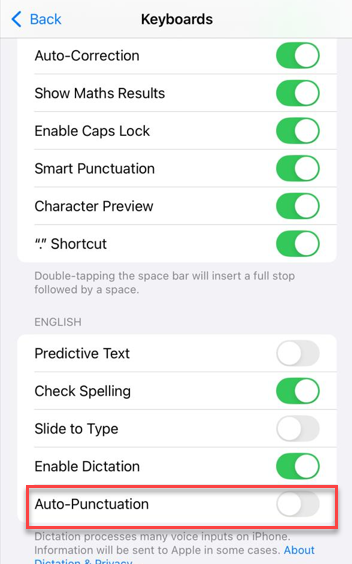
Step 2 – Then, locate the Auto-Punctuation in the Dictation tab.
Step 3 – Toggle it to OFF.
This will fix the dictation issue for the keyboard. Check whether this works out.