Not getting any response from Siri on your Apple Watch? If Siri stops responding to your calls, it is usually due to a glitch in watchOS 26, a slow internet connection, or misconfigured Apple Watch settings. However, there are a few screen time restrictions on iPhone that can also be regressive towards Siri on Apple Watch. Here are some solutions you can implement to fix this Siri problem on the Apple Watch.
Fix 1 – Turn Off and On Siri
You have to refresh Siri in the Apple Watch settings console.
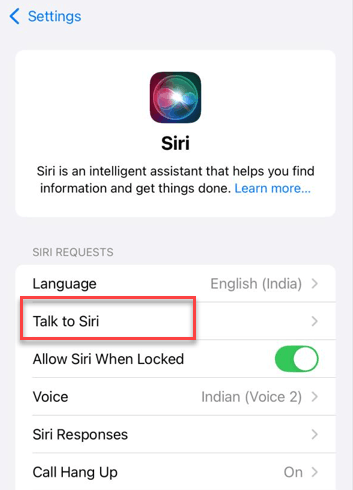
Step 1 – On the iPhone, proceed to the Settings tab. Tap the Siri & Search settings.
Step 2 – Find the Talk to Siri to OFF mode.
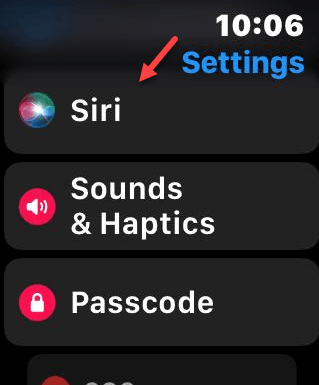
Step 3 – Next, tap the digital crown of the Apple Watch to open the list of apps. Then, visit the Settings page on Apple Watch.
Step 4 – Open the Siri settings.
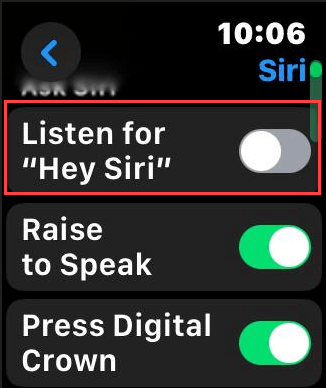
Step 5 – Set the Listen for Hey Siri and toggle it to OFF.
Step 6 – Next, restart both the Apple Watch and iPhone.
Step 7 – Turn ON the Talk to Siri feature on both devices.
This refresh should fix the Siri issue that you are having on Apple Watch.
Fix 2 – Connect the Apple Watch to Wi-Fi
Sometimes, the iPhone’s internet ‘sharing’ is not enough for the Siri on Apple Watch to respond correctly. Connect the device to Wi-Fi and check.
Step 1 – Go to your Settings on Apple Watch. Proceed to the Wi-Fi tab.
Step 2 – Check whether you are connected to a Wi-Fi.
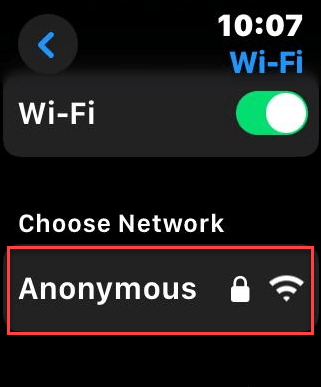
Step 3 – If it is already connected to such a Wi-Fi network, use Forget this Network option.
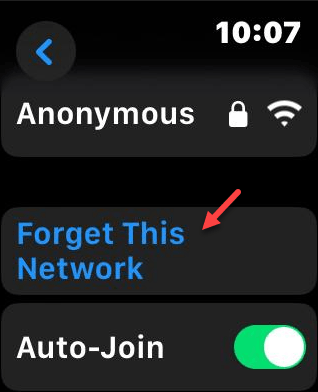
Step 4 – Reconnect to the Wi-Fi.
Try to use Siri again on the Apple Watch. Check the response from it.
Fix 3 – Refresh the Raise to Speak
The ‘Raise to Speak’ feature can cause this problem. So, you can refresh the watch settings to fix the issue.
Step 1 – Raise the Apple Watch within 2-3 inches of your mouth. Start speaking immediately before the Apple Watch screen lights up.
Step 2 – If Siri is still not responding, open the Watch app on the iPhone.
Step 3 – Go to the Siri settings.
Step 4 – Turn OFF the Raise to Speak feature. Then, turn this back ON.
This refresh should resolve the issue that you are having with Siri.
Fix 4 – Delete the Siri Dictation History
Deleting the Siri’s dictation history from the device to fix the issue.
Step 1 – Open the Siri & Search settings on the iPhone.
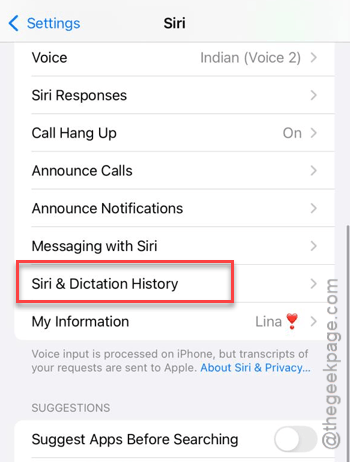
Step 2 – Next, open the Siri & Dictation History tab.
Step 3 – Use the Delete Siri & Dictation History option.
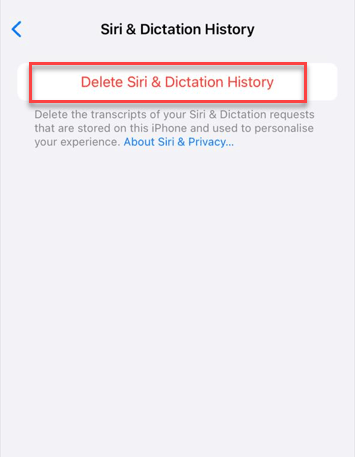
This ensures a refreshed version of Siri is available for conversation the next time you call it up.
Fix 5 – De-restrict the Screen Time Communication Limit
There are some features of Screen Time restrictions that may limit the Siri’s ability to communicate or use cellular service.
Step 1 – Open the Screen Time settings on the iPhone. Go to the Content & Privacy Restrictions.
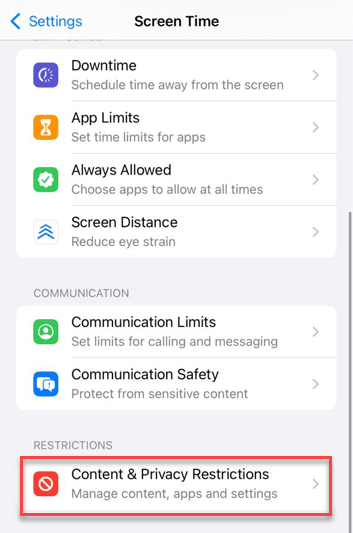
Step 2 – If it is enabled, go to the Allowed Apps. Make sure the Siri & Dictation feature is turned ON.
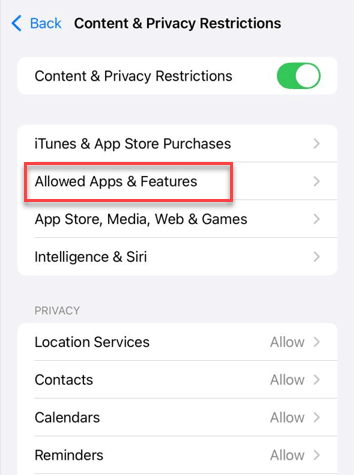
Step 3 – Proceed to the Communication Limits. Deactivate any Downtime restrictions imposed on the device.
After disabling this restriction, it will fix this issue.