Can’t pair up your new Apple Watch with your iPhone? Setting up an Apple Watch is the introductory phase of using an Apple device, which is a moment of happiness for many users. But, if you can’t pair up the Apple Watch with your iPhone, it can really ruin that moment. Here are the main fixes that you will need to fix the pairing issue on the Apple Watch.
Basic Checks for quick resolutions –
1. Keep the Wi-Fi and Bluetooth on your iPhone turned on. Make sure to turn off the Airplane mode on the device.
2. You have to keep the Apple Watch and iPhone in proximity for the paring process to begin and until the entire procedure successfully completes.
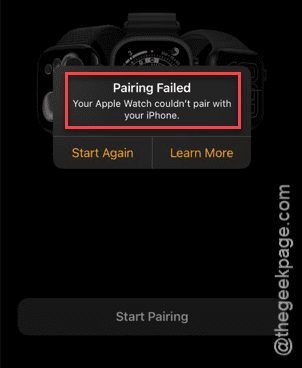
Fix 1 – Reset the Watch After Pairing Failure
If the Apple Watch has failed during the pairing process, you can just reset the watch in the middle, and try to pair it up again.
Step 1 – If the pairing process has failed, press and hold the Digital Crown button for a few seconds, until the Reset command appears on the screen.
Step 2 – Next, tap Reset option to reset the Apple Watch.
After resetting the Apple Watch, you can pair it up again, using the iPhone’s camera to scan the Apple Watch to do it.
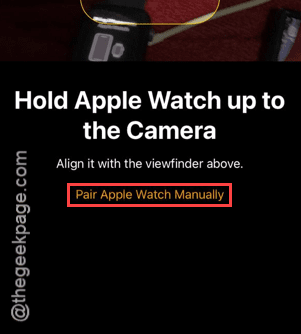
NOTE – If the camera scanning pairing process fails, you should pair up the watch manually.
Fix 2 – Restart the Apple Watch and iPhone
Restart your iPhone and the new Apple Watch and try to pair it again.
Step 1 – Press-hold the Side button and Crown of the Apple Watch together for 10–15 seconds.
Step 2 – Next, press the Power off button in the Control Center. Next, use the Slide to power off slider to power off your iPhone.
Step 3 – Then, press and hold the Power button on the iPhone to restart the device.
After this, proceed to pair the iPhone with your Apple Watch from scratch.
Fix 3 – Update the iPhone to latest iOS
The watchOS on your new Apple Watch requires almost the latest version of iOS to set it up properly.
Step 1 – At first, load up the iPhone Settings, and reach the General settings console there.
Step 2 – Next, proceed to the Software Update tab.
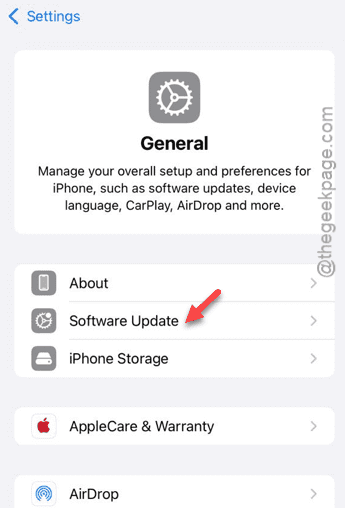
Step 3 – If an iOS update is pending on your iPhone, use the Update Now button there to update the device.
Once you have updated the iPhone, try to pair it up with your new Apple Watch.
Fix 4 – Erase the Apple Watch and pair it up
Currently, if the Apple Watch is paired with an existing iPhone, you can’t pair it up with any other iPhone. You have to erase all contents of your Apple Watch and try the pairing process afresh.
Step 1 – Go to the Settings page from the app list of your Apple Watch.
Step 2 – Go to the General settings panel, next.
Step 3 – Then, get to the Reset settings.
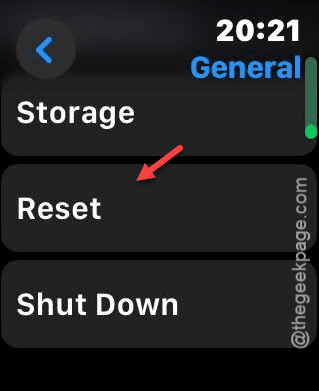
Step 4 – Tap the Erase Apple Watch Content and Settings option.

Step 5 – Confirm this step and tap Erase All to reset the Apple Watch.
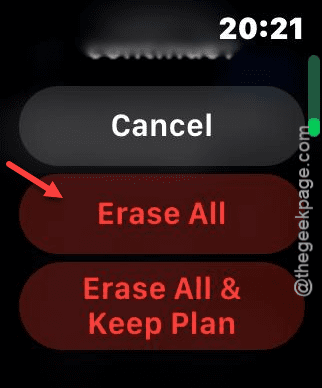
Once the entire process is complete, your Apple Watch will be ready for paring up again. You can just go ahead and use your iPhone to pair up the Apple Watch.
Fix 4 – Consult Apple Support
If you still can’t set up your new Apple Watch with your iPhone, you should take you to an authorized Apple service center. There must be a problem that can’t be solved by these workarounds and software-centric solutions. If this is indeed a hardware issue, you should return it to Apple Service Center or a get a complete refund.