Does your Apple Watch show up the wrong name on the watch? Some of the Apple Watch users have experienced this issue where the watch is calling their name wrong. This is completely unacceptable as it can create unnecessary confusions for them. These solutions should help you fix the issue very easily.
Fix 1 – Check the nickname
Siri on Apple Watch often calls the users by their nicknames, instead of using their main contact names. See whether that one is correct or not.
Step 1 – Open up the Contacts app. You will find your name card at the top. Tap it once.
Step 2 – Tap the Edit button at the right-top corner to edit your own contact information.
Step 3 – See whether if you can find any Nick name or certain other fields that contain any of your other names.
Step 4 – If you can find any such item in there, delete that and save the changes for the contact.
Your Apple Watch won’t show up or call you with different names again.
Fix 2 – Edit the Name in the Watch app
You can manually edit your name (or what Siri calls you) directly from the Watch app or using your iPhone.
Step 1 – To do this, load up the Watch app on the iPhone.
Step 2 – Go to the My Watch section and reach the General tab.
Step 3 – Next, open the About section there.
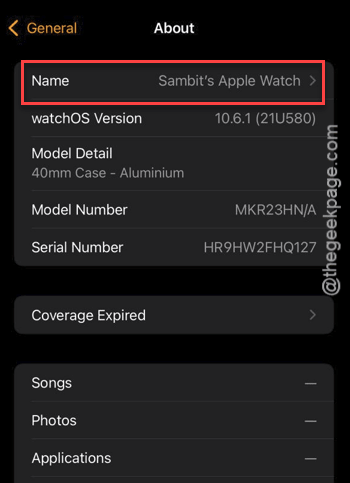
Step 4 – There you will see your watch’s name. It is editable. So, if you find any discrepancy in there, just modify it according to your preference.
Once you are done, the same name will show up in your Apple Watch.
Fix 3 – Change the My Info
You have to change the Siri’s settings to make things right.
Step 1 – At first, go to your phone’s Settings page. Then, reach the Siri settings.
Step 2 – Next, open the My Information settings.
Step 3 – Check the validity of the information there. If you see any discrepancy in there, tap the actual contact that you want to set as the current contact for your device.
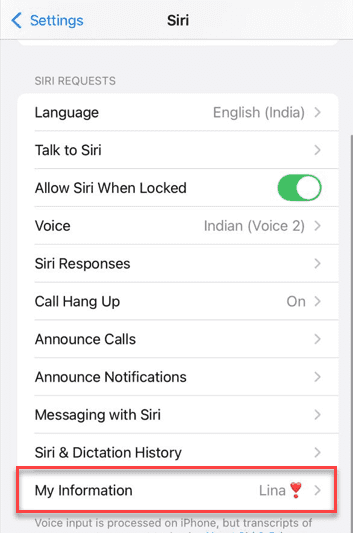
After making these changes, the problem of seeing the wrong name information on your watch will be gone for sure.
Fix 4 – Reset the Sync data
If nothing is working for you, you should reset the synchronization data on your Apple Watch.
NOTE – You won’t lose any data in this process. You may have to resync the watch afresh.
Step 1 – Open the Watch app on iPhone.
Step 2 – Next, go this way –
General > Reset
Step 3 – In the Reset page, tap the Reset Sync Data option to reset the synchronization data on your Apple Watch.
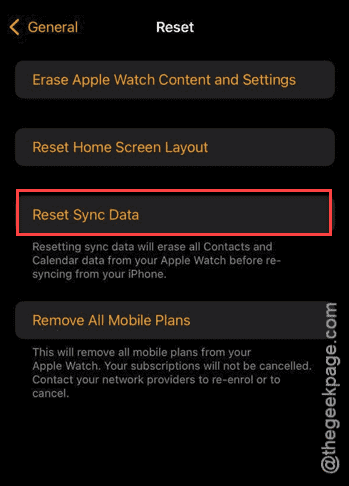
After resetting the sync data on your Watch, you may have to resync the watch with your iPhone. Once you do that, your account name will you show up on the watch properly.