The last thing as an iPhone user, you will ever want to experience lags on their brand new iPhone 16. It can be software, or, the display or other things that is causing this issue. While the reasons can vary depending on several factors, we have highlighted the key reasons and their solutions to take care of the laggy experience on the iPhone.
Why does my iPhone 16 lags?
A simple Google search may reveal that the iPhones tend to lag a lot less compared to other smartphones. One of the key reasons why people purchase iPhones is to get a lag free of experience. If your iPhone is 4–5 years or more old, it is common for you to notice a bit of lag, even while performing daily tasks. A brand-new iPhone, like the iPhone 16 should not lag whatsoever.
There are certain scenarios like if you are upgrading from a pro version of iPhone like 15 pro or 14 pro to a base version, users can experience a bit of lag. We have shone light on all the possible causes and there perfect counters to diminish or completely eliminate the lag you are experiencing on the device.
Fix 1 – Turn off the Reduce Motion
If the Reduce Motion is enabled on your iPhone, it can cause adverse reactions like the lag you are experiencing on the device.
Step 1 – On your iPhone, open up the Settings page. Go to the Accessibility tools page.
Step 2 – Load up the Motion settings next.
Step 3 – In the Motion settings page, turn off the Reduce Motion feature.
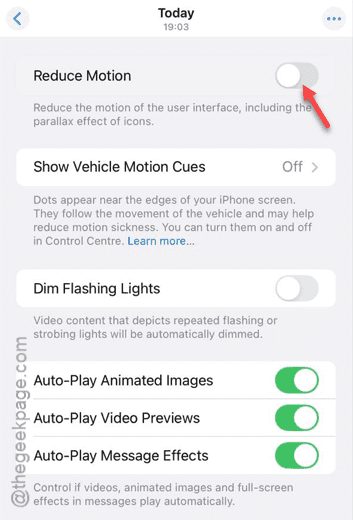
Once you have turned it off, check the status of the lag issues on the iPhone again.
Fix 2 – Change the Wallpaper
Everyone iPhone comes with a preset wallpaper. Changing the wallpaper on the device can resolve the lag issue.
Step 1 – Go to the Photos app and open up a new image that you want to set as the iPhone’s wallpaper.
Step 2 – Then, tap the Share button there and choose to Use as Wallpaper.
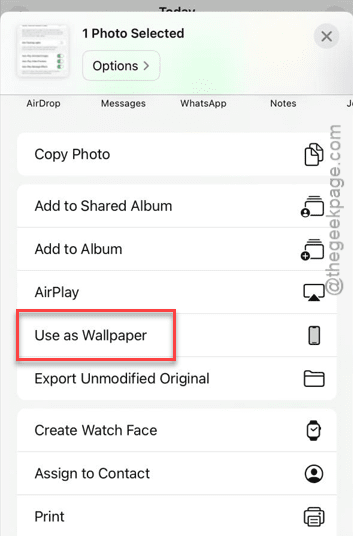
Step 3 – Now, you can choose to use the wallpaper as a pair on both the lock screen and home screen setup. Otherwise, you can set this as a standalone wallpaper as well.
Once you have set the new wallpaper, the lag issue will go away.
Fix 3 – Update the device
Recent iOS updates such as iOS 18 has reports of too many bugs, glitches that can cause this issue.
Step 1 – Go to your iPhone settings and reach the general setting space.
Step 2 – On the next step, go to the Software update section.
Step 3 – If you find any updates pending on your iPhone, use the Update now button to install that update on the device.
Many of the users have claimed to solve this lag issue just by updating their iPhone 16.
Fix 4 – Lower refresh rate
the best version of iPhone 16 has a display of 60Hz in the place of 120Hz on the Pro version of the device. If you have moved on from a pro version of any older iPhone, you will notice a ‘delay’ while using the device. This particular delay is well noticed while scrolling through the device, like your X feed or the photos on the Photos app. Continue to use the device for some time and you will get used to it. Otherwise, you can return your new iPhone 16 and upgrade to the Pro version.
Check if this works!