Does the ChatGPT responses taking way too much time, or does it start to lag after a long chain of continuous conversations? If you are experiencing a certain lag or stutter while running a long thread of conversations on ChatGPT, don’t worry. Many users have noticed the same issue with ChatGPT at their end, and here are some updated fixes and information to troubleshoot the issue.
Preliminary Fixes –
1. Start a fresh new chat – The more conversations you have on a single chat thread, it will increase the RAM consumption, ultimately slowing down the browser’s performance.
2. Refresh the ChatGPT page – Refreshing the ChatGPT webpage on the browser may help you.
Fix 1 – Log out and Log back in with your Open AI account
You should log out of the OpenAI account in Google Chrome, and then sign back to the account to fix the issue.
Step 1 – On the Google Chrome browser, open up the ChatGPT website, if you have closed it already.
Step 2 – Then, tap the two-bar button in the top-left corner. You will see your profile picture there, and tap it once. Next, tap Log out to log out of your account.
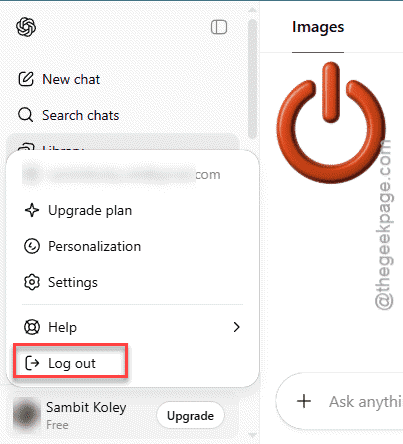
Step 3 – Now, tap the Log in and log in using your account.
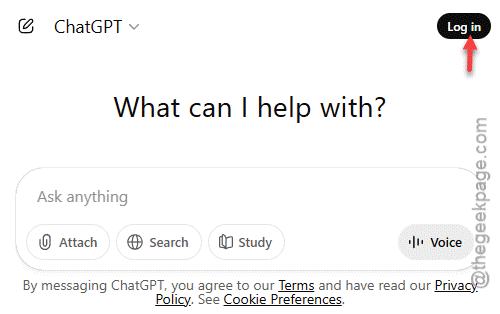
After logging in with the account credentials, you won’t face any such stuttering issues in long conversation chains.
Fix 2 – Clear the Browsing history of Google Chrome
Sometimes, built-up browser history data can cause the ChatGPT website to slow down significantly.
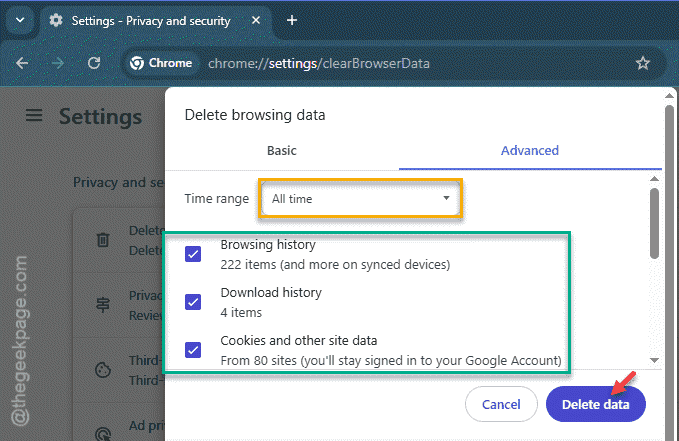
Step 1 – Open up a new tab in Google Chrome. Then, put this in the address bar and hit Enter.
chrome://settings/clearBrowserData
Step 2 – Later, set the Time range to All time.
Step 3 – Then, check these items there –
Browsing history
Download history
Cookies and other site data
Step 4 – Use the Delete Data function to delete the browsing data from Google Chrome.
Re-open the ChatGPT in a new tab, and log in with your account credentials. See if this works out for you or not.
Fix 3 – Clear up all the older chats and re-use
Sometimes, if you have too many chats from your open AI account, it can make the ChatGPT window sluggish in the browser web page. Clearing up the old chats should take care of such issues.
Step 1 – Tap the profile icon on the ChatGPT console on the browser.
Step 2 – Next, tap the Settings icon on the ChatGPT settings.
Step 3 – Choose the Data Controls settings from the left column.
Step 4 – Then, tap the Delete all chats option to delete all your previous conversations from the ChatGPT account.
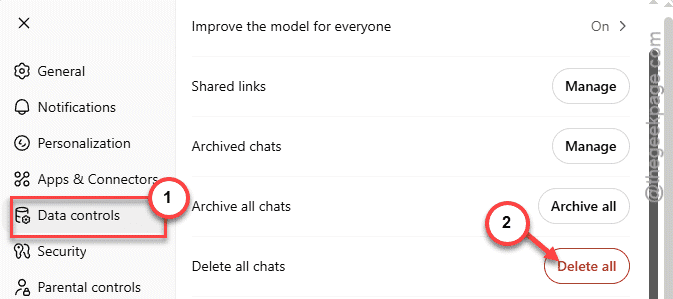
After deleting all the chats, start a fresh new chat. ChatGPT won’t slow down significantly.
Fix 4 – Check the OpenAI server status
Though it is not a regular occurrence, open AI servers can also go down just like others. Where’s the dedicated page to track the open AI services status. So we recommend you to check the current service status in your region.
Step 1 – Load up the OpenAI Status in a browser of your choice.
Step 2 – If you get any message such as ‘We’re currently experiencing issues’ header, there are some issues with the ChatGPT components and that is the reason you are getting slow response and error message.
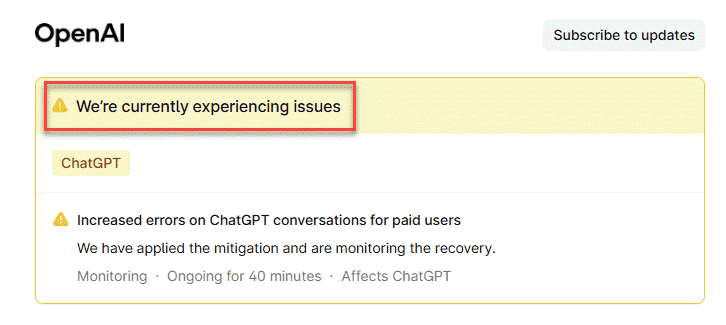
You have to wait for them to resolve the issue. While the outages does not last longer than a few minutes, it might take a while for it to get resolved.
Fix 5 – Upgrade to a higher ChatGPT plan
OpenAI has limited the ChatGPT’s response time for the free tier users. Apart from that, the free tier of the ChatGPT typically uses previous models, while the premium users can take the benefit of the latest version of Open AI’s model. The latest version is always superior in reasoning, critical thinking, deep research etc. So, if the ChatGPT is taking too much time to generate responses, you should upgrade to the premium tier of the ChatGPT for better and quicker responses.
Fix 6 – Use different browser or device
if the ChatGPT still feels slow or sluggish during a long conversation, you should switch to a different browser like, Firefox or the native Microsoft Edge. Some users have found respite from this situation using the ChatGPT on another device. So, if the ChatGPT still feels slow or sluggish, you should load it up in another browser or your smartphone or other such devices.