Does your iPhone sound stop automatically when you start to record video? If you are trying to record a video alongside a piece of music streaming from your iPhone, don’t worry. Here is the perfect solution for your trouble. Once you implement this, you can record your video without stopping the music playback on the iPhone.
Why the music stops while recording video on iPhone?
The music on the iPhone stops whenever you start to record a video for multiple valid reasons. The main reason behind this system to prioritize the microphone usage to capture the audio streams for the video. The native applications on the Apple devices like camera, voicemails take the exclusive control. This is done by design to ensure that the audio is captured property.
Fix – 1 Start to record the video from Photo mode
there is a very simple work around to this problem. All you have to do is to start the video recording function directly from the photo mode.
Step 1 – Now, start the audio playback in the background.
Step 2 – Launch the Camera application on the iPhone. It should open up in the default Photo mode.
Step 3 – While you are in the Photo mode, tap and hold the Photo button to initiate the video recording process.
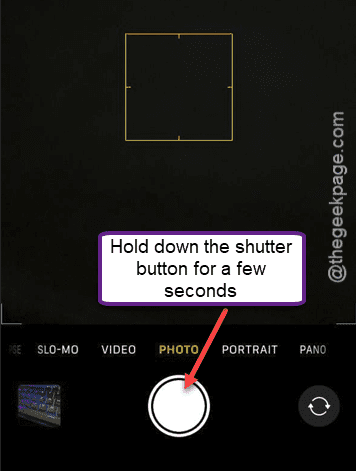
This way, you can record the video without stopping the music playing in the background.
Fix 2 – Use third party camera tools
There is a dedicated app on the App Store that is explicitly designed to play music while you are capturing a video. You can download and use the Mideo app for this purpose. Download and install the app on your device. The app by default allows you to stream music and capture videos while you are listening to music.
Fix 3 – Play the music on external system
The iPhone takes exclusive control of the microphone while recording video. But, there is a simple workaround that you can use to play the music on other external system (such as Bluetooth speaker) and record the video.
Step 1 – Connect your iPhone to an external speaker system via Bluetooth.
Step 2 – Play the music there and record the video from your iPhone.
Step 3 – After this, you can start capturing the video from your iPhone.
Hope these fixes have helped you!