iPhone’s proximity sensor problems—whether the screen fails to turn off during a voice call or does not activate the Always On mode properly in a dark environment—can stem from various reasons. This is quite prominent after the iOS 26 update, as the increasing user reports have indicated the same. If you also have found the iPhone’s proximity sensor failing or completely broken, these resolutions will help.
Fix 1 – Refresh the Display Zoom
Refresh the iPhone’s display sensors using the
Step 1 – Open the iPhone’s Settings. Then, go to the Display & Brightness section.
Step 2 – Then, scroll down to the Display Zoom tab.
Step 3 – Switch to the Larger Text mode and tap Done.
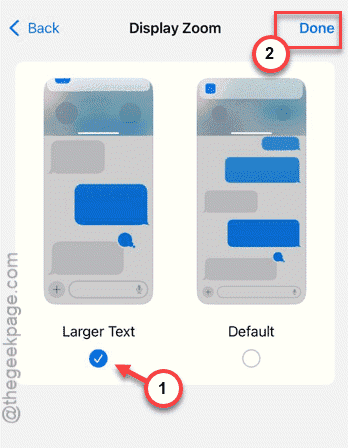
Step 4 – Wait for the display to become operational. Then, switch back to the Default display level.
This should recalibrate the iPhone’s display and proximity sensor along with it.
You can easily check the proximity sensor’s functionality using the Always On method. While the Always On is active, just guard the Dynamic Island region of the screen. It will get activated only if the proximity sensor is working perfectly.
Fix 2 – Disable Raise to Listen Feature
If you are having this problem while responding to a call, disabling the Raise to Listen feature should resolve it.
Step 1 – Go to the Apps table to load the list of installed apps on the iPhone.
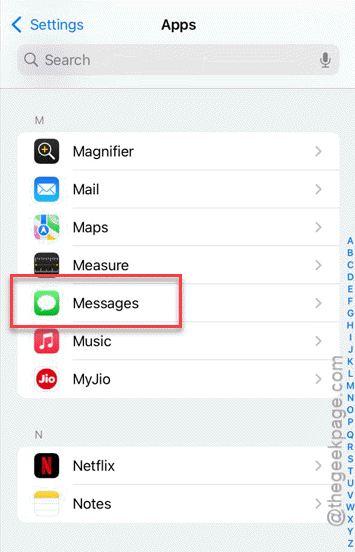
Step 2 – Open the Messages app.
Step 2 – Next, go to the Audio Messages section.
Step 3 – Reach the Raise to Listen feature and turn it OFF.
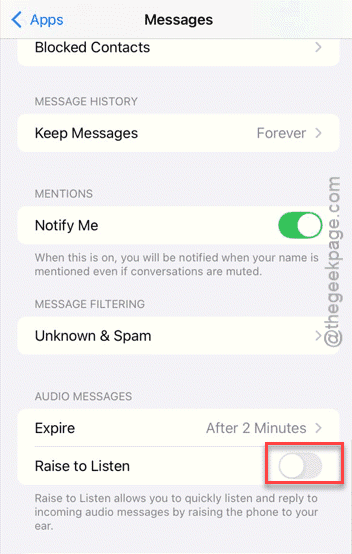
Turning this off should resolve the proximity-sensor issue on the iPhone.
Fix 3 – Offload the Problematic App
If you are experiencing this proximity issue in a particular app, you can just offload it and reinstall it.
Step 1 – Reach the iPhone Storage settings from the General tab.
Step 2 – Next, open the app (like Facetime, WhatsApp) where you have experienced this issue.
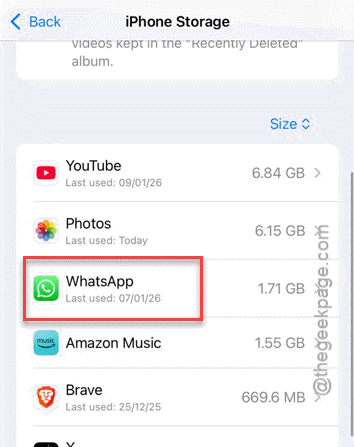
Step 3 – Tap the Offload App option to just delete the app package from the device, without removing the user data.
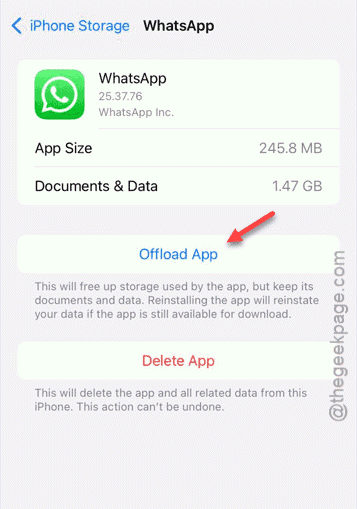
Step 4 – Now, use the Reinstall App option to reinstall the app on your iPhone.
After reinstalling the app, check if the issue still persists.
Fix 4 – Hard Reset the iPhone
Hard-resetting the device will reset all the sensors to the default value, including the proximity sensor.
Step 1 – At first, press and release the Volume Up button.
Step 2 – Then, quickly press and release the Volume Down button of the device.
Step 3 – Now, press and hold the Side (Power) Button until the Apple logo shows up on the screen.
Once the iPhone becomes functional, check whether the proximity sensor is working correctly or not.
Fix 5 – Clear the obstructing case
Sometimes, the upperside (lip portion) of a display protector can cause more light to refract off the surface. This is the primary reason why the iPhone’s proximity sensor is not functioning while responding to a call.
Step 1 – Remove the case from the iPhone.
Step 2 – Take a clean piece of microfiber or soft cotton cloth and use it to clear the Face ID or Dynamic Island region of the device.
Step 3 – Now, check the screen protector of the iPhone. Check if it is misaligned with your actual iPhone’s display.
Hope these fixes have helped in solving the issue.