One of the key reasons for getting wrong compass readings is an uncalibrated compass app. There are some reports of the compass app producing wrong readings after getting the iOS 26 update, which may have broken the default calibration of the utility. Here are some instructions, including the 8-figure movement, which will recalibrate the compass within a few seconds.
Fix 1 – Toggle the Compass Calibration Service
The iOS 26 has a native compass calibration service that is responsible for compass accuracy.
Step 1 – Load up the iPhone Settings. Then, go to the Privacy & Security tab. Open up the Location Service menu.
Step 2 – Then, scroll to the bottom and open up the System Services.
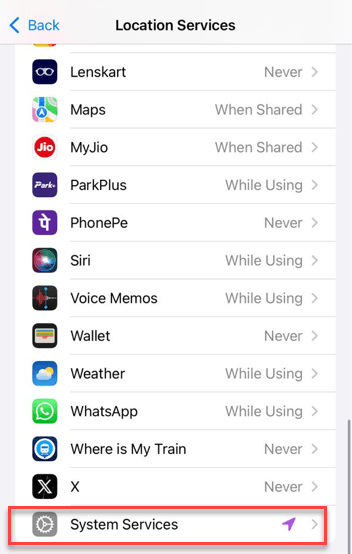
Step 3 – Find the Compass Calibration service.
Step 4 – Next, toggle it to OFF mode. Wait for a few seconds and then turn it back to ON.
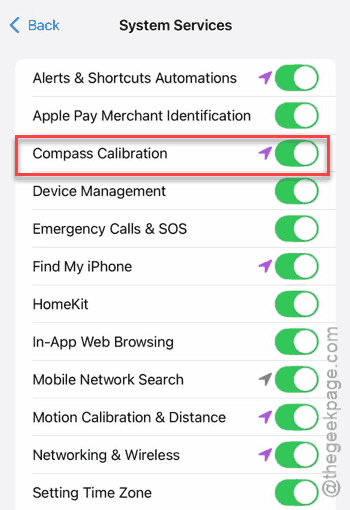
Then, restart the iPhone once to refresh the sensors. Try to use the compass and check the calibration again.
Fix 2 – Perform the 8-figure Movement
The 8-figure movement is used to calibrate the magnetometer in your iPhone across the X, Y, and Z axes. Do this to manually calibrate the device.
Step 1 – Open the Compass app.
Step 2 – Hold the phone in front of you.
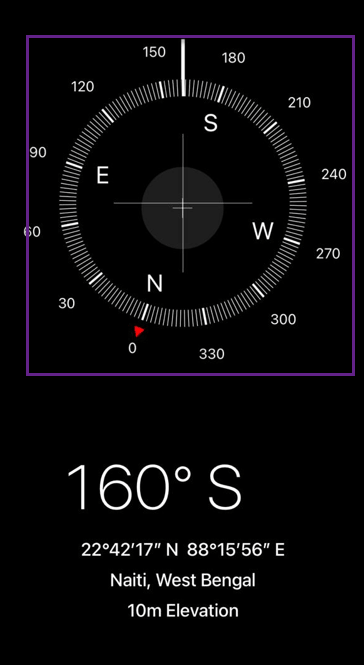
Step 3 – Move your iPhone in a large, slow figure-8 movement. Just try to move around the device in a big ∞ infinity sign, but ensure you are twisting your wrist so that the screen is sideways and then down during the loop.
This will force the magnetometer to calibrate itself in the 3D space. This should fix the issue for the maximum share of the users.
Fix 3 – Check for Magsafe or Magnetc Interfernce
There are reports of the MagSafe cases or even a nearby iPad deviating the iPhone’s compass by 30 degrees.
Step 1 – Remove the MagSafe case from your iPhone completely.
Step 2 – Move away from large metal objects, like cars, refrigerators, or other electronic devices.
If the compass instantly stabilizes without the case, the magnets present in the case are likely responsible for the wrong compass readings.
Fix 4 – Toggle Use True North Feature
Switching between the True North and Magnetic North should recalibrate the position relative to Earth’s poles, fixing the issue.
Step 1 – Go to the iPhone Settings console.
Step 2 – Then, go to the Apps tab to load up the list of apps.
Step 3 – Open up the Compass app.
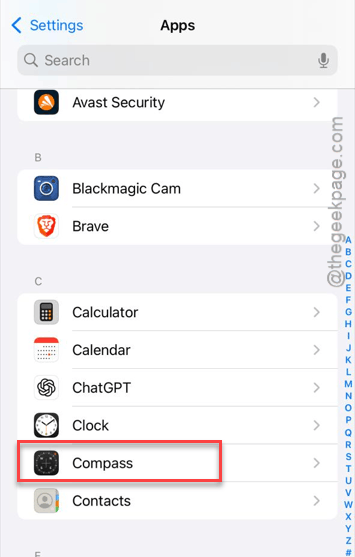
Step 4 – Toggle the Use True North to the opposite of the current settings, like turn it OFF, if it is turned ON or vice-versa.
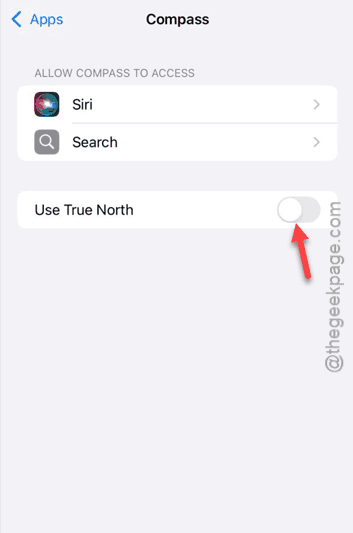
Step 5 – Return to the Compass app. Wait for it to move and return to your preferred choice.
Fix 5 – Reset Location & Privacy Settings
If the compass is still failing, resetting the location privacy settings should resolve the issue.
Step 1 – Go to the iPhone Settings. Then, go this way –
General > Transfer or Reset iPhone
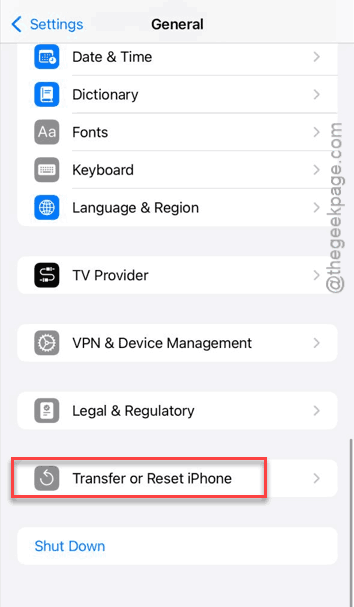
Step 2 – Then, tap the Reset tab. Next, use the Reset Location & Privacy to use that.
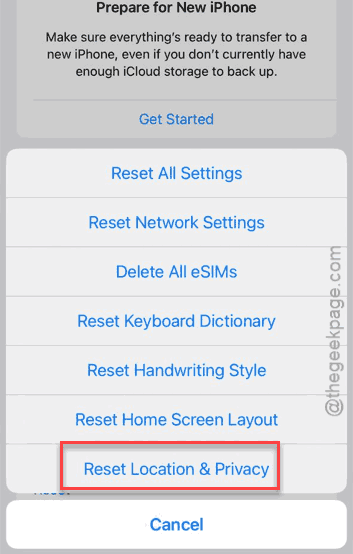
This will reset the location privacy settings of all the apps, alongside the corrupted compass cache that often survives a standard reboot.
Whenever you initiate those apps, you have to allow the location settings for them afresh. This should fix the issue.