Having some problems related to the page format after using the Page X of Y style? This is a common page-related problem that users may come across after changing the paging style to the X of Y format. It is due to the NUMPAGES field, which has become stale or idle or confused by the section breaks. Here are some resolutions you can apply to fix the incoherent page number settings of your document.
| Issue | Recommended Fix |
| Page numbers don’t change during scroll | Use the F9 to update fields |
| Count starts over in a new chapter | Select Continue from previous section |
| The Y value is constant at 1 | Use the Insert > Page Number; Don’t manual page type |
Fix 1 – Force Update the Word document
Sometimes Microsoft Word does not count the total page count in real time, which can cause such a problem.
Step 1 – You have to select the entire document. So, press the Ctrl+A keys together to select the entire text.
Step 2 – Then, press the F9 key on the keyboard to refresh all the parameters of the document.
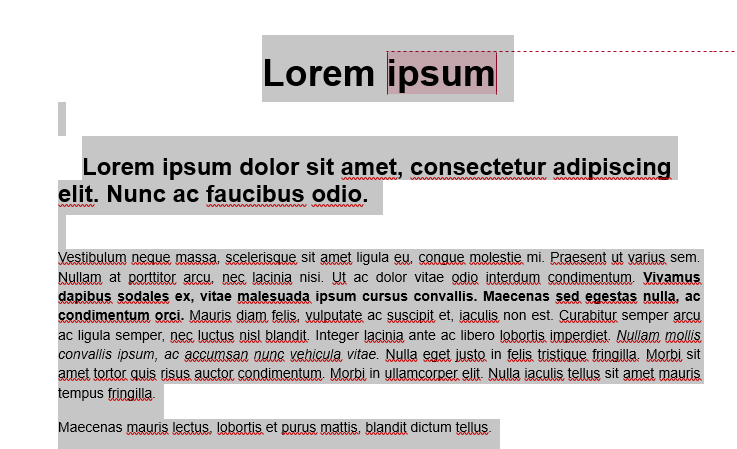
This forces Word to refresh all the components, including the page numbers of the document.
Fix 2 – Switch NUMPAGES to SECTIONPAGES
If your document has multiple sections, there must be a miscalculation for the Y figure, which is counting the whole pages of the document.
Step 1 – Double-tap the footer in your Microsoft Word document.
Step 2 – Then, right-click the Y number in the X of Y page format and choose the Toggle Field Codes option.
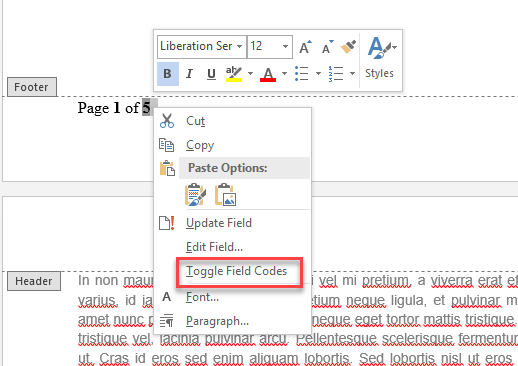
Step 3 – Change {NUMPAGES} to {SECTIONPAGES} format.
Step 4 – Right-click it and choose Update Field parameter.
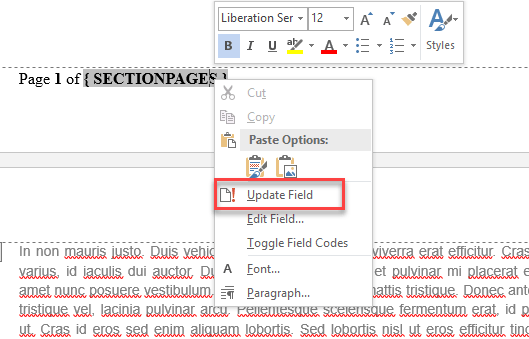
After this, Microsoft Word will now start to count the pages within that the specific section.
Fix 3 – Disable Background Repagination Feature
If your page numbers keep flickering or altering automatically as you scroll, MS Word is struggling to recalculate the page numbers as you type.
Step 1 – In the Microsoft Word document, go this way –
File > Options
Step 2 – Proceed to the Advanced tab. Find the General section.
Step 3 – Ensure the Enable background repagination feature. Save the changes using the OK button.
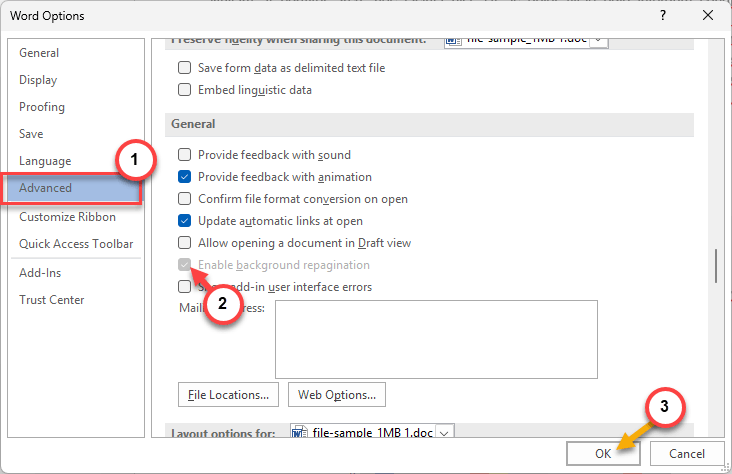
Once you have modified it, the pages won’t flicker or change while scrolling through the document.
Fix 4 – Tweak the Restart at 1
A section break can trigger the X value of the page numbering system if it is set to restart the page numbering process.
Step 1 – In your Word document, proceed to the section where the page numbering is wrong.
Step 2 – Tap the Insert menu, and open the Page Number button. Select the Format Page Numbers button.
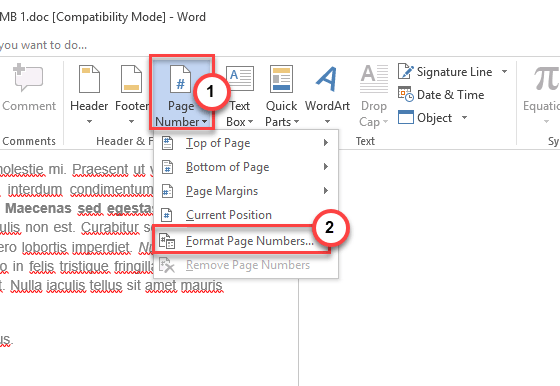
Step 3 – Ensure the Continue from previous section is selected, if it is not already selected. Otherwise, simply restart that feature.
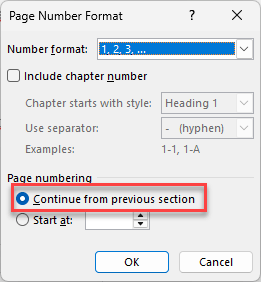
Check whether the page numbering is fixed now or not.
Fix 5 – Clear the Track Changes Metadata
Sometimes, a part of the document may have been hidden from the plain sight. So, these are included in the page calculations but won’t show up in the main document.
Step 1 – Hit the Ctrl+Shift+8 buttons together or tap the ¶ button in the Home tab for all the formatting marks to show up in the document.
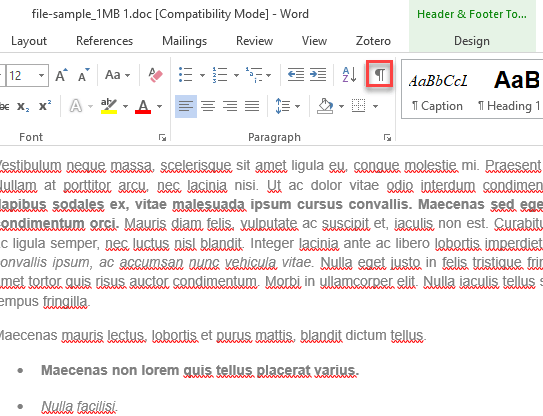
Step 2 – Look for any text block with a hidden remark or dotted line. You may delete that portion of the text if you don’t need it.
Check whether this solves the issue.