You plug in your Ethernet cable. Windows says it’s not connected. But the cable is definitely in. And the lights on the router are blinking. So what gives?
Why This Happens
Here’s the deal. Windows throws this error for a bunch of reasons. The cable might actually be loose. Or bent. Or the connector clip is broken and not seating properly.
But often? The cable is fine. The driver got confused. Or the DNS cache is stale. Or your ISP is having a moment and Windows blamed the cable.
Also worth knowing — Windows Update sometimes pushes a network adapter driver that clashes with older Realtek and Intel chips. The system kills the link to “save power” and then complains the cable is unplugged. Annoying.
Fix 1 – Check the Cable and Port (The Boring One)
Before anything fancy, do this.
1 – Unplug the Ethernet cable from your PC. Then plug it back in. Listen for the click. No click? The clip is broken.
2 – Do the same on the router or modem end.
3 – Check the cable along its length. Bends, kinks, cuts, anything chewed by a pet — all bad signs.
4 – Try a different LAN port on the router. Sometimes one port just dies.
5 – If you have a spare cable, swap it. Or test the current cable on another device.
And if a different cable works? You found your problem.
Fix 2 – Run the built-in Network Troubleshooter
Quick fix. Sometimes the built-in troubleshooter actually works.
1 – Click Start and type Troubleshoot.
2 – Pick Troubleshoot settings from the results.
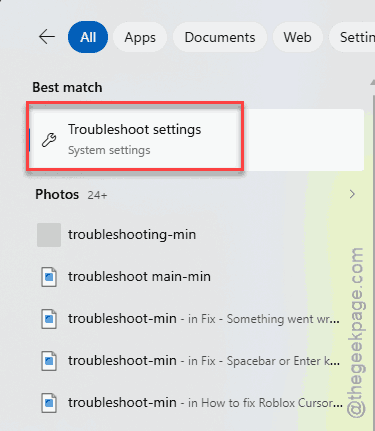
3 – Click Other troubleshooters.
4 – Find Network and Internet (or Internet Connections on older builds) and hit Run.
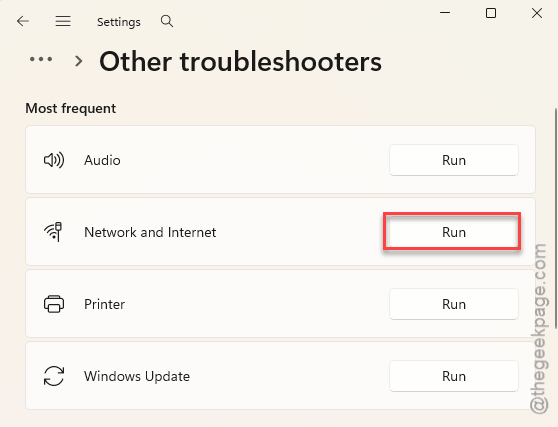
5 – Follow the prompts. If it suggests a fix, accept it.
If it says it couldn’t find the problem? Move on. The troubleshooter’s success rate is… mixed.
Fix 3 – Flush the DNS Cache
Sounds unrelated. But a corrupt DNS cache makes Windows think the network is broken when it’s really just confused.
1 – Hit the Windows + S or directy type cmd in the search box.
2 – Then, right-tap the Command Prompt and tap Run as administrator.
3 – Next, write this code in the terminal and press Enter.
ipconfig /flushdns
4 – You should see the following message after executing the code –
Successfully flushed the DNS Resolver Cache
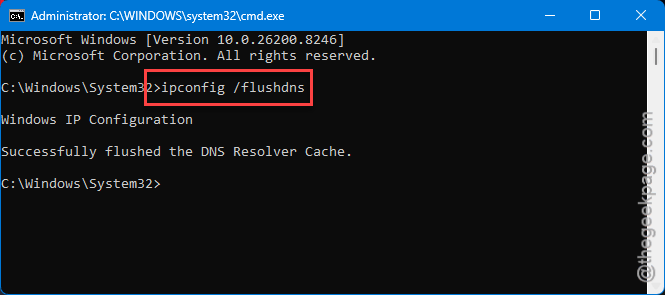
Done. Reconnect the cable and check.
Fix 4 – Switch to Google DNS
If your ISP’s DNS server is dropping out, Windows reads it as a dead network. Switch to Google’s. More reliable.
1 – Press Windows + R to open Run.
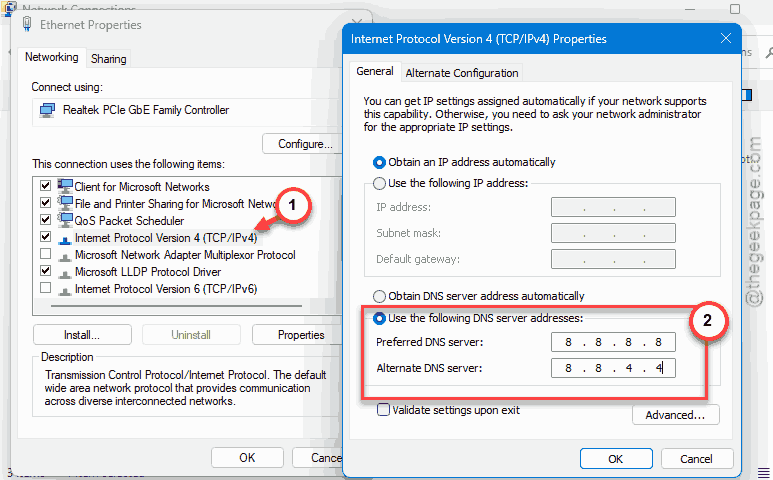
2 – Type ncpa.cpl and click OK. This opens Network Connections directly.
3 – Right-click your active connection (Ethernet, usually). Pick Properties.
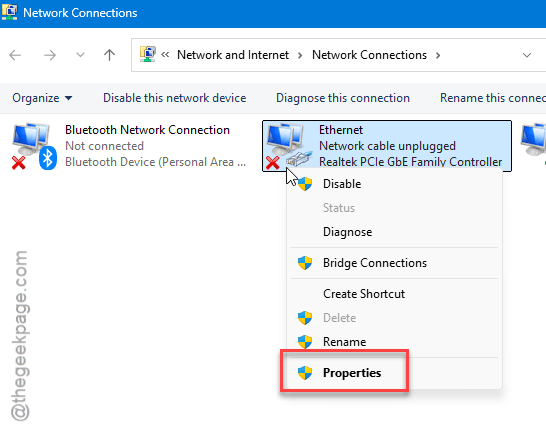
4 – In the list, double tap the Internet Protocol Version 4 (TCP/IPv4) option.
5 – Hit the Use the following DNS server addresses radio button. Set up those this way –
Preferred DNS server: 8.8.8.8
Alternate DNS server: 8.8.4.4
8 – Click OK and Close.
And honestly? This should be the default. ISP DNS servers are flaky.
Fix 5 – Stop Windows From Killing Your Adapter
Your Windows machine, like on laptops, sometimes kills off the network adapter to save power. Hence this “cable not plugged in” error.
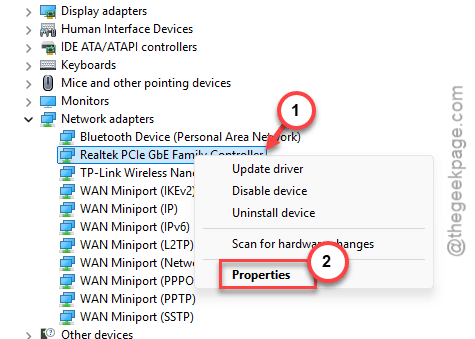
1 – Right-click Start and pick Device Manager.
2 – Expand Network adapters.
3 – Later, you have to right-tap the Ethernet adapter and pick Properties.
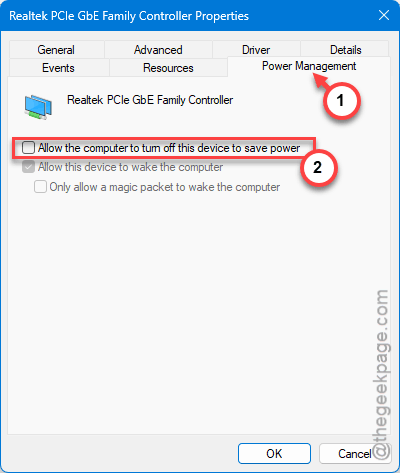
4 – Go to the Power Management tab.
5 – Untick the Allow the computer to turn off this device to save power box there.
6 – Click OK.
Check if this resolves the issue.
Fix 6 – Restart the PC
Last resort, but it works more often than people admit. A full restart reinitializes the network stack.
1 – Click Start > Power > Restart.
2 – Wait for it to boot back up.
3 – Check the connection.
Not Shut Down then start. Restart specifically. Windows handles the two differently because of fast startup.
How to Prevent This
- Get a decent Cat6 or Cat7 cable. Cheap cables die fast.
- Disable adapter power saving once and leave it off.
- Update Ethernet drivers from Intel or Realtek directly. Not Windows Update — it pushes weirdly old versions.
- Don’t crimp your cables under chair wheels or tight bends. They will fail. Always.
People Also Ask
Why does it say my Ethernet cable is not plugged in?
Windows reads the link status from the network adapter. When the computer fails to detect the network cable, it shows up the error message . Could be a bad cable, a dead port, a flaky driver, or Windows powering down the adapter. Not always a physical problem.
How to fix a broken Ethernet cable connector?
If the plastic clip snapped off, the connector won’t seat properly. You can re-crimp the end with an RJ45 connector and a crimping tool. But honestly? A new cable costs five bucks. Re-crimping is only worth it for fixed-length runs in walls or behind desks.