There are some reports of the iPhone wallpaper zooming in automatically after getting the iOS 26 update. This usually occurs due to a sub-centric auto-crop bug within the new Liquid Glass user interface design. The iPhone’s AI tries to keep the subject in the middle of the image, which often results in a zoomed-in image. Here are the tips you can apply to fix the issue yourself.
Fix 1 – Disable the Spatial Scene Effect on Lock Screen
The latest version of iOS 26 offers a 3D spatial scene where it zooms into the image slightly to create the 3D parallax effect. Disabling it should restore the normal effect of the picture.
Step 1 – Hold the lock screen for a brief few seconds, and tap Customize.
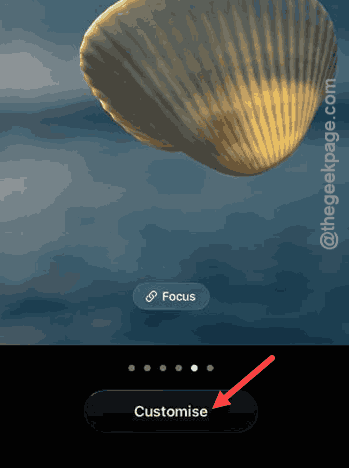
Step 2 – Tweak the Spatial Capture icon to disable the 3D effect.
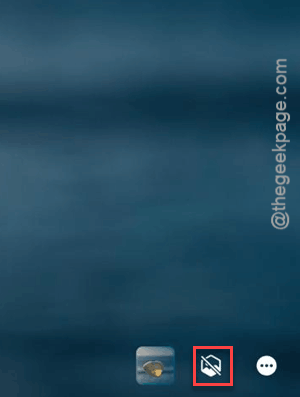
The 3D spatial scene effect will disappear from the lock screen image.
Step 3 – Now, save the changes with the Done button.
After you have saved the changes, the wallpaper will stop showing the zoomed-in effect automatically.
Fix 2 – Turn OFF Extend Wallpaper Effect
If your photo does not match the iPhone’s aspect ratio, it can be extended further to look more aesthetically pleasing. But, iOS 26 will auto-zoom and blur the top region to fit it right in.
Step 1 – Tap and hold the wallpaper on the iPhone. Then, hit the Customize button to edit that.
Step 2 – Then, tap the three-dot button at the bottom-right corner, and disable the Extend Wallpaper effect.
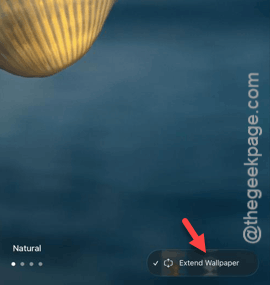
Once you have disabled the Extend Wallpaper effect, the wallpaper won’t be shown in the zoomed format.
Fix 3 – Turn OFF Depth Effect
The Depth Effect of iOS 26 can zoom your photos until the subject overlaps the clock in the background, which may appear to be severely ‘zoomed-in’.
Step 1 – Tap and hold the wallpaper on the iPhone. Then, hit the Customize button to edit that.
Step 2 – Then, tap the three-dot button.
Step 3 – Look for the Depth Effect sign there, and disable it.
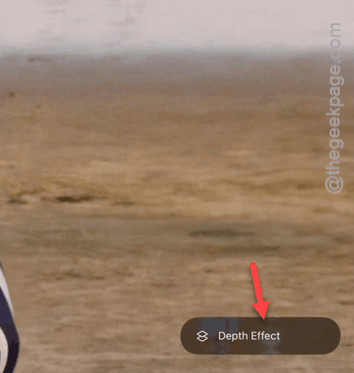
After turning off the depth effect, this issue will be resolved.
Fix 4 – Refresh the Zoom Accessibility Master Switch
Some of the affected users have noticed this problem after enacting the system-wide Zoom accessibility feature on the iPhone.
Step 1 – Proceed to the iPhone Settings. Go to the Accessibility tab.
Step 2 – Load up the Zoom settings.
Step 3 – If it is turned ON, toggle it to OFF.
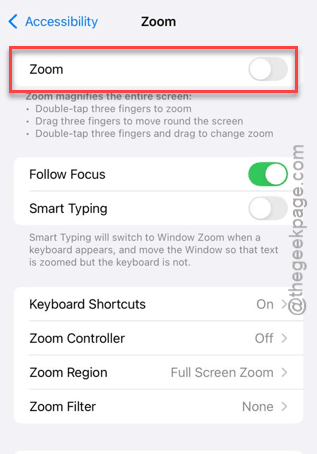
Step 4 – If it is turned OFF, double-tap the screen with the three fingers to reset the zoom level.
This should have resolved the issue.
Fix 5 – Use the Crop Preset for the Wallpaper
If the wallpaper keeps resetting its zoom after a reboot, you should crop the image and reuse it as the wallpaper.
Step 1 – Open the image in the Photos app. Then, tap the Edit button to edit it.
Step 2 – Use the Crop icon. Then, tap the Aspect Ratio icon at the top.
Step 3 – Choose the Wallpaper preset from the bottom list.
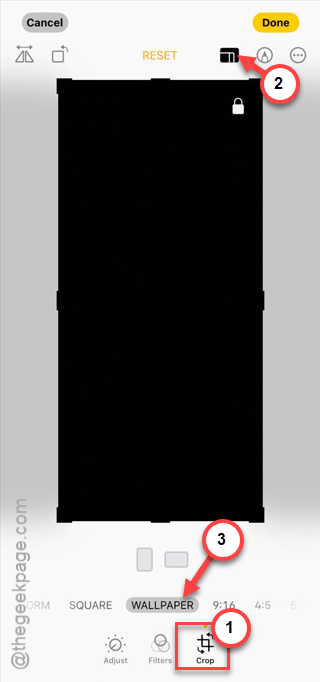
Step 4 – Tap Done to save the changes.
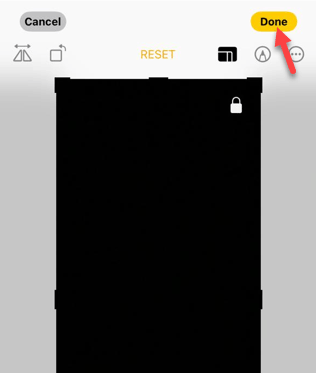
Now, you can set this cropped version as your iPhone wallpaper. Just don’t use any of the customizations like Depth Effect, Extend Wallpaper, etc.
The wallpaper on the iPhone won’t be zoomed in automatically.