After the iOS 26 update has rolled out to the users, a small number of users have reported that copied text items keeps vanishing from the iPhone’s clipboard before even they can even paste it. There are some reasons why this may happen, but the iOS 26 can actually automatically clear the device clipboard after a certain time due to privacy related settings. These are the workarounds you can apply to fix this problem yourself.
Fix 1 – Reset the iPhone’s Keyboard Dictionary
Sometimes the corrupt iPhone’s keyboard dictionary in the iOS 26 can lead to such a problem.
Step 1 – Open the iPhone Settings. Proceed to the General tab.
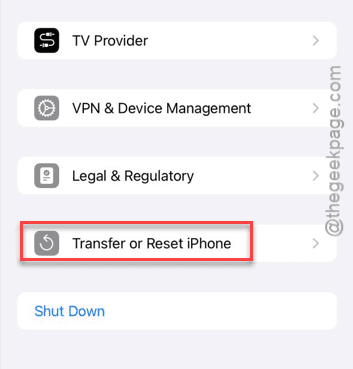
Step 2 – Then, proceed to the Transfer or reset iPhone feature.
Step 3 – Tap the Reset button. Next, tap the Reset Keyboard Dictionary to reset the iPhone’s keyboard dictionary.
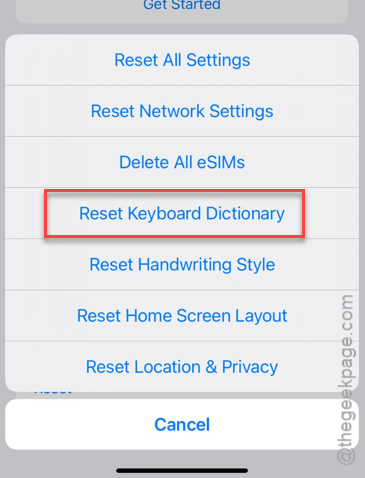
It will just remove the saved keyboard metadata from the iPhone. Once you have done this, test whether the clipboard is not retaining copied text in iOS 26.
Fix 2 – Paste in the Text field
The iOS 26 has the enhanced privacy guards in place, which can automatically clear out the app clipboard after a certain ‘Time out’ phase.
Step 1 – Open the app where you want to paste the text.
Step 2 – Then, instead of using the Paste icon in the keyboard tab, press the text-field until the pop-up menu appears.
Step 3 – Next, use the Paste feature there.
Step 4 – If a pop-up appears asking for your permission to paste the copied text, tap Always Allow mode.
See if this works out.
Fix 3 – Disable and Re-enable Handoff
In iOS 26, a bug has been reported by the users where the texts can disappear during the synchronization between the universal clipboards with the nearby Mac and iPad clipboards.
Step 1 – Open up the General tab in iPhone Settings.
Step 2 – Next, load up the Airplay & Continuity feature.
Step 3 – Toggle the Handoff to OFF.
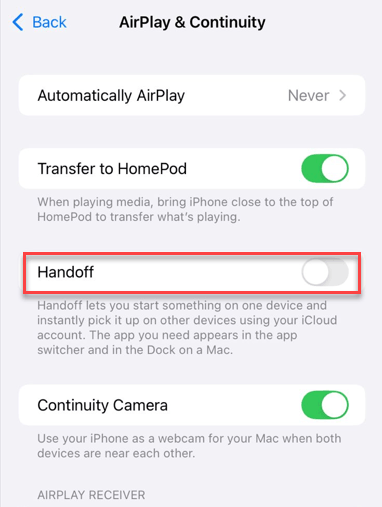
Step 4 – Then, restart your iPhone. After this, set the Handoff to ON.
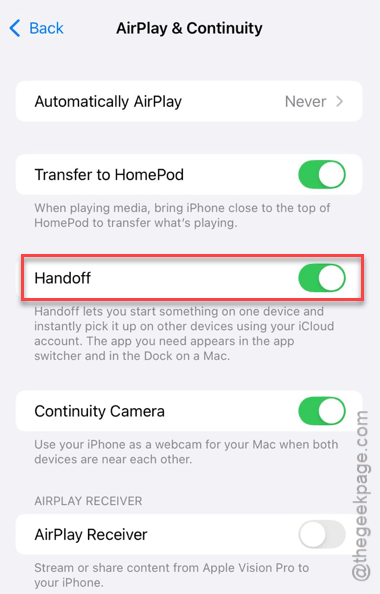
This workaround should reset the clipboard back to normal mode.
Fix 4 – Create a Force-Copy Shortcut
Instead of using the traditional copy-paste toggle, you can just create a shortcut to push the copied texts to the clipboard.
Step 1 – Open the Shortcuts app on the iPhone. Next, tap the ➕ button to add a new shortcut.
Step 2 – Tap Add Action feature, and search for Get Clipboard feature and tap the Copy to Clipboard feature.
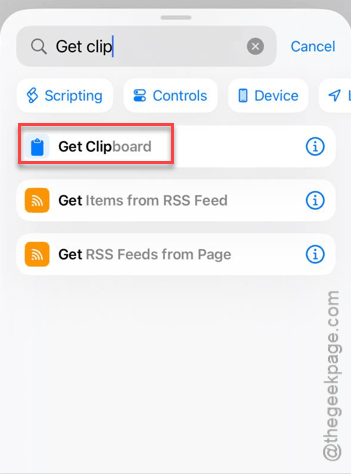
Step 3 – Now, add this shortcut to the Share Sheet page.
If the text is not copied to the clipboard, select it and tap Share button and use your new Shortcut function to do that.
Fix 5 – Disable Display Zoom
A zoomed display can cause such issues with the iPhone’s clipboard, where an overlay bug can run into such a problem.
Step 1 – In the iPhone Settings, proceed to the Display & Brightness settings.
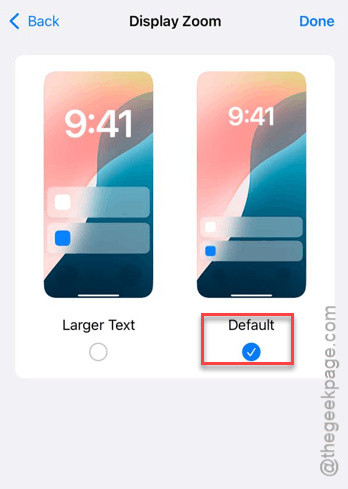
Step 2 – Go to the Display Zoom settings.
Step 3 – Set it to Default mode. If it is already set to Default mode, set it to Larger Text, and then revert to Default mode.
The clipboard should be functional once again.
Hope these fixes have helped you fix this clipboard issue.