Can’t scan QR code images saved in your iPhone’s Gallery? The iPhones are equipped to scan QR code directly from the images saved in the Photos app. There are some reports of a memory leak bug that can pause the Live Text engine in the iOS 26, which can hang the QR code scanning function. Here are some countermeasures you can apply to fix this issue.
Fix 1 – Force Manual Detection
If you are not seeing any yellow scan icon on the QR code photo, you have to manually trigger the OCR (Optical Character Recognition) engine by interacting with the image pixels.
Step 1 – Open the Photos app. Then, choose the image containing the QR code.
Step 2 – Now, press and hold the QR code in the image for 2-3 seconds.
Step 3 – Wait till you get a haptic vibration from the iPhone. A context menu will show up there with the Open in Safari or Copy Link function.
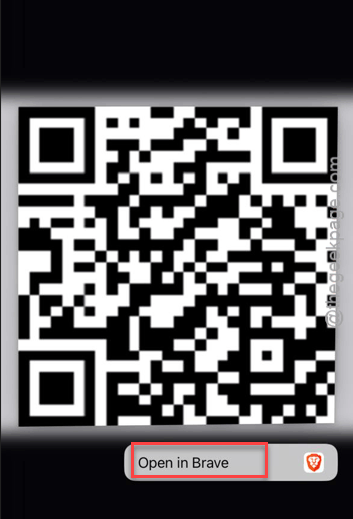
Check whether the QR code is sending you to the website or not.
Fix 2 – Use the Share Feature
The iOS 26 has this Share Sheet feature that can force the device to reanalyze the image to look for a QR code and scan it.
Step 1 – Load up the image with the QR code.
Step 2 – Then, tap the Share icon in the bottom left corner.
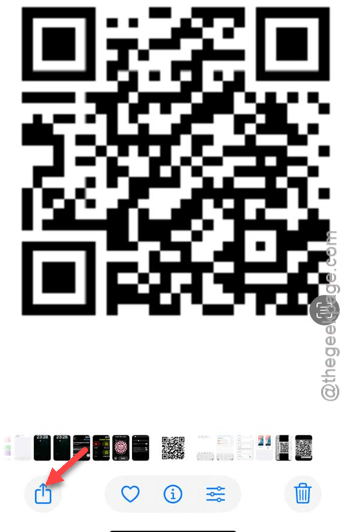
Step 3 – Find the Show Live Text or QR Code feature and use it.
This way, you are forcing the iPhone to scan the image for the QR code.
Fix 3 – Tweak the Live Text Feature
Sometimes, the Live Text feature can cause disturbance during the QR code scanning operation. Refreshing it in the iPhone settings should resolve the issue.
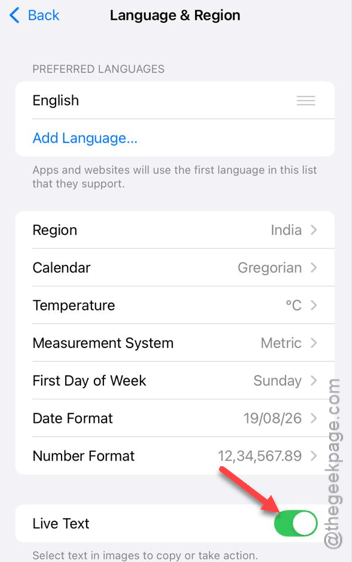
Step 1 – Load up the General section in iPhone Settings. Open up the Language & Region tab.
Step 2 – Find the Live Text feature there at the bottom.
Step 3 – Toggle it to OFF mode. Wait for 10 seconds, and then turn it back ON.
Restart the iPhone and try to scan the QR code again.
Fix 4 – Reset Camera Permissions for Photos
Users have reported a bug in the iOS26 that can cause the Photos app to lose permission to use the scanning feature to scan the photos on the device.
Step 1 – Open the Privacy & Security settings in the iPhone Settings tab.
Step 2 – Next, open the Camera feature.
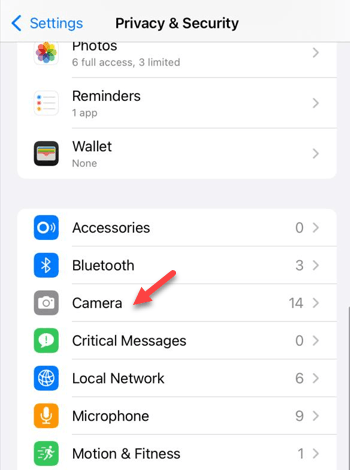
Step 3 – Look for any third-party scanner app (like Adobe Scan) there and refresh the camera toggle associated with it.
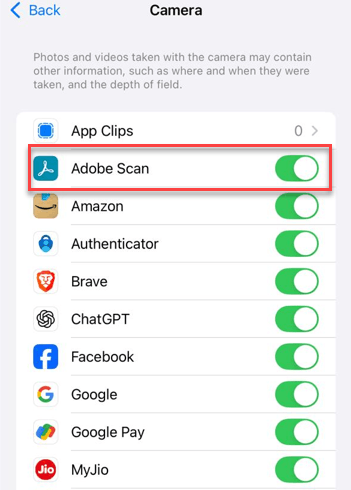
Try to use the same third-party scanner to scan the QR code.
Fix 5 – Disable Live Photos feature for clear image scanning
If the iPhone’s camera is set to take Live Photos, it may not be able to take the QR code image properly, which is essential for the scan to bring results.
Step 1 – Open the same image that contains the QR code in the Photos app.
Step 2 – Then, Tap the Live in the top-left corner and set it to Live Off mode.
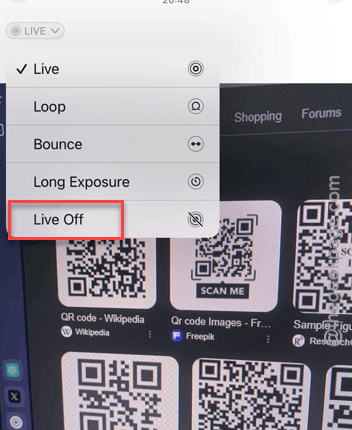
Step 3 – Try to tap the QR code in the image again. Check whether if it can scan it or not.
See if this works or not.