Several iPhone users have complained about Live Text not detecting texts properly in the photos after iOS 26 has rolled out. The Live Text feature can stop detecting text in the gallery due to a conflict between the new Apple Intelligence indexing and the Photos background app process (OCR) that is responsible for recognizing the characters from the images. Here are the solutions you can implement to fix this problem yourself.
Fix 1 – Re-trigger the Live Text Toggle
Tweaking the Live Text feature in the iPhone Settings should refresh the entire Live Text module.
Step 1 – Open the iPhone Settings. Next, proceed to the General tab.
Step 2 – Load up the Language & Region section.
Step 3 – Scroll to the bottom and toggle the Live Text feature to OFF.
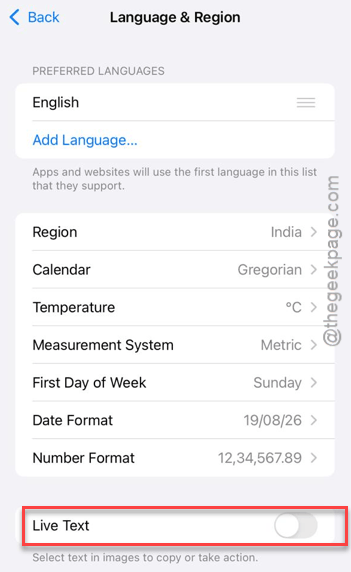
Step 4 – Now, wait for 10 seconds.
Step 5 – Turn ON the Live Text feature.
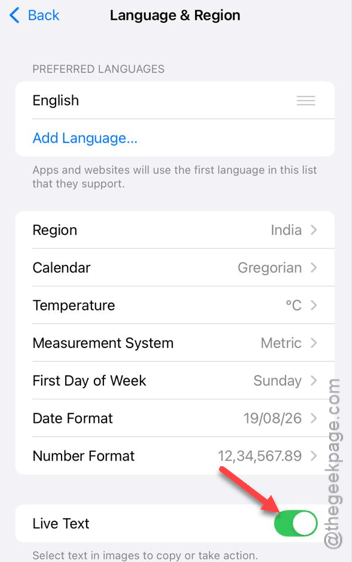
Now, try to use the Live Text feature in the photos saved in your iPhone gallery.
Fix 2 – Turn ON Show Detected Text feature
On the iOS 26 devices, Live Text feature in Photos may not show up directly on the camera feed while the Show Detected Text is turned OFF.
Step 1 – Open the iPhone Settings. Proceed to the Camera settings.
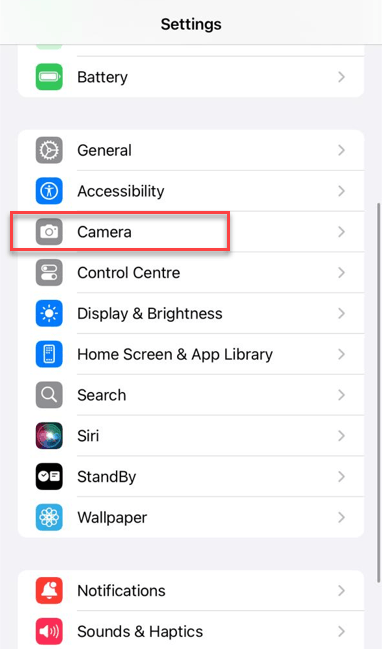
Step 2 – In the Camera settings, locate the Show Detected Text feature and make sure it is turned ON.
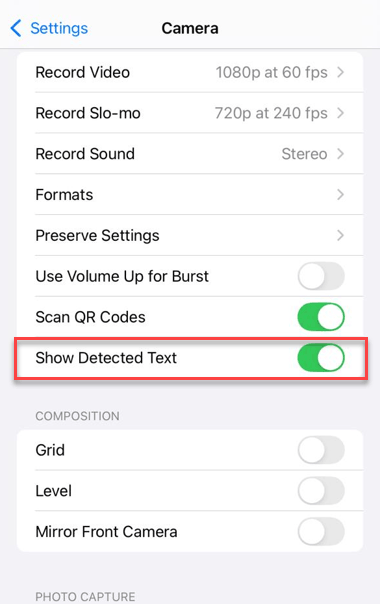
Though this does not enable/disable the text detection feature in the Photos app, it should make it ready for you to use in there.
Fix 3 – Tweak the Display & Text Size Settings
The display zoom level on the iPhone can trigger the
Step 1 – Proceed to the Display & Brightness settings.
Step 2 – Next, find the Display Zoom settings to open it up.
Step 3 – Tweak the Display Zoom to Larger Text mode. Then, revert it to Default mode.
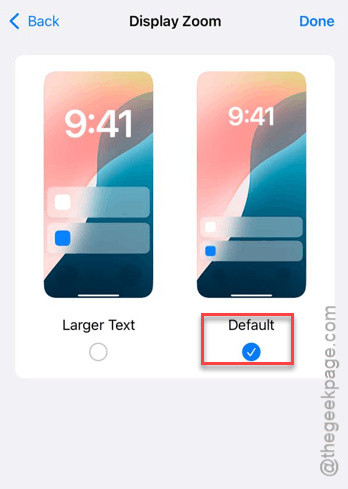
Return to the Photos app. Try to use the same OCR feature in the
Fix 4 – Reset all the iPhone Settings
If the Live Text feature is still not working on your iPhone, you should just reset the iPhone settings to reset everything.
Step 1 – At first, in the iPhone Settings page, proceed to the General tab.
Step 2 – Now, in the General tab, open up the Transfer or reset iPhone option. Then, open up the Reset section.
Step 3 – Finally, tap to use the Reset All Settings option.
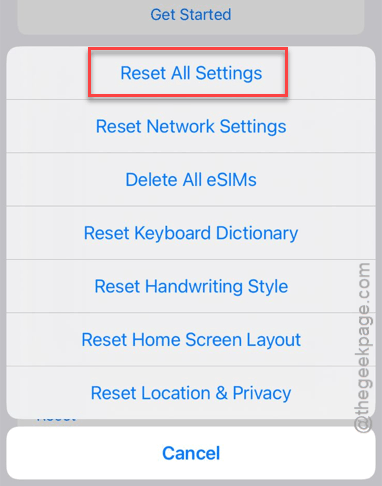
The next step of this process needs your verification. Just input your Apple passcode, and all the iPhone settings will be reset to the default settings.