Having some problem dragging selected texts on your iPhone? The new text selection mechanism may feel ‘heavy’ or sluggish, as there is a new animation delay that responds to every touch input. However, some users have pointed out that dragging the selected text feels extremely heavy all the time and is even non-responsive sometimes. Here is the list of solutions you can apply to fix this problem at your end.
Fix 1 – Disable the Liquid Glass UI Effects
The primary reason for this sort of sluggish behavior you witness on your iPhone while moving the text selection is the latest Liquid Glass elements of iOS 26.
Step 1 – Proceed to the iPhone Settings. Then, go to the Accessibility settings.
Step 2 – Later, load up the Display & Text Size tab.
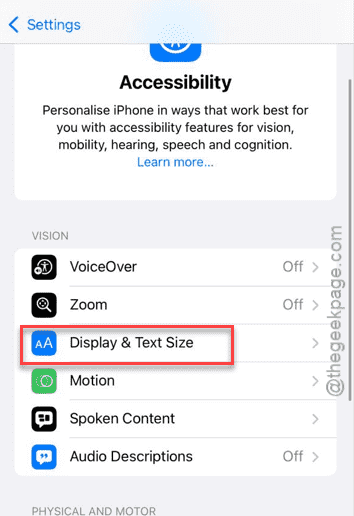
Step 3 – Turn ON the Reduce Transparency feature.
Step 4 – Turn ON the Increase Contrast feature.
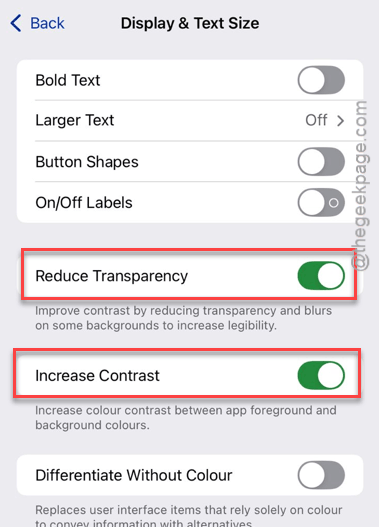
This will kill the blurred liquid glass elements from the system UI, that may cause the inherent lag to the dragging selected texts on the device.
Fix 2 – Tweak the Touch Accommodations in iPhone
The latest version of iOS 26 does have an aggressive repeat fliter that may mistake a quick-handle grab for an accidental tap.
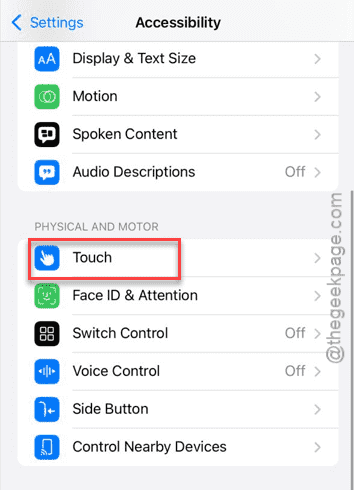
Step 1 – Proceed to the Accessibility tab on the iPhone. Open up the Touch settings.
Step 2 – Later, open up the Touch Accommodations settings.
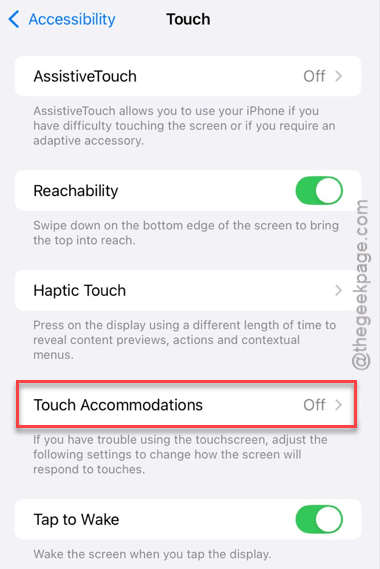
Step 3 – Turn OFF the Touch Accommodations.
Step 4 – Click the Swipe Gestures and set the Required Movements to the Standard phase.
Try to drag the selected texts again in the iPhone.
Step 5 – If the dragging selected text still feels stuck, set the Hold Duration to OFF mode.
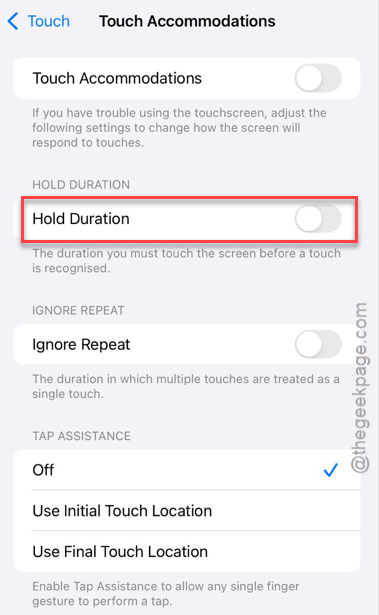
This should resolve the lag issue that you are experiencing while dragging texts.
Fix 3 – Use the Spacebar Alternative
If you are struggling with the physical handling, you can use the entire keyboard as a high-precision trackpad to resolve the issue.
Step 1 – Long-tap the Spacebar until the letters dissappears.
Step 2 – While holding it down, use any of your other finger to tap anywhere on the keyboard area.
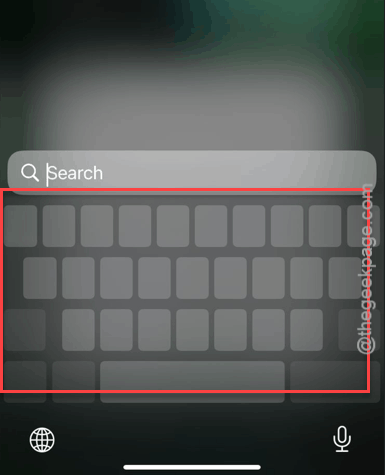
Now, you can easily drag the first finger to highlight text precisely without touching the handles.
Fix 4 – Turn OFF Reduce Motion
Sometimes, the animations can get stuck when the copy-paste context menu shows up.
Step 1 – Load up the Accessibility settings on the iPhone.
Step 2 – Then, proceed to the Motion tab.
Step 3 – Toggle the Reduce Motion feature to ON mode.
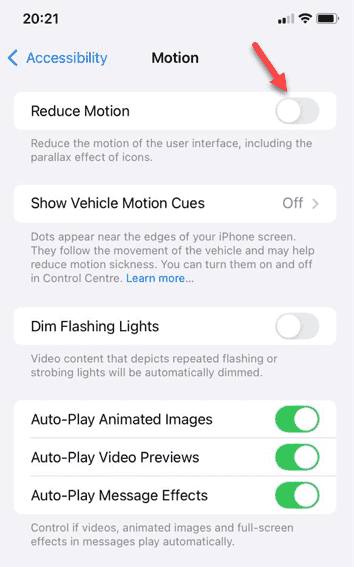
Disabling the motion feature should resolve the dragging problem that you are experiencing.
Fix 5 – Reset the Display Zoom Feature
Refreshing the display zoom feature should resolve the stuck selection text issue.
Step 1 – Open the Display & Brightness tab in the iPhone Settings.
Step 2 – Open the Display Zoom tab.
Step 3 – Set it to Larger Text mode. Wait for the display zoom to get refreshed.
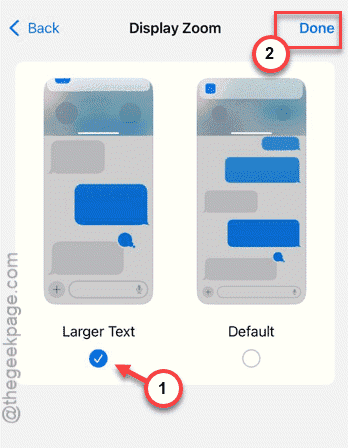
Step 4 – Then, change the display zoom level to the Default level.
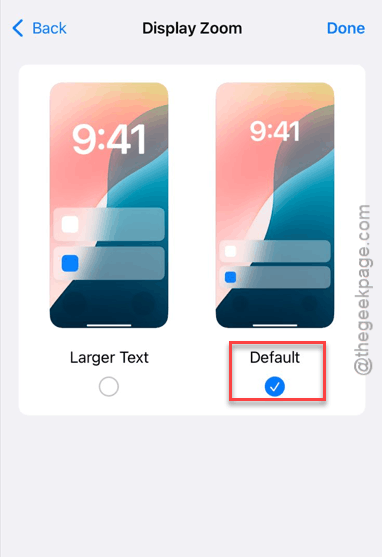
This will force the screen to redraw the boundaries during the context menu animation phase. This will finally resolve your problem.