After getting the iOS 26 update, many users have pointed out that their alarms on their iPhones are not playing any sound at the alarm time. In iOS 26, the silent alarms often stem from the misdirected attention-aware features of the iPhone. Instead of finding the cause, which can just be a bug in iOS 26, go ahead and enact these solutions to counter this issue on your iPhone.
FIx 1 – Disable Attention Aware Features
iPhone use the front camera to scan whether the user is looking at the device to enable or disable several features.
Step 1 – Open the FaceID & Passcode settings in the iPhone.
Step 2 – Scroll down to the Attention Aware Features panel.
Step 3 – Toggle it to OFF mode.
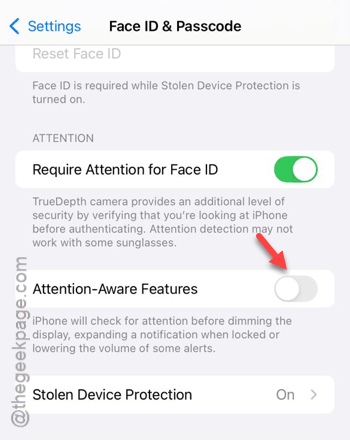
After turning off the attention-aware features, the alarms will work just fine.
Fix 2 – Lock the Ringer & Alert Volume
The iOS 26 can sometimes detach the ringtone and alarm volumes with the normal volume of the iPhone. That may silence the alarms on the affected iPhones.
Step 1 – Open the iPhone Settings and proceed to the Sounds & Haptics tab.
Step 2 – In the Ringtone and Alerts section, drag the sound slider to at least 80%. Alarms should produce enough sound on the iPhone.
Step 3 – Toggle the Change with Buttons settings to OFF mode.
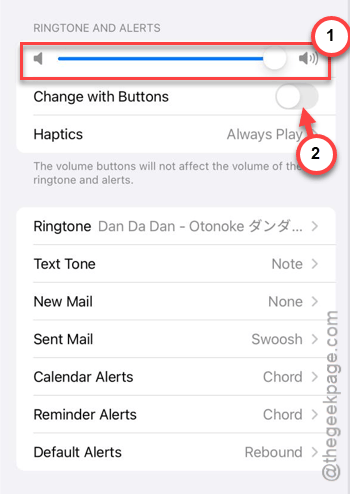
Your media volume change won’t affect the alarm sound or silence the alarms on the device.
Fix 3 – Recreate the Alarms from Scratch
Sometimes, the alarms carried over from iOS 18 or even earlier builds of iOS 26 can get corrupted, and they won’t work properly. Delete it and create a fresh new alarm on the device.
Step 1 – Load up the Clock app on the iPhone. Proceed to the Alarm tab.
Step 2 – Delete all the current alarm configurations you have.
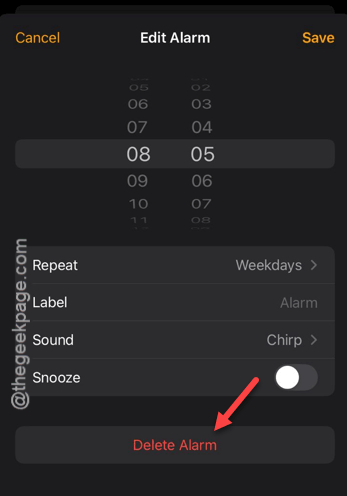
Please feel free to take a screenshot of the older alarms, in case if you want to recreate it exactly the same again.
Step 3 – Then, force-restart your iPhone. To do that, quickly press and release the Volume Up, Volume Down buttons, and then hold the Side Button until the iPhone restarts.
Step 4 – Open the Clock app. Use the + button to create new alarm.
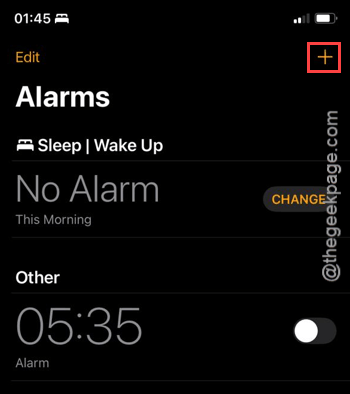
Step 5 – Set up the alarms there in the Clock app.
There won’t be any further issues with the new alarms.
Fix 4 – Switch to Standard Alarm Tones
If you have set up a song from the Music app as the alarm tone, it may not have pre-loaded correctly.
Step 1 – Open the alarm in the Clock app. Open the alarm where you are facing this issue.
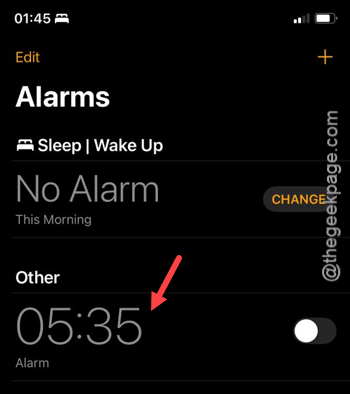
Step 2 – Then, tap the Sound panel.
Step 3 – Do not put any songs from the Songs section in there.
Step 4 – Instead scroll down to the Ringtones section and choose a standard Apple sound, like Radar or Chimes.
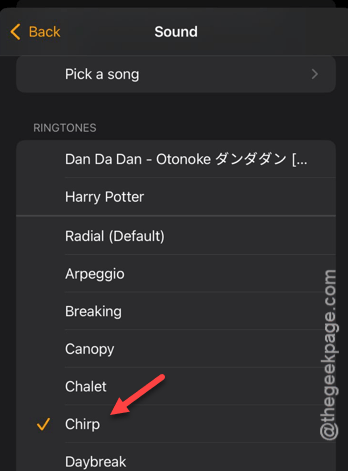
After changing the alarm tone, it will be fixed.
Fix 5 – Turn Off the Focus & Silences Toggle
The alarms on the iPhone usually skips Focus modes, like Do Not Disturb (DND), a bug in the iOS 26 can cause them to remain silent if they are not proeperly channeled through your alarm.
Step 1 – Proceed to the Focus settings on iPhone.
Step 2 – Choose the mode that you use, like Sleep, Work or Do Not Disturb.
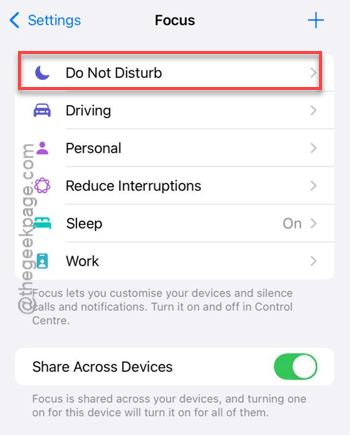
Step 3 – Then, go this way –
Apps > Add Apps
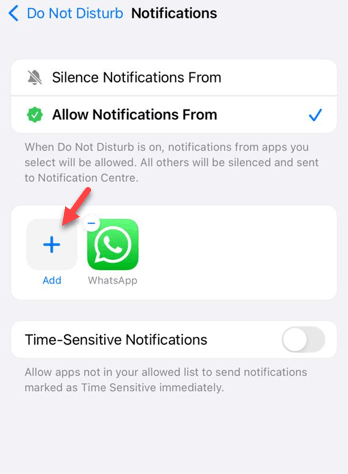
Step 4 – Make sure the Clock app is allowed. Additionally, make sure the Time-Sensitive Notifications is turned ON.

Now you will hear alarm tones even when you are in that focus mode.
Check if this helps!