Does the iPhone alarm sound not coming out of the iPhone while you are wearing an Apple Watch? A set of the users have reportedly complained of experiencing this problem with their Apple Watch and iPhone. There is a feature on the Apple Watch that lets it play the alarms directly from your device. Just disable that prompt from there and, the alarm sound will come out of the iPhone.
Fix 1 – Disable the Push Alerts from iPhone option
You can disable the Push Alerts from the iPhone in the Apple Watch settings.
Step 1 – Open the Search app and then open the “Watch” settings from there.
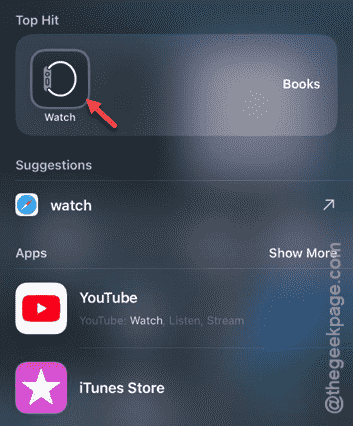
Step 2 – In the Watch settings page, scroll down until you reach the “Clock” option from there.
Step 3 – In the Clock settings, just find the “Push Alerts from iPhone” option and disable it.
Disabling this toggle should revert all the alarms and alerts to the iPhone. Check if this works.
Fix 2 – Keep the Watch locked and away
Another way you can fix this is to keep the Apple Watch locked and away from the iPhone.
Step 1 – Simply, lock the Apple Watch.
Step 2 – Then, put the Apple Watch considerably away from the iPhone.
When you put the device away, your iPhone will sound the alarm. This should have fixed the Apple Watch problem.
Fix 3 – Disable the Mirror iPhone alert option
Your Apple Watch can mirror some of the iPhone app alerts to the device. Disable the ‘Clock’ alerts.
Step 1 – Load up the Apple Watch app once more.
Step 2 – Touch the “Notifications” tab in there.
Step 3 – Now, while you are in the Notifications tab, scroll all the way down to find the ‘Mirror iPhone Alerts from:’ list.
Step 4 – If you can find the ‘Clock’ app in there, disable that.
After disabling that, you can Clock app from there, the Apple Watch won’t display the alert in there.
Fix 4 – Disable the Focus Mode on both the devices
The alarms on your devices does get silenced when you are using Focus Mode.
Step 1 – Quickly open up the Control Center.
Step 2 – Check whether the Focus Mode is on or not. If the Focus Mode is turned on, tap it once to turn it off.
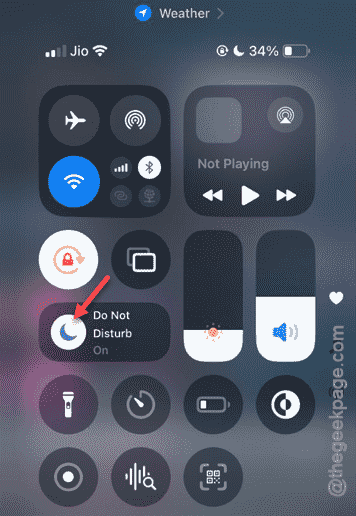
Step 3 – Now, go to your Apple Watch and disable the Focus Mode from the Control Center in there.
After turning off the Focus Mode, the alarm will work just fine.
Fix 5 – Change the volume of iPhone Sound
Toggle the volume level on the iPhone. Increase the alarm sound should fix the issue.
Step 1 – Open the iPhone Settings, first.
Step 2 – Next, load up the “Sound and Haptics” mode in the Settings.

Step 3 – Adjust the volume slider to the maximum position.
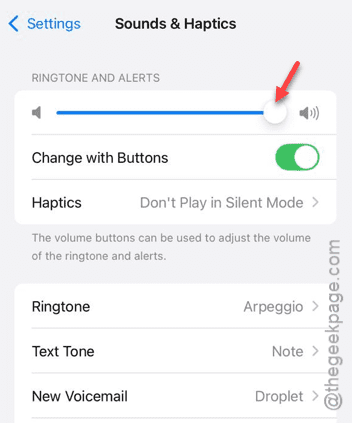
After you have toggled the volume slider, the alarm should work just fine.