Having problems updating your iPhone XR? Despite fulfilling all the requirements for the pending update, some iPhone XR are refusing to update to the latest version of iOS. This problem has been shared but multiple users across various forums. But if you have run into some problems updating the existing iOS version on your iPhone XR, these solutions will help you troubleshoot it.
Fix 1 – Update via Finder/Apple Devices
Apple has this alternative way to update their iPhones where you can use a MacBook or a PC to update the device.
For MacBook users ~
Step 1 – Plug in the iPhone to your MacBook.
Step 2 – Then, press the ⌘+Space button together and type Finder and open up the Finder app.
Step 3 – Find and select your iPhone from the left sidebar. If you get a trust prompt on both the devices, confirm it.
Step 4 – Finally, go this way in Finder page ~
General > Check for Update
Step 5 – Tap the Download and Update option to update the device.
This should update the iPhone.
For PC users ~
Step 1 – Go to Microsoft Store and install the Apple Devices app.
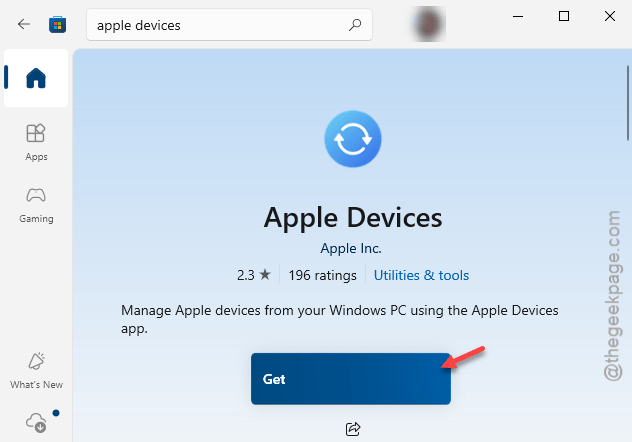
Step 2 – Later, connect the iPhone to PC using USB-C or the lightning cable.
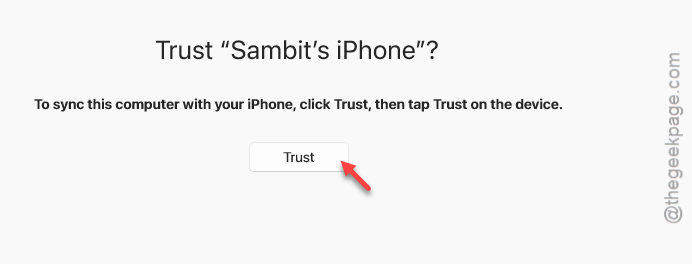
Step 3 – Now, open the Apple Devices app and wait for the Trust message to appear. Tap the Trust button on the app and on your iPhone to confirm.
Step 4 – Now, while your iPhone is selected from the left tab, tap the General option.
Step 5 – Find the Software section and tap the Check for Update option to inquire for pending updates and install them on the device.
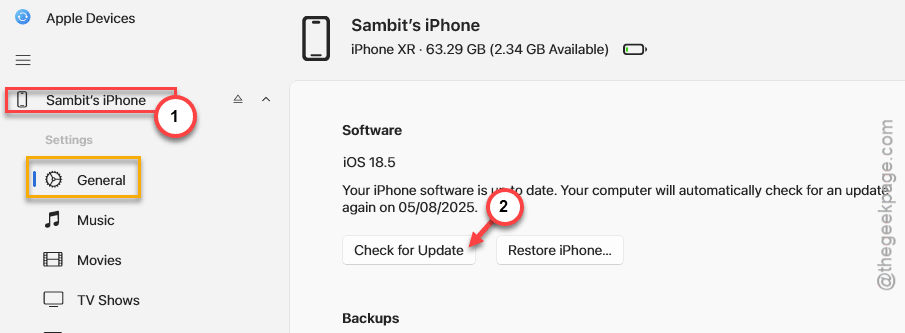
You may have to permit the update process directly from the iPhone screen.
Fix 2 – Free up the iPhone’s storage and retry
the lack of free space on your iPhone can restrict any further updates from downloading or installing on the device.
Step 1 – On your iPhone Settings page, load up the General utility.
Step 2 – Then, make your way to the iPhone Storage panel.
Step 3 – Check the status of the storage on the device.
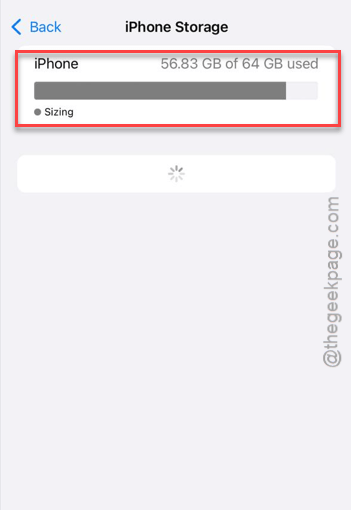
If you are actually low on storage space on the device, you should free up more space for the update process to flow properly.
Once you have enough space, like 5-10 GB of free space, go ahead and retry installing the update.
Fix 3 – Force restart the device and retry
if the device is refusing the update, just force restart your iPhone once, and retry the update process.
Step 1 – At first, press the Volume + button once and release that.
Step 2 – Next, hit the Volume – button and release it as well.
Step 3 – Finally, press the Power button and hold it for approximately 15 seconds. This will restart your iPhone and you will see the Apple logo has appeared as the iPhone has rebooted.
After completing the hard reset procedure, you can easily update the device.
Fix 4 – Disable the iOS Beta Updates
The users who opt for the iOS beta updates, this sort of problem may appear once in a while. Switching to a stable version of iOS should fix this issue.
Step 1 – Load up the Settings console on your iPhone. Get to the General settings.
Step 2 – Go to the Software Update panel.
Step 3 – Turn off the Beta Updates in there.
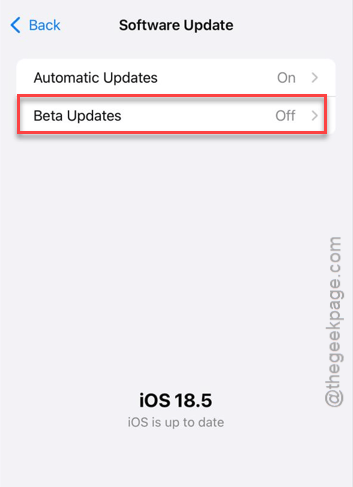
Once you have turned off the beta updates for iOS, try to install the updates. See if this works or not.