Some users have met with the ‘Package failed updates, a dependency or content validation’ error message trying to access images with the Microsoft Photos app. The probable reason behind this problem can be corruption of image files on your device. However, the corruption in the Photos app can also be held responsible for this particular error prompt. These solutions will help you resolve the issue so that the Photos can be returned to its normal functionalities.
Fix 1 – Move the Image files into a New Folder
Sometimes, if the root directory containing the images is itself is corrupted, it may lead to such issues.
Step 1 – At first, create a new folder on your Desktop.
Step 2 – Next, open the File Explorer. Proceed to locate the image files that you are trying to open up.
Step 3 – Copy all of them to the new folder that you have created in Desktop.
Step 4 – Now, try to open the images from this new folder.
It won’t show you the package failed error message again.
NOTE – If you are having the same issues with the images that you have downloaded as an attachment of an email, move those images to a new location, and then try to view them with the Photos app. This way, you won’t run into any such issues.
Fix 2 – Reset or Repair the Photos app
Misconfigured Photos app settings may also lead to such issues.
Step 1 – Open the Windows Settings console. Tap to load up the Apps tab.
Step 2 – Go to the Installed Apps tab.
Step 3 – Perform a search for the photos app. Once you have found it, tap the three-dot button next to it, and tap Advanced options.
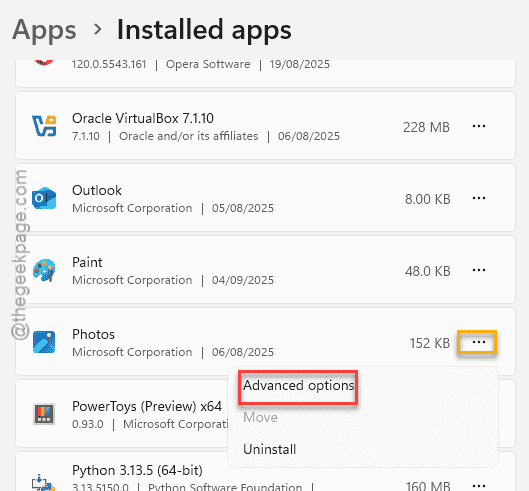
Step 4 – In the Advanced Options page, tap the Repair button once to repair the Photos app.
Repairing the Photos app should be enough to fix this problem.
Step 5 – If repairing the Photos app doesn’t fix the issue, return to the same Settings console, and reset the Photos app.
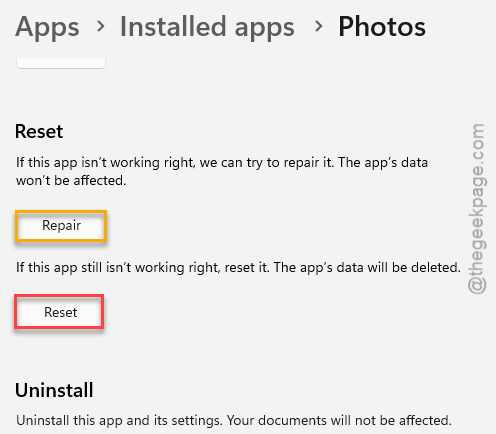
You won’t see the error message again.
Fix 3 – Run the Deployment codes to Repair the System Files
The deployment image scanning commands can repair any corrupted system file that is causing this problem.
Step 1 – You can run such DISM scans from the CMD terminal. So, search for CMD in the search box. Then, right-click that Command Prompt and tap Run as administrator.
Step 2 – Then, paste these codes one-by-one to run the deployment scans to mend any system file flaws on your system.
DISM.exe /Online /Cleanup-image /Scanhealth
DISM.exe /Online /Cleanup-image /Restorehealth
DISM.exe /online /cleanup-image /startcomponentcleanup
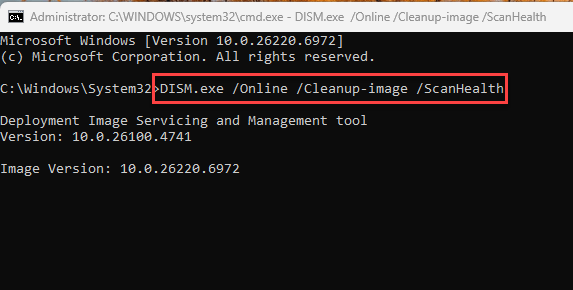
After running the DISM codes, the photos app should work just fine.
Fix 4 – Re-register the Photos app
If none of the methods have actually helped you to solve the package update failure issue in the photos app, you must re register the application.
Step 1 – To do this, write PowerShell in the search box.
Step 2 – Then, right-click that Windows PowerShell in there, and tap Run as administrator.
Step 3 – After this, type this code there, and hit Enter to re-register the Photos app.
Get-AppxPackage -allusers Microsoft.Windows.Photos | Foreach { Add-AppxPackage -DisableDevelopmentMode -Register "$($_.InstallLocation)\AppXManifest.xml"
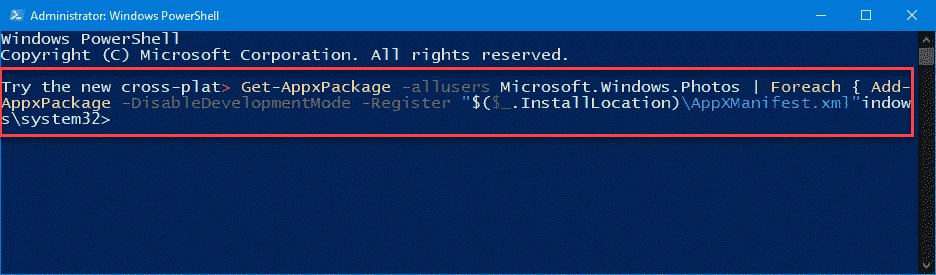
This will re-register the Microsoft Photos app on your system.
Why is the Microsoft Photos app not working?
Sometimes the Microsoft Photos may malfunction due to corruption in the Windows system files, specifically the Photos components. However, the corruption in the media drives are also a common reason where the Photos app run into such issues. It can be fixed with deployment image scanning commands.
How to repair the Microsoft Photos app?
To repair the Photos app, you can do this – Windows Settings ⇾ Apps ⇾ Installed Apps section and search for Photos app. Open the Advanced options of the Photos app, and use the Repair and Reset functions to repair or reset the Photos app.