Your RAM usage climbs and climbs. Hours into your session, the PC crawls. You check Task Manager — and nothing obvious is hogging memory. Weird.
That’s the signature of a non-paged pool leak. The memory’s gone, but no app shows it. And the usual suspect is a single outdated network driver quietly bleeding it. Here’s how to find and stop it.
Why This Happens
Here’s the thing. The non-paged pool is a chunk of memory the Windows kernel hands out to drivers (it can’t be moved to disk, so a leak here really hurts).
Security tools and VPNs slip a filter driver into your network stack to watch traffic. Handy when it works. But when that driver is old or buggy, it grabs memory and never gives it back.
So the pool grows. And grows. Until your system starts gasping.
And here’s the sneaky part. Even after you uninstall the VPN or security app, its filter driver can stick around as a ghost — still leaking, with no app left to point the finger at.
Fix 1 – Disable Third-Party Network Filters
Start here. Your network adapter’s properties list every filter hooked into it. Spotting a third-party one and unhooking it is the fastest test.
1 – Right-click Start and choose Network Connections.
2 – Click Advanced network settings, then More network adapter options.
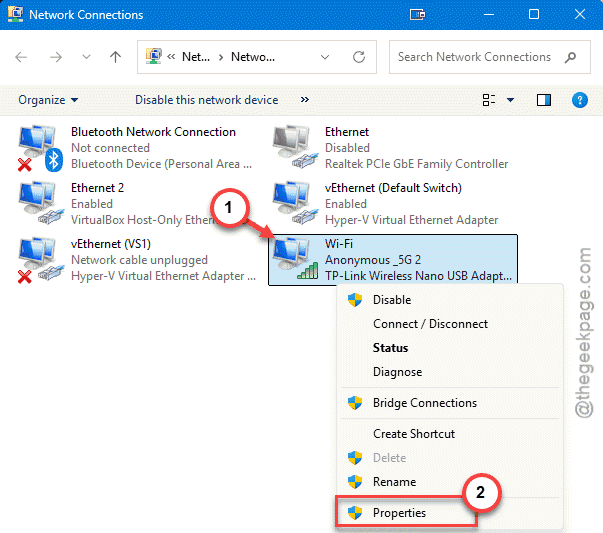
3 – Right-click your active adapter (Ethernet or Wi-Fi) and choose Properties.
4 – Scroll the list of items. Look for anything from a third party — names like Avast Network Filter, NordVPN Lightweight Filter, or Killer Bandwidth Control.
5 – Uncheck the suspicious filter to disable it. Leave the standard Windows items (like File and Printer Sharing) alone.
6 – Click OK and restart your PC.
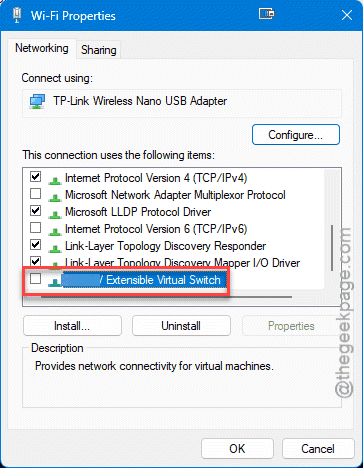
Now watch your memory over the next hour or two. If the climb stops, you found it. That filter was the leak.
Fix 2 – Pin Down the Exact Driver With Poolmon
Not sure which driver’s at fault? There’s a tool that names it. Every pool allocation carries a 4-character tag, and you can trace the biggest one straight back to its driver file.
1 – Download Poolmon.exe (it comes with the Windows Driver Kit, or as a standalone download from Microsoft).
2 – Open Command Prompt as an administrator and run poolmon -b. This sorts everything by how many bytes it’s using, biggest first.
3 – Look at the top rows. Find the entry marked Nonp (non-paged) in the Type column, and note its 4-character Tag.
4 – Open another admin Command Prompt and run this, swapping in your tag:
findstr /m /l "YOURTAG" C:\Windows\System32\drivers\*.sys
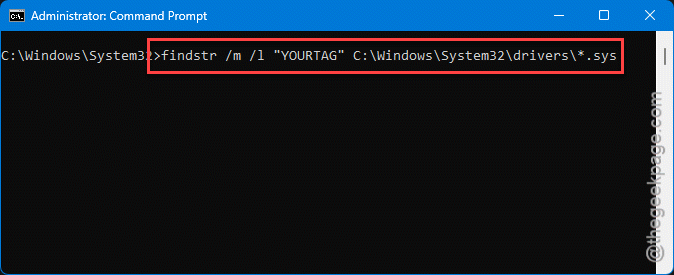
5 – That spits out the .sys file behind the leak.
Once you’ve got the file name, you know exactly which software to update or uninstall. No more guessing.
Fix 3 – Clear Out Ghost VPN Drivers
Uninstalled a VPN but the leak lives on? Its filter driver probably stayed behind. Hunt it down and delete it.
1 – Open Command Prompt as an administrator.
2 – Run
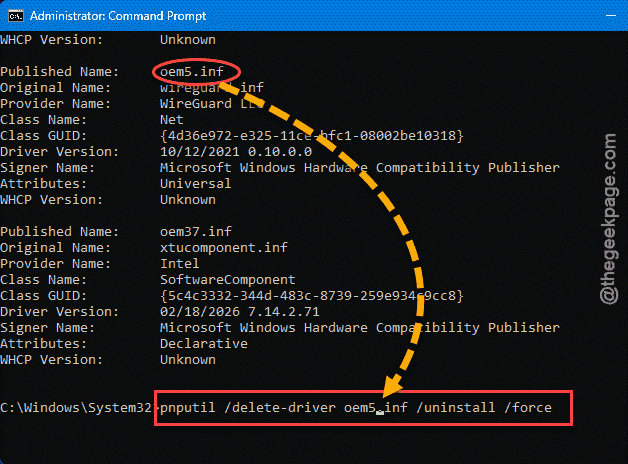
pnputil /enum-drivers
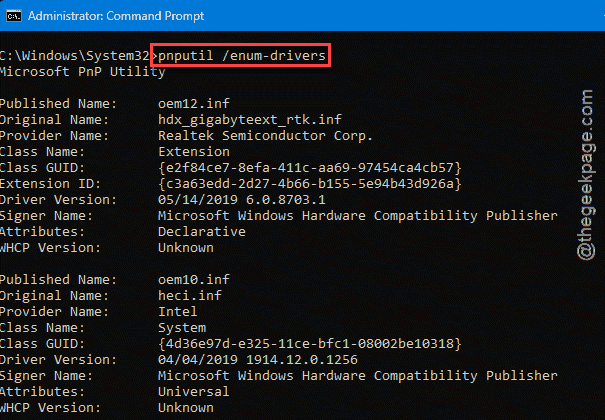
3 – Scan the list for old VPN filter drivers. Common names include NordLwf, TAP, and WireGuard.
4 – Note the oem number listed next to it (like oem5.inf).
5 – Run with your actual number.
pnputil /delete-driver oem5.inf /uninstall /force
6 – Reboot.
Make sure the VPN software itself is fully uninstalled first. Otherwise it just reinstalls the driver on the next launch.
Fix 4 – Disable the NDU Service
Windows has its own network monitor called NDU (Network Data Usage). It’s notorious for leaking the non-paged pool when it tangles with older network drivers. You can switch it off.
1 – Press Windows + R, type regedit, and press Enter.
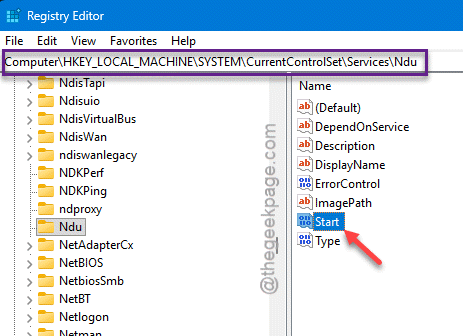
2 – Paste this into the address bar and press Enter:
HKEY_LOCAL_MACHINE\SYSTEM\CurrentControlSet\Services\Ndu
3 – In the right pane, double-click the Start value.
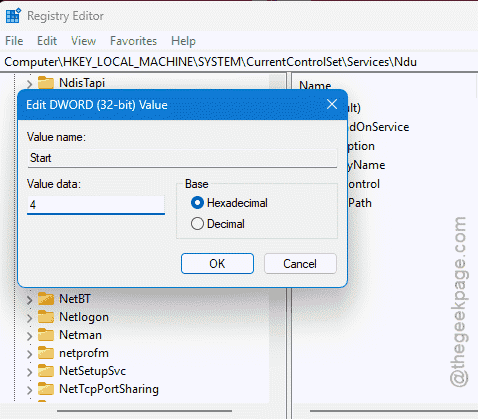
4 – Change the Value data to 4 (that’s Disabled).
5 – Click OK and restart your PC.
You’ll lose the per-app network usage graph in Task Manager. Small price if NDU was the leak. Want it back? Set Start to 2 again.
Fix 5 – Update the Network Driver Itself
Sometimes the simplest move works. If the leak traces to your actual network card driver, a newer version may have patched it. Grab the latest driver straight from Intel or Realtek (whoever made your network chip) rather than relying on Windows Update — the maker’s site usually has a fresher build. Install it, reboot, and watch the memory. A current driver alone can plug the leak.
How to Prevent This
– Keep VPN and security tools updated. Old filter drivers are the number one cause of these leaks.
– When you remove a VPN, check for leftover network filter drivers afterward. They love to linger.
– Pull network drivers from the chip maker, not just Windows Update. Fresher builds, fewer leaks.
– Glance at your non-paged pool now and then with Task Manager or Poolmon. Catching a slow climb early saves a crash later.
People Also Ask
What is non-paged pool memory?
It’s a section of RAM the Windows kernel reserves for drivers and core system code that must stay in physical memory — it can’t be swapped to disk. When a driver grabs from this pool and forgets to release it, the leak directly eats your usable RAM until things slow to a crawl.
How do I find what’s leaking non-paged pool memory?
Use Poolmon. Run poolmon -b in an admin Command Prompt to sort allocations by size, find the biggest non-paged tag, then match that 4-character tag to a .sys file with findstr. That points you straight to the driver. Outdated network filter drivers are the usual offender.
How do I reduce non-paged pool memory usage?
Track down and fix the leaking driver rather than just rebooting. Disable third-party network filters, remove leftover VPN drivers, and update your network driver from the maker. Disabling the Windows NDU service helps when it’s the cause. A reboot only resets it temporarily.