You open Windows Security to turn on Core Isolation. And the toggle is grayed out. Or it flat-out tells you a driver isn’t compatible. Either way, you can’t flip it on.
No need to wipe your PC over this. The cause is almost always one or two old drivers. Track them down, deal with them, and the switch comes back to life. Here’s how.
Why This Happens
So what’s going on? Core Isolation has a part called Memory Integrity (it walls off important system processes from attacks). For it to run, every driver on your PC has to play by stricter rules.
And old drivers don’t. One outdated or poorly written driver — often left behind by hardware you stopped using months ago — is enough to block the whole feature.
So Windows grays out the toggle instead of risking a crash. It usually names the bad driver, but not always. Helpful, right?
Sometimes it’s deeper. Virtualization might be switched off in your BIOS, and Core Isolation can’t run without it.
Fix 1 – Find the Driver That’s Blocking It
Try locating the driver that is causing this issue.
1 – Click Start, type Windows Security, and open it.
2 – Click Device security in the left sidebar.
3 – Under Core isolation, click Core isolation details.
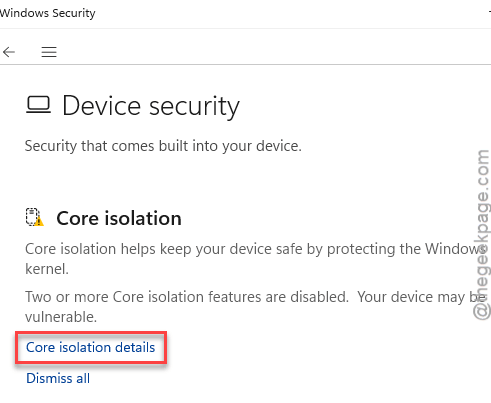
4 – Look right under the Memory integrity toggle. If a driver is the problem, you’ll see a message like Review incompatible drivers. Click it.
5 – Write down every driver name and the .sys file listed there.
That list is your target. Each file points to a piece of software or hardware you’ll update or remove in the next steps. Keep the list handy.
Fix 2 – Update the Listed Driver
A newer version of the same driver is often compatible. So updating it is the gentlest fix — nothing gets removed.
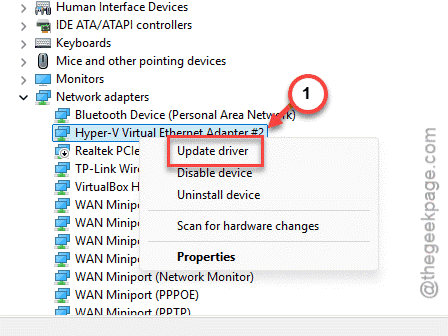
1 – Right-click Start and choose Device Manager.
2 – Look through the categories for the device tied to your flagged driver (a sound card, a graphics tool, an old printer, that kind of thing).
3 – Right-click that device and choose Update driver.
4 – Click Search automatically for drivers.
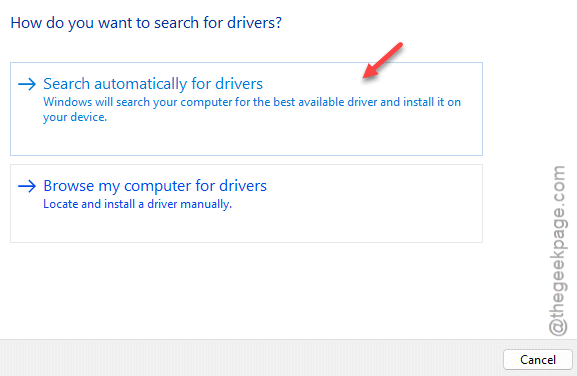
5 – If it finds one, let it install, then restart.
Check if this works.
Fix 3 – Remove a Leftover Driver From Old Hardware
Often the bad driver belongs to hardware you don’t even own anymore. The device is gone, but its driver lingers. You can clear it out from the command line.
1 – Click Start, type cmd, right-click Command Prompt, and choose Run as administrator.
2 – Type and press Enter.
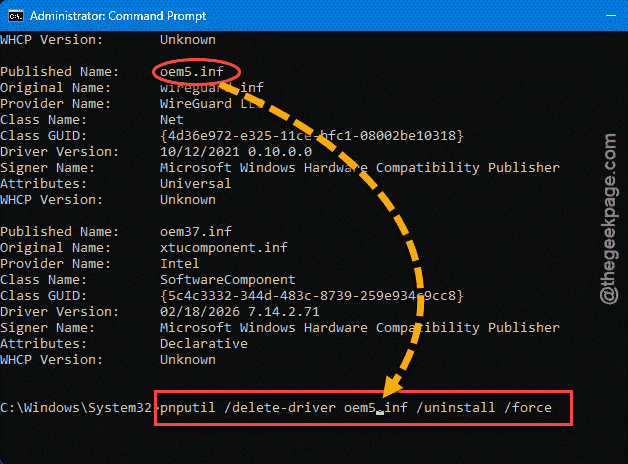
pnputil /enum-drivers
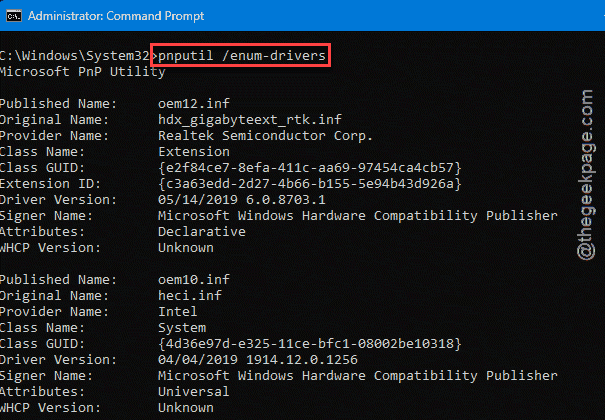
This lists every third-party driver with a name like oem12.inf.
3 – Match the .sys file from your Fix 1 list to its entry here, and note the oem number.
4 – Type this code in the terminal. Don’t forget to swap in your actual oem number, and press Enter.
pnputil /delete-driver oem5.inf /uninstall /force
5 – Restart your PC.
Only remove drivers you’ve confirmed are the flagged ones. If it belongs to hardware you still use, update it instead (Fix 2) rather than deleting it.
Fix 4 – Turn On Virtualization in the BIOS
Core Isolation rides on virtualization. If that’s off in your BIOS, the toggle stays dead no matter what you do with drivers.
1 – Restart your PC and tap the BIOS key as it boots — usually Del, F2, or F10. Your splash screen often shows which.
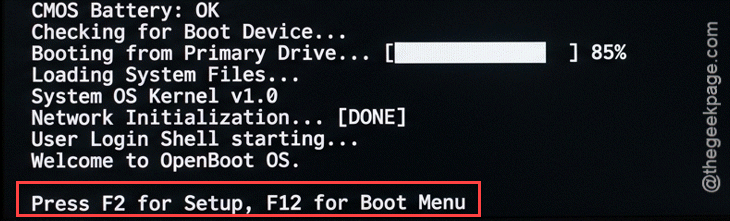
2 – Look for a setting called Intel VT-x, AMD-V, or SVM Mode. It’s usually under Advanced or CPU Configuration.
3 – Set it to Enabled.
4 – Save and exit (usually F10).
Back in Windows, check the Memory Integrity toggle again. If virtualization was the holdup, it’ll be selectable now.
Fix 5 – Force the Toggle On Through the Registry
Try this only after the drivers are sorted.
1 – Press Windows + R, type regedit, and press Enter.
2 – Paste this path into the address bar and hit Enter:
HKEY_LOCAL_MACHINE\SYSTEM\CurrentControlSet\Control\DeviceGuard\Scenarios\HypervisorEnforcedCodeIntegrity
3 – Double-click the Enabled value and set it to 1, then click OK and restart.
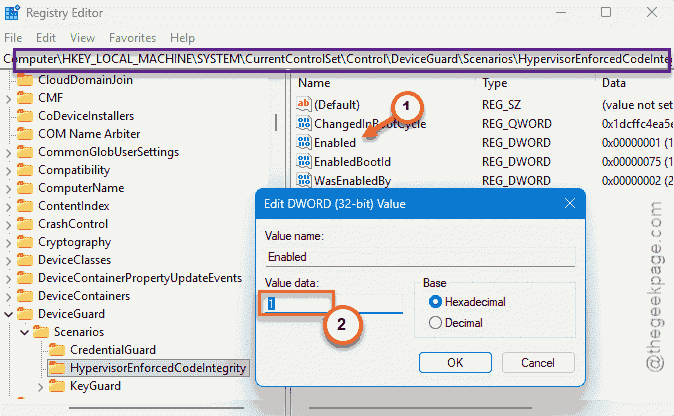
This flips Memory Integrity on directly. But fair warning — if a bad driver is still hanging around, Windows may switch it back off or refuse to boot it. Clean up the drivers first.
How to Prevent This
– Uninstall drivers when you ditch the hardware. Leftover drivers are the number one cause of this block.
– Leave virtualization enabled in the BIOS. Core Isolation and other security features all lean on it.
– Check the Memory Integrity page after a big hardware change. Catching a flagged driver early saves the headache later.
People Also Ask
Why is Core Isolation grayed out?
Usually an incompatible driver is blocking it. Memory Integrity needs every driver to meet stricter security rules, and one old driver stops the whole thing. Open Core isolation details in Windows Security and click Review incompatible drivers to see exactly which one. Update or remove it.
Will turning on Memory Integrity slow down my PC?
It can cost a small amount of performance, mostly noticeable in heavy gaming. For everyday use, most people won’t feel it. The security boost is real, since it shields core processes from attacks.
How do I find which driver is incompatible?
Load up the Windows Security. Then, go to Device security mode and then load up the Core isolation details. If a driver is the problem, a Review incompatible drivers link appears under the Memory integrity toggle. Click it for the exact names and .sys files. From there you can update or remove each one.