You open the Xbox App. It just spins. Or throws an account mismatch error. Or says “sign in again” over and over. Game Pass games won’t launch. Nothing works.
And you know the login is right. You just used it in Outlook five minutes ago. So what’s broken?
Why This Happens
Microsoft changed how PC license checks work a while back. Big change. Not well communicated.
Your PC now has to be explicitly registered to your Microsoft account for the Xbox App’s license system to accept you. Not just logged in. Registered. And if it isn’t? You get sign-in loops and account mismatch errors — even when the password is 100% correct.
There’s also a mismatch issue when the Xbox App and Microsoft Store aren’t on the same account. Happens easily if you ever signed into the Store with a different email. The Xbox App does a silent cross-check against the Store’s active account. If they don’t match? License denied.
And a cached Store state that’s gone stale can cause this too. The Store clings to old sign-in tokens for way too long. So even after you fix everything, it still shows the old account until you clear the cache.
One more gotcha — if the game uses a third-party launcher (Battle.net, EA Play, Ubisoft Connect), the account mismatch might be between the Xbox App and that launcher. Different problem entirely. Fix at the end.
Fix 1 – Register Your PC to Your Microsoft Account
This is the big one. Microsoft changed the license system so unregistered devices fail silently. Nobody tells you. You just get mismatch errors forever.
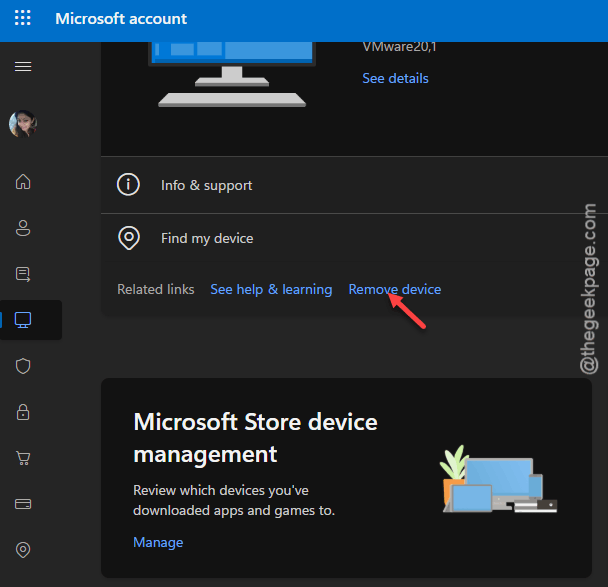
1 – Open a browser. Go to Microsoft Devices.
2 – Sign in with the Microsoft account you use for Xbox.
3 – Click the box labeled Microsoft Store Device management.
4 – Look at the list. Is your current PC in it?
5 – If the list is full and your PC isn’t there, you need to remove an old device first. Click Unlink next to something you don’t use anymore.
6 – Open the Microsoft Store app on your PC.
7 – Click your profile picture in the top-right. Click Sign out.
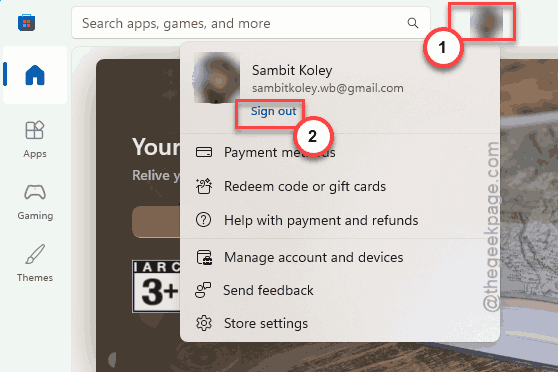
8 – Sign back in with the same account.
9 – Still not showing as registered? Install a free app. Any free app. Search for something like Windows Calculator and install it. That forces the Store to register your device.
10 – Refresh the devices page in your browser. Your PC should be there now.
Open the Xbox App. Sign in. License check should pass. Mismatch errors gone.
Fix 2 – Make Xbox App and Microsoft Store Match
Fastest thing to rule out. Both apps need the same Microsoft account. Sounds obvious. Trips up tons of people.
1 – Open the Xbox App.
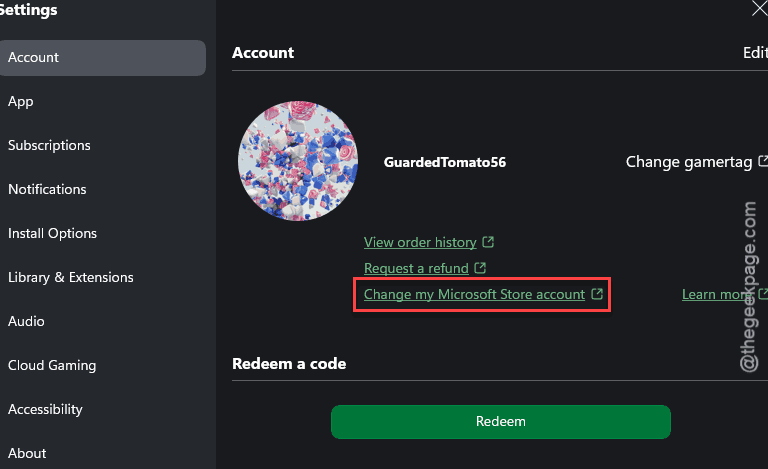
2 – Click your profile picture in the top-left. Tap the Settings button.
3 – Tap the Change my Microsoft Store account to view which account is actually associated to the Xbox id.
4 – Open the Microsoft Store.
5 – Click your profile picture in the top-right. Check the email.
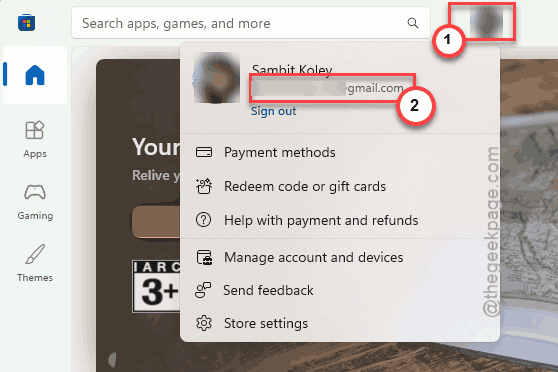
6 – Different? That’s the problem.
7 – Sign out of whichever one is wrong. Sign back in with the correct account.
Restart both apps. Try again.
Fix 3 – Run WSReset to Clear Store Cache
Quick one. Takes about 30 seconds. Clears out any gunked-up Store cache that’s confusing the Xbox App.
1 – Press Windows + R to open the Run box.
2 – Type and press Enter.
wsreset.exe
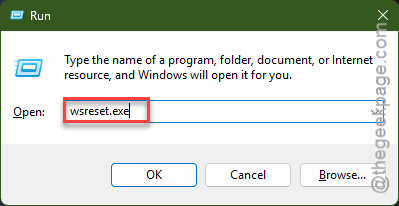
4 – A black Command Prompt window pops up. Let it sit. Don’t close it.
5 – When the Store opens automatically, the reset is done.
6 – Close the Store. Close the Xbox App. Reopen the Xbox App.
Sign-in state should be fresh. Try logging in again.
Fix 4 – Check Date and Time Settings
Sounds random. But wrong date/time causes Microsoft sign-in to fail silently. Token validation depends on it.
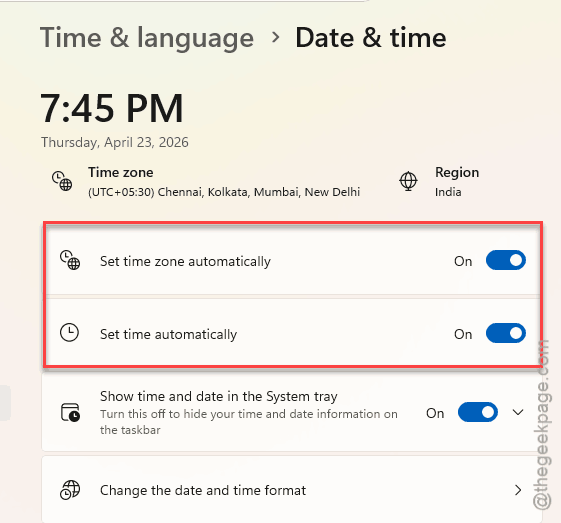
1 – Press Windows + I to open Settings.
2 – Click Time & language in the left sidebar.
3 – Click Date & time.
4 – Toggle Set time automatically on.
5 – Toggle Set time zone automatically on.
6 – Click Sync now next to Additional settings.
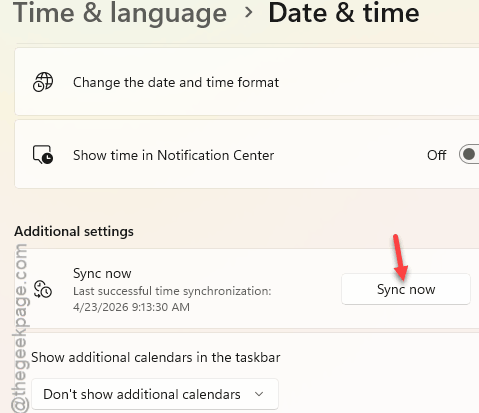
Even a few minutes off can trip up Microsoft’s token validation. Especially after Daylight Saving changes.
Fix 5 – Reset the Xbox App and Gaming Services
Nuclear-ish option. Clears all Xbox App data. Sign-in included. You’ll have to log in fresh. But it wipes whatever corrupt state is blocking you.
1 – Press Windows + I to open Settings.
2 – Click Apps → Installed apps.
3 – Type “Xbox” in the search box at the top.
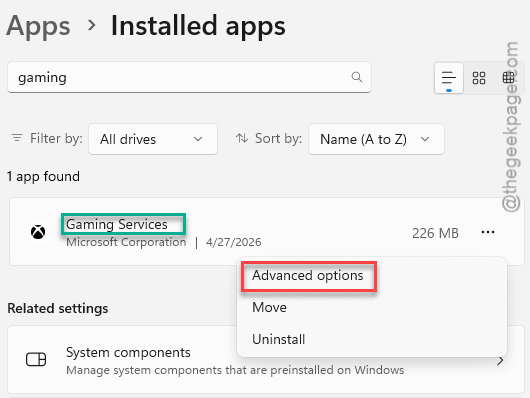
4 – Click the three dots (⋯) next to Xbox, then click Advanced options.
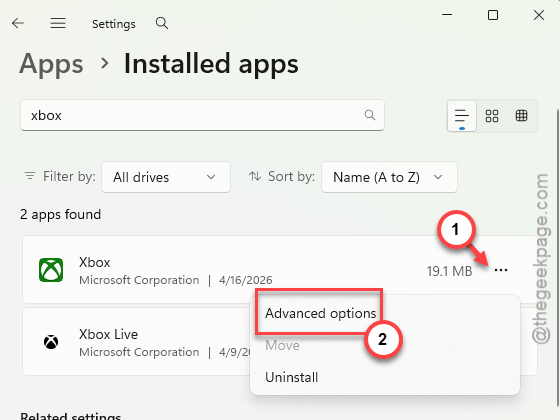
5 – Scroll down. Click Terminate first. Then Repair. If that doesn’t help, come back and click Reset.
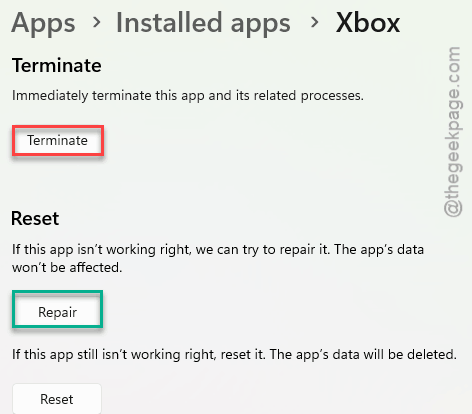
6 – Do the exact same thing for Gaming Services.
7 – Restart your PC.
Open the Xbox App. Sign in. Clean slate.
Fix 6 – Fix Third-Party Launcher Mismatches
The mismatch error sometimes has nothing to do with the Microsoft side. Some Game Pass titles run through Battle.net, EA Play, or Ubisoft Connect. They want their own sign-ins. Separately.
Examples: Call of Duty runs through Battle.net. FIFA / EA Sports FC runs through EA Play. Assassin’s Creed runs through Ubisoft Connect.
1 – Open the third-party launcher directly (not from the Xbox App).
2 – Sign in with your Microsoft/Xbox account if it supports that, or link accounts in the launcher’s settings.
3 – Go back to the Xbox App. Launch the game.
Also worth knowing: Game Pass sharing doesn’t work on PC for titles that require a publisher launcher. If you’re trying to share with a friend and it’s failing on a Battle.net or EA game? That’s why. Not a bug.
Fix 7 – Sign Out Everywhere and Back In
Last resort. Nukes all Microsoft sign-in tokens on this PC. You’ll be signing into every Microsoft app fresh after. Email, Office, Store, Xbox, all of them.
1 – Press Windows + I.
2 – Click Accounts in the left sidebar.
3 – Click Email & accounts (Your Accounts in Windows 11).
4 – Find your Microsoft account in the list. Click it. Click Remove.
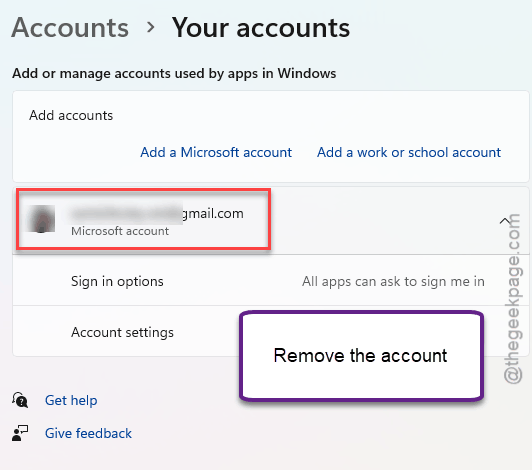
5 – Restart your PC.
6 – Open the Xbox App. Sign in fresh.
Heavy. But it clears every trace of the broken sign-in state. Almost always works.
How to Prevent This
- Keep your current PC registered at account.microsoft.com/devices. Check once in a while. Microsoft silently unlinks inactive devices.
- Use the same Microsoft account for Store and Xbox. Forever. Switching accounts causes this mess.
- Keep date and time on auto. Token validation breaks if the clock drifts. Weirdly common after travel.
- For games that use Battle.net or EA Play, link those accounts once. Then forget about it. Going back and forth causes mismatches.
People Also Ask
How to fix account mismatch on Xbox on PC?
The #1 fix — go to account.microsoft.com/devices and make sure your current PC is listed under Microsoft Store Device management. Unregistered PCs fail the license check silently. If the list is full, remove an old device first. Then sign back into the Microsoft Store on your PC. Mismatch goes away.
How to fix Xbox app not opening on Windows?
Go to Settings > Apps > Installed apps. Find Xbox. Click the three dots > Advanced options. Hit Repair first, then Reset if that fails. Do the same for Gaming Services. Restart. If it still won’t open, make sure both Microsoft Store and Xbox App are on the same account.
Why is the Xbox app on PC not letting me sign in?
Usually a license registration problem. Your PC isn’t on your Microsoft account’s device list. Register it at account.microsoft.com/devices. Check your date and time is set automatically — wrong clock kills Microsoft sign-in. Run wsreset.exe from Windows + R to clear Store cache too.