You open the Xbox app, click on a Game Pass title, hit Play with Cloud Gaming — and nothing. Or you get an error.
The Cloud gaming is the last place where you want to face any error.
Why This Happens
Basically? Cloud gaming is fragile. You will need a valid Game Pass subscription plan for your account. Additionally, a stable internet connection and connection from a supported region is a must for you to enjoy cloud gaming. Miss any one of those and it breaks.
And the Xbox app itself isn’t perfect. Cached login data goes stale. The app communicates with the Microsoft’s servers in the background, and if that connection fail you can’t enjoy cloud gaming completely. You just get a vague error or a dead button.
Some users also see this break right after a Windows update. The Xbox app’s Gaming Services dependency gets corrupted. Annoying, but easy to fix.
Fix 1 – Confirm You Actually Have Game Pass Ultimate
Cloud gaming needs Game Pass Ultimate — not regular Game Pass for PC, not the basic Xbox subscription.
1 – Open the Xbox app on your PC.
2 – Click your profile icon at the top right.
3 – Pick My subscriptions.
4 – Look for Game Pass Ultimate. If it says PC Game Pass or just Xbox Live Gold — that’s the problem. PC Game Pass alone doesn’t include cloud gaming.
5 – If you need to upgrade, click Manage and switch tiers.
Fix 2 – Sign Out and Sign Back Into the Xbox App
Forces a fresh authentication. Solves a surprising number of cloud gaming issues.
1 – Open the Xbox app.
2 – Click your profile icon at the top right.
3 – Click Sign out.
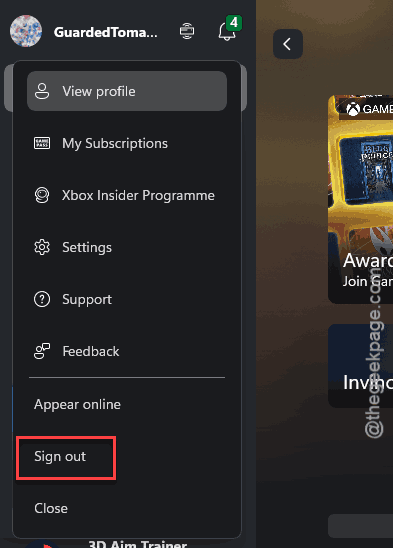
4 – Close the app completely. Use Ctrl + Shift + Esc > Task Manager and end any XboxPcApp or gamingservices processes if they’re hanging.
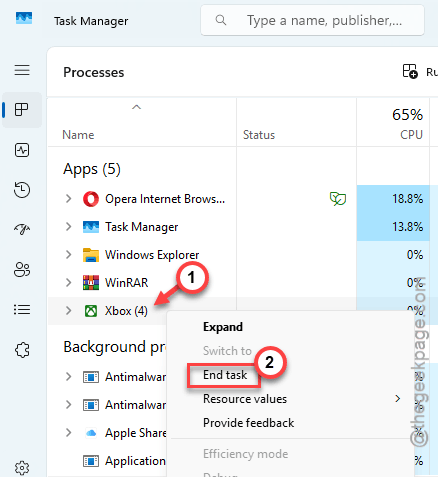
5 – Reopen the Xbox app.
6 – Sign in again with your Microsoft account.
And try a cloud game. Worked? Great.
Fix 3 – Reset the Xbox App and Gaming Services
If the app or its services are corrupted, this is your move.
1 – Press Windows + I to open Settings.
2 – Go to Apps > Installed apps.
3 – Search Xbox. Click the three dots (⋯). Pick Advanced options.
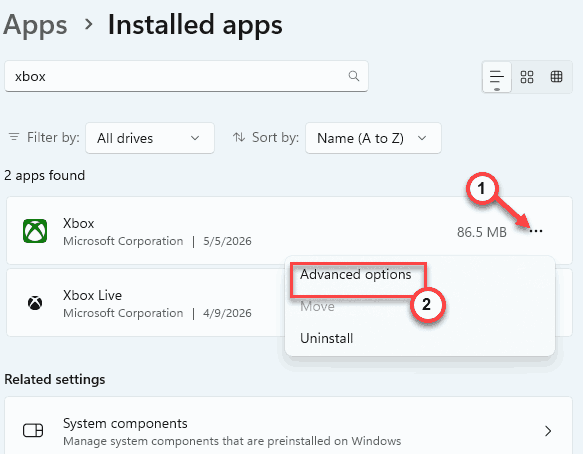
4 – Scroll down. Click Repair first.
5 – Test cloud gaming. If still broken, come back and click Reset.
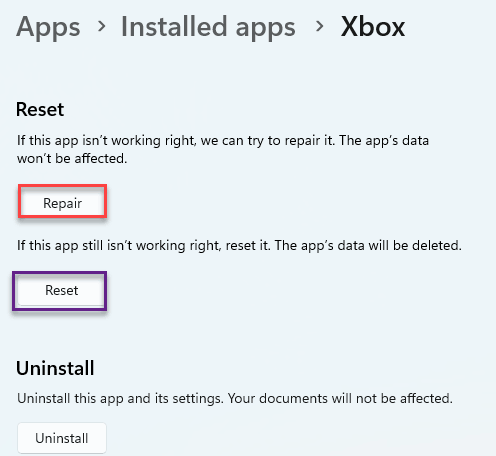
6 – Now do the same for Gaming Services. Search gaming services in Installed apps. Three dots. Advanced options. Repair, then Reset.
Restart your PC after.
Fix 4 – Check Your Region Settings
Cloud gaming isn’t available everywhere. And Windows region mismatches can lock you out even if you’re physically in a supported country.
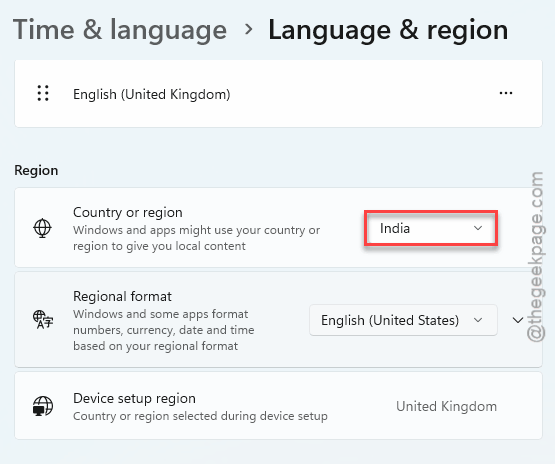
1 – Open Settings > Time & language > Language & region.
2 – Make sure Country or region matches where you actually live.
3 – If you’ve ever changed it for some reason, set it back.
4 – Restart your PC.
5 – Open the Xbox app and try again.
And while you’re at it — confirm your Microsoft account region matches too. Sign in to account.microsoft.com, click Your info, and check the country listed there.
Fix 5 – Test Your Internet Connection
Cloud Gaming is completely dependnt on the network connection. You need at least 10 Mbps to enjoy the game.
1 – Just run a simple speed test at fast.com.
2 – Within seconds, you will get the download and upload metrics of your connection. Do Check both download speed and ping (<50 ms).
3 – Switch to a LAN or Ethernet connection, if you were on a Wi-Fi. Cloud gaming hates wireless drops.
4 – On corporate or school networks? Cloud gaming might be flat-out blocked. Test on a personal hotspot to confirm.
And restart your router if you haven’t lately. Quick reboot, big difference.
Fix 6 – Disable VPN or Proxy
VPNs make Microsoft’s region detection lose its mind.
1 – Stop using any VPN you’re running.
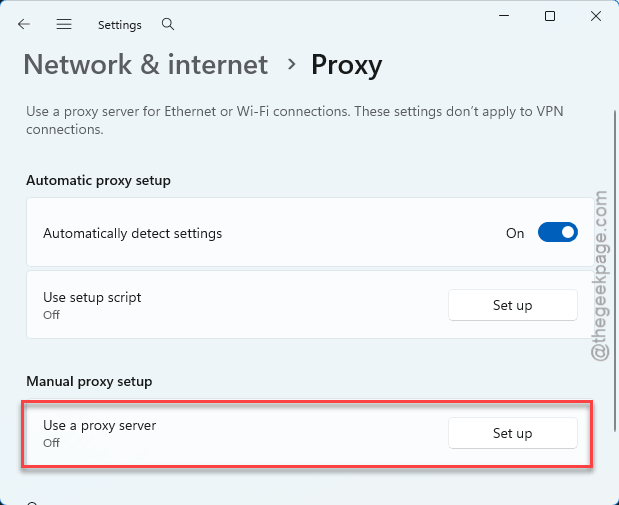
2 – Load up the Settings. Go to the Network & internet settings. In the Proxy settings, turn off Use a proxy server feature.
3 – Restart the Xbox app.
4 – Try cloud gaming.
Random VPN regions break cloud gaming.
Fix 7 – Reinstall the Xbox App
Nuclear option. Use this if nothing else worked.
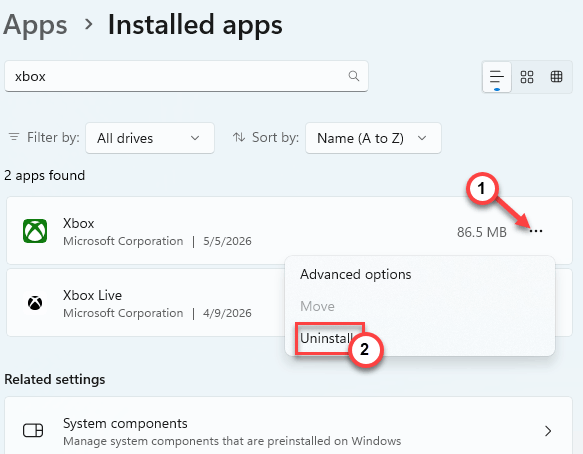
1 – Open Settings > Apps > Installed apps.
2 – Search Xbox. Click three dots (⋯). Pick Uninstall.
3 – Open the Microsoft Store.
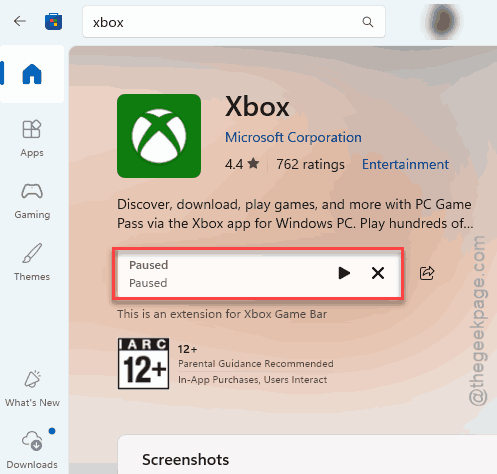
4 – Search Xbox. Pick the official one by Microsoft Corporation.
5 – Click Get or Install.
6 – Restart your PC.
7 – Sign in. Try cloud gaming.
How to Prevent This
- Make sure you’re on Game Pass Ultimate — not just PC Game Pass. Cloud gaming needs the Ultimate tier. Period.
- After every major Windows update, repair the Xbox app and Gaming Services. Two minutes. Prevents most weird breakages.
People Also Ask
Why is Xbox cloud gaming not working on PC?
In the most cases, having an unstable internet connection is the root cause of issues in Xbox Cloud Gaming as it is highly dependent on it. Apart from having a valid Xbox Game Pass, you do need a supported device and app to access the titles.
Do I need Game Pass Ultimate for cloud gaming?
No. You can enjoy cloud gaming from the Essential pack of Game Pass. PC Game Pass and Console Game Pass alone includes it, but the number of titles you can enjoy does vary with the Premium and Ulitmate tier offerings.