Having some problem with the Hotspot Shield on your computer? The users who have seen the “Something went wrong” message on the HotSpot Shield application have escalated this matter to multiple forums. This is the problem users face while opening up the Hotspot Shield after letting it run in minimized format for hours of activity. So, if you are facing this problem, these fixes will help you resolve the issue on the HotSpot Shield.
Why you are getting this error message?
HotSpot Shield provides the VPN or Virtual Private Network service to the users. But, there are some services that need to run for the HotSpot Shield VPN to work properly. When such services are not running on your system, HotSpot Shield won’t work or even startup. These solutions should help you fix the problem.
Fix 1 – End the CMW services
You can just end the CMW services from the Task Manager and restart the HotSpot Shield app.
Step 1 – To do this, you must close the HotSpot Shield main window. Closing it should minimize the app into the system tray.
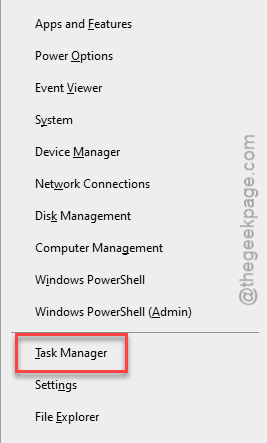
Step 2 – Now, go ahead and right-click the Windows button and later, open up the “Task Manager”.
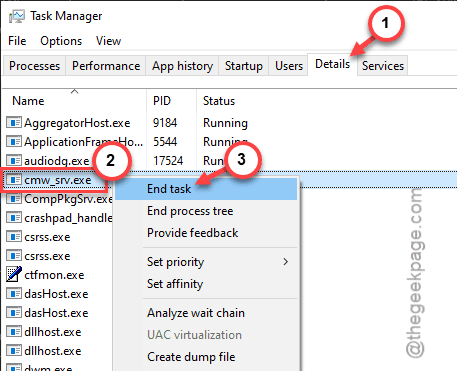
Step 3 – After opening the Task Manager page, go to the “Details” panel.
Step 4 – Once you are there, you may find the “cmw_serv.exe” executable component. This one is part of the HotSpot Shield.
Step 5 – You need to right-click the service and click “End task” to kill the component.
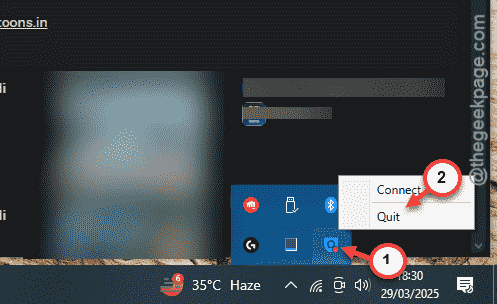
Step 6 – Next, tap the small arrow button on the task bar on the corner of the screen.
Step 7 – Right-click the “HotSpot Shield” app in the system tray and tap “Quit” to quit the app completely.
After quitting the app, you can relaunch the same HotSpot Shield app.
Fix 2 – Restart the HSHLD service
If you are still experiencing the same error message while starting up the HotSpot Shield app, you must restart the service manually.
Step 1 – At first, press the Win+I keys together.
Step 2 – Next, tap the “Task Manager” to open up the Task Manager panel.
Step 3 – Later, open up the “Services” tab on the Task Manager window.
Step 4 – On the Details page, find the “hshld” service. The actual service ID will contain the version of the hshld. For an example, the ID shall be like this – ‘hshld_12.9.7‘.
Step 5 – Right-click the service and tap “Start” to start the service, if the service has not started yet.
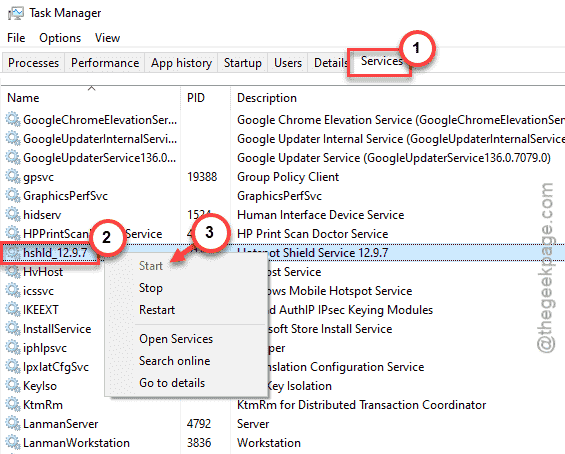
Step 6 – But, what if the service is running? Then, right-tap the same service and tap “Restart” to restart the service.
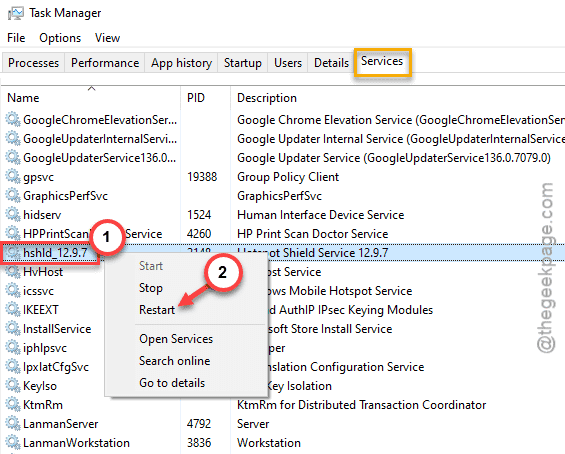
After restarting the service, relaunch the HotSpot Shield app once. Check if this works out for you!