You open the Minecraft Launcher. Click sign in. It spins forever. Or throws a generic error. Or opens a sign-in window that just… closes. You type in your Microsoft credentials. Nothing happens. Same password works on every other Microsoft service. But not Minecraft. Maddening.
Why This Happens
Here’s what’s actually broken. Minecraft Launcher uses Windows’ built-in sign-in system — specifically the Xbox Identity Provider. When that token cache gets stale or corrupted, the login flow just dies silently.
The Microsoft Account Sign-in Assistant service is another common culprit. It’s supposed to run automatically. But a lot of Windows 11 installs have it set to manual. Or disabled. When it’s not running? Minecraft can’t authenticate at all.
And there’s a broken-cache problem with the Microsoft Store itself. Minecraft leans on Store components for sign-in. When Store cache corrupts, Minecraft login breaks. Even though the Store looks fine.
On top of that, the newer Minecraft Launcher has bugs that the Legacy Launcher doesn’t. So using an older launcher is sometimes the fastest fix. Ironic, but it works.
Fix 1 – Start the Microsoft Account Sign-in Assistant Service
First thing to check. This service has to be running for Minecraft to authenticate. If it’s off, nothing else matters.
1 – Click the Start button. Type “Services” in the search box.
2 – Click Services in the results.
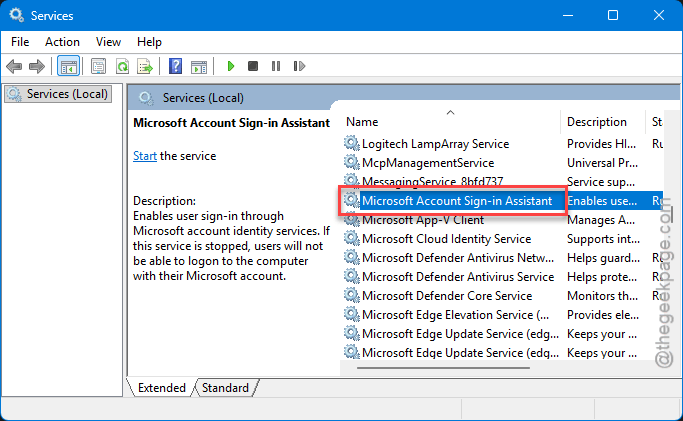
3 – The list is alphabetical. Scroll to Microsoft Account Sign-in Assistant.
4 – Double-click it.
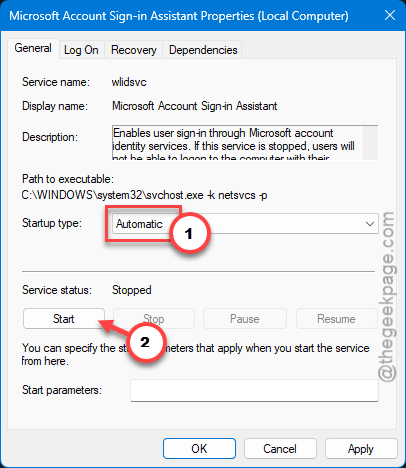
5 – Set Startup type to Automatic.
6 – Click Start if the service is stopped.
7 – Click Apply, then OK.
8 – Back in the Services list, right-click Microsoft Account Sign-in Assistant and click Restart.
Try Minecraft sign-in again.
Fix 2 – Clear the Xbox Token Broker Cache
Best fix for stuck sign-ins. The Token Broker folder holds cached auth tokens. When they go stale, login breaks. Clearing them forces a fresh auth flow.
1 – Close Minecraft Launcher completely. Check Task Manager if you’re not sure it’s gone.
2 – Press Windows + R to open the Run box.
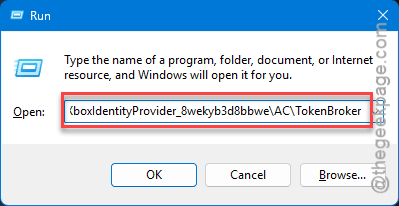
3 – Paste this path:
%localappdata%\Packages\Microsoft.XboxIdentityProvider_8wekyb3d8bbwe\AC\TokenBroker
4 – Press Enter.
5 – File Explorer opens inside the TokenBroker folder. Select everything (Ctrl + A). Press Delete.
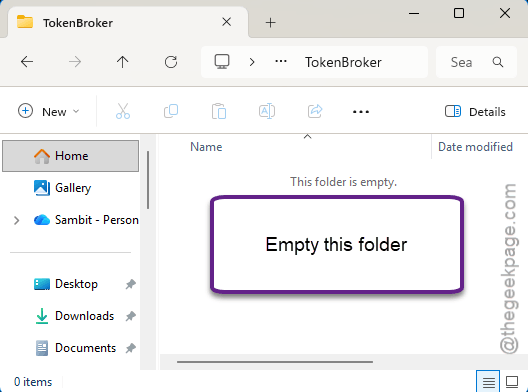
6 – If Windows says a file is in use — just skip that one. Delete what you can.
7 – Restart your PC.
Open Minecraft Launcher. Sign in.
Fix 3 – Clear Microsoft Store Local Cache
Similar idea, different cache. The Microsoft Store’s local cache can corrupt in ways that break Minecraft sign-in. Wipe it.
1 – Close everything Microsoft-related — Store, Xbox, Minecraft Launcher, Office apps. All of it.
2 – Press Windows + R to open the Run box.
3 – Paste this:
%localappdata%\Packages\Microsoft.WindowsStore_8wekyb3d8bbwe\LocalCache
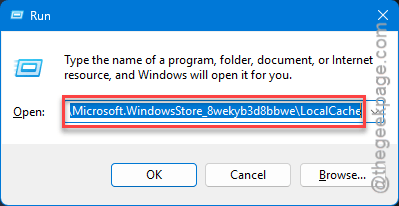
4 – Press Enter.
5 – Select all files and folders (Ctrl + A). Delete them.
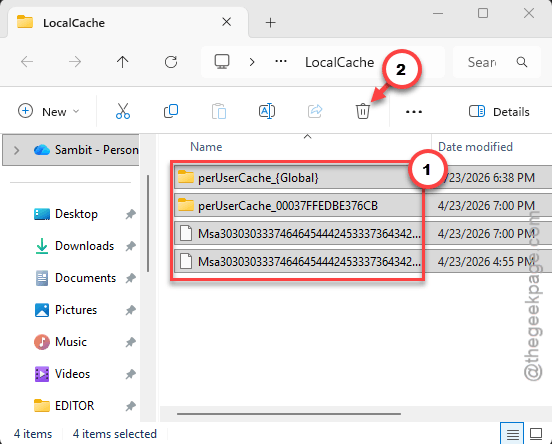
6 – Restart your PC. Important — don’t skip this.
Try Minecraft sign-in. Cache rebuilds automatically.
Fix 4 – Re-Register All Windows Apps
Heavier fix. But catches problems that nothing else does. Re-registers every UWP app on your system, including all the Microsoft sign-in components Minecraft uses.
⚠️ Takes 5-10 minutes. Some red errors are normal — they mean an app was already registered and didn’t need it.
1 – Press Windows + X.
2 – Click Terminal (Admin). Click Yes on the UAC prompt.
3 – Make sure you’re in PowerShell mode (check the dropdown at the top).
4 – Paste this whole command in one go:
Get-AppxPackage -AllUsers | Foreach {Add-AppxPackage -DisableDevelopmentMode -Register "$($_.InstallLocation)\AppXManifest.xml"}
5 – Press Enter.
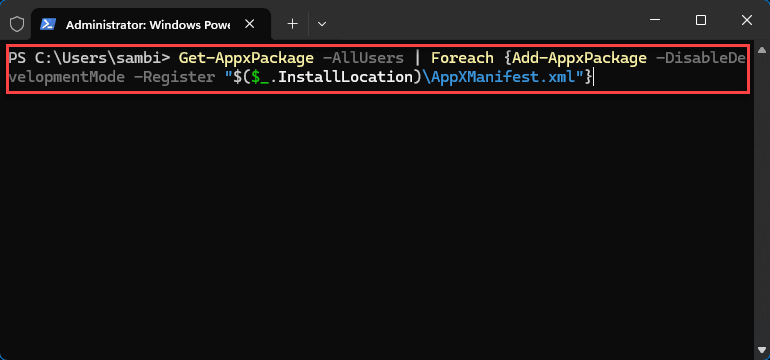
Don’t touch anything while it runs. You’ll see text scrolling fast.
6 – When the prompt returns to a fresh line, it’s done.
7 – Restart your PC.
Open Minecraft Launcher. Sign in.
Fix 5 – Switch to the Minecraft Legacy Launcher
Weird workaround. But it’s saved a ton of people. The Legacy Launcher was built for older Windows versions. It uses a simpler auth flow. Which means it dodges most of the sign-in bugs in the modern launcher.
1 – Uninstall your current Minecraft Launcher. Press Windows + I, go to Apps → Installed apps, search for “Minecraft”, click the three dots (⋯), click Uninstall.
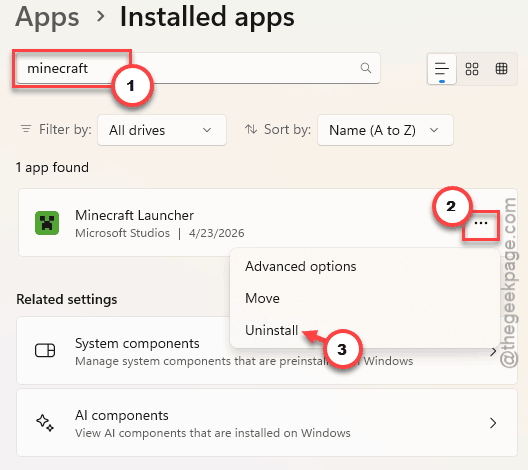
2 – Open a browser. Go to Minecraft webpage.
3 – Scroll down. Look for the Windows Legacy Launcher (marked for Windows 7/8).
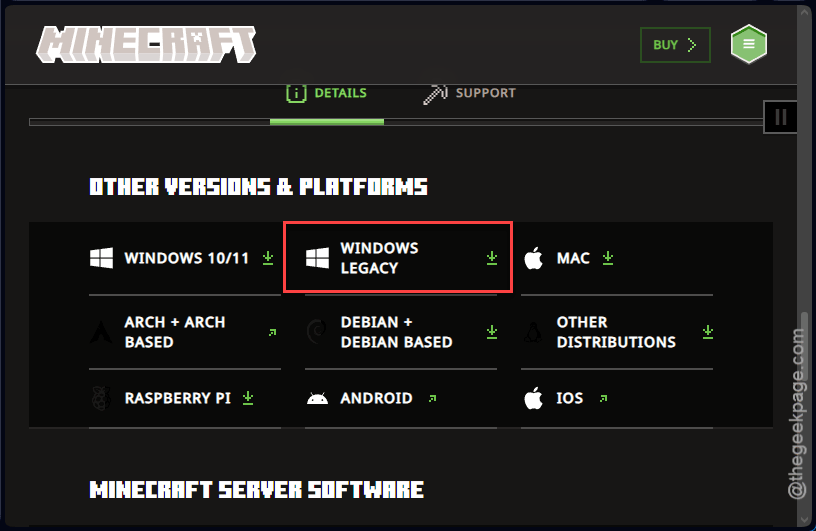
4 – Download and run the installer.
5 – Launch it. Sign in with your Microsoft account.
It’s older. Less pretty. But the login works. Almost every time.
Fix 6 – Reset the Minecraft Launcher App
Quick one if you want to stay on the modern launcher. Resets Minecraft Launcher to fresh-install behavior.
1 – Press Windows + I.
2 – Click Apps → Installed apps.
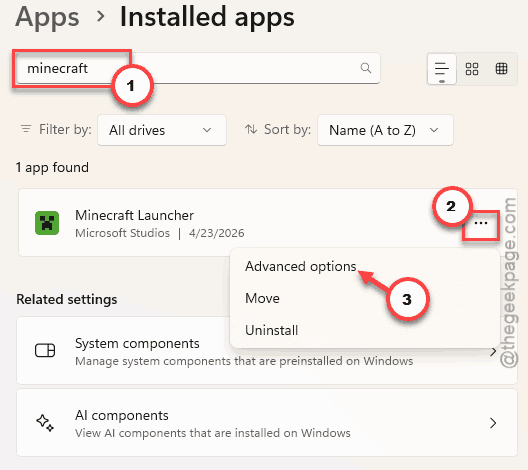
3 – Type “Minecraft” in the search box at the top.
4 – Click the three dots (⋯) next to Minecraft Launcher. Click Advanced options.
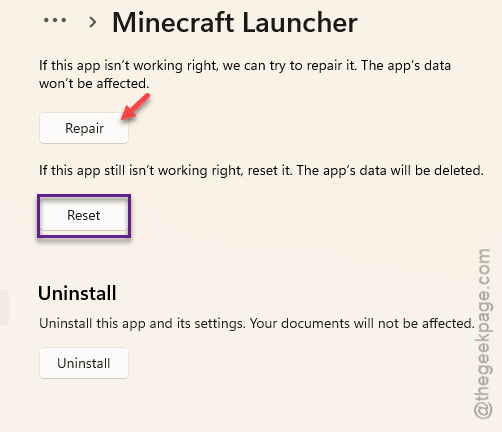
5 – Scroll down. Click Repair first — doesn’t wipe your data.
6 – If Repair doesn’t help, come back and click Reset. This one wipes cached sign-in.
Restart your PC. Open Launcher. Sign in fresh.
Fix 7 – Check Date, Time, and Network
Easy to overlook. Microsoft sign-in fails quietly when your clock is off or your network blocks something.
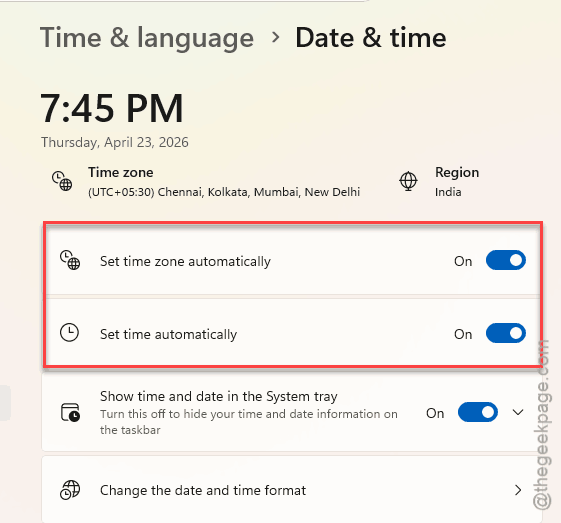
1 – Press Windows + I. Click Time & language → Date & time.
2 – Turn on Set time automatically and Set time zone automatically.
3 – Click Sync now under Additional settings.
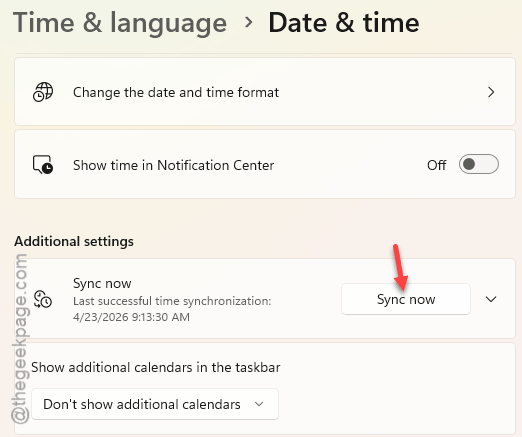
4 – If you’re on a work or school network, try a phone hotspot instead. Some networks block the Xbox Live auth endpoints. Really.
5 – If you’re using a VPN, turn it off before signing in. Microsoft blocks a lot of VPN exit IPs.
Retry Minecraft sign-in after these changes.
How to Prevent This
- Keep Microsoft Account Sign-in Assistant on Automatic startup. Some third-party cleaners disable it. Don’t let them.
- Avoid signing in on weird networks. Corporate and school networks block Xbox Live ports. Use your home connection for Minecraft sign-in.
- Don’t run multiple Minecraft launchers at once. Old and new launchers fight over the same auth tokens. Messy.
- Keep the launcher updated, but if you hit persistent sign-in bugs, Legacy is a solid fallback. Works on Windows 11 just fine.
People Also Ask
How do I fix Minecraft launcher not letting me sign in?
Start by clearing the Xbox Token Broker cache — Windows + R, then paste %localappdata%\Packages\Microsoft.XboxIdentityProvider_8wekyb3d8bbwe\AC\TokenBroker, delete everything inside, restart. Also make sure the Microsoft Account Sign-in Assistant service is running and set to Automatic. Together those fix it for most people.
Why can’t I sign into my Microsoft account on Minecraft PC?
Usually a cached token problem. Clear the Xbox Identity Provider’s TokenBroker folder. Clear the Microsoft Store LocalCache folder too. Restart. If sign-in still fails, re-register all Windows apps via PowerShell. That command rebuilds everything Microsoft needs for auth.
How to fix Minecraft launcher on PC?
Reset the launcher from Settings > Apps > Installed apps > Minecraft Launcher > Advanced options > Repair. Then Reset if Repair fails. Still broken? Install the Legacy Launcher from minecraft.net — it bypasses most modern auth bugs. Works fine on Windows 10 and 11.