You try to install a game from Xbox Game Pass. Download hits 100%. Then — error 0x80073cf6. Or just “Something went wrong.” Every time. One of the most frustrating Xbox app bugs on Windows 11. Usually corrupted folders or broken Gaming Services.
Why This Happens
Basically? The Xbox app downloads games into special system folders – WindowsApps, WpSystem, XboxGames. When something corrupts those folders — a failed install, a power loss, or switching drives — future installs fail right at the end.
The download finishes. But the installation step crashes because it can’t write to the corrupted folders. And the Xbox app doesn’t clean them up. Just leaves the mess. So the next install fails too. And the next one. So yeah.
Fix 1 – Update the Xbox App and Microsoft Store
Outdated apps are the most common cause. And the Xbox app doesn’t always auto-update.
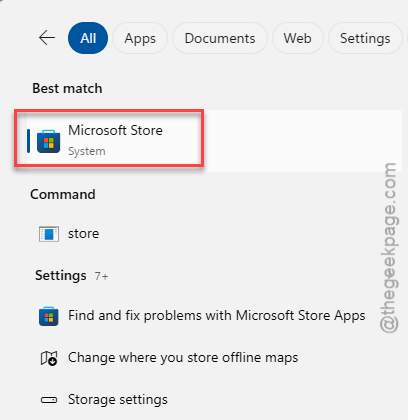
1 – Click Start and type Microsoft Store.
2 – Open the Microsoft Store.
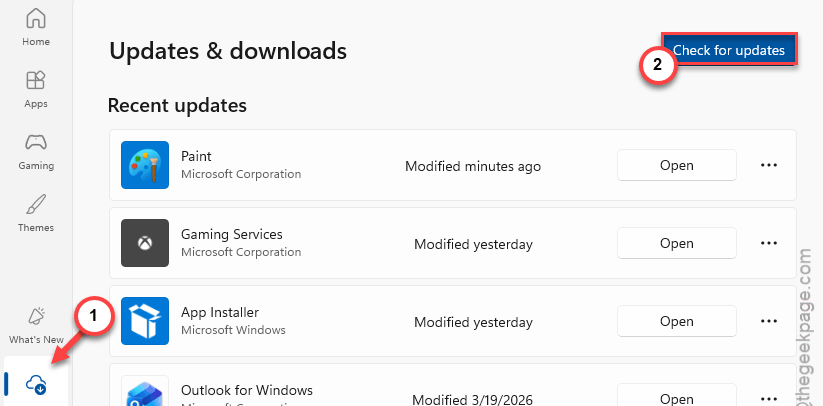
3 – Click Download at the bottom left.
4 – Click Check for updates at the top right.
5 – Make sure the Xbox app is fully updated.
6 – Try installing the game again.
Fix 2 – Terminate, Repair, or Reset the Xbox App
If updating didn’t help, try fixing the app itself.
1 – Click Start.
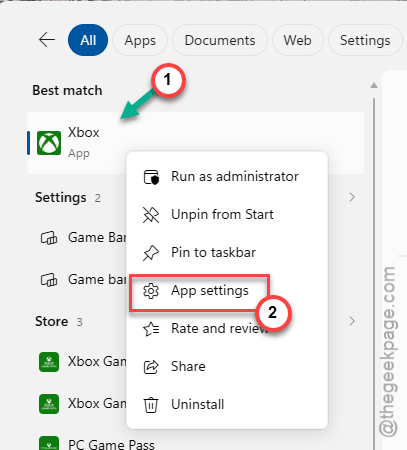
2 – Type Xbox in the search bar.
3 – Right-click the Xbox app in the results.
4 – Click App settings.
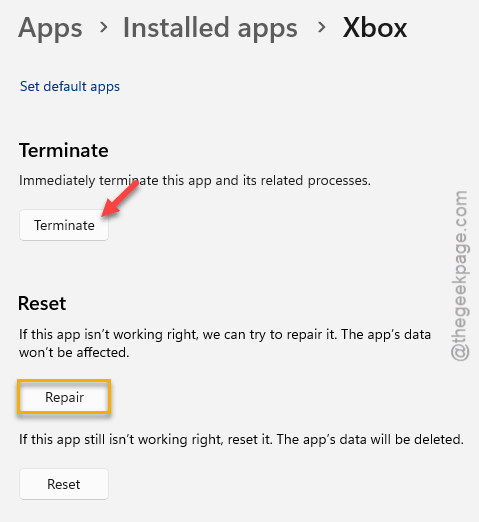
5 – Scroll down on the right side and click Terminate. This hard-stops the app and all related processes.
6 – Now click Repair. This fixes app files without deleting your data.
7 – Try installing the game again.
Didn’t help? Go back to the same screen and click Reset instead.
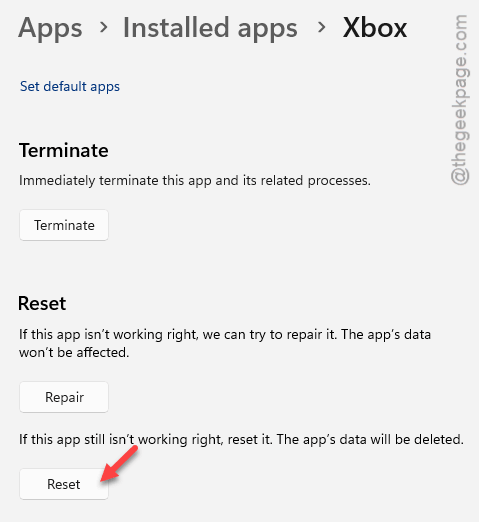
12his wipes app data — you’ll need to sign in again. But it often fixes stubborn install errors.
Fix 3 – Reinstall Gaming Services
Gaming Services is the background component that handles game installs. If it’s corrupted, nothing installs.
1 – Click Start and type PowerShell.
2 – Right-click Windows PowerShell in the results.
3 – Click Run as administrator.
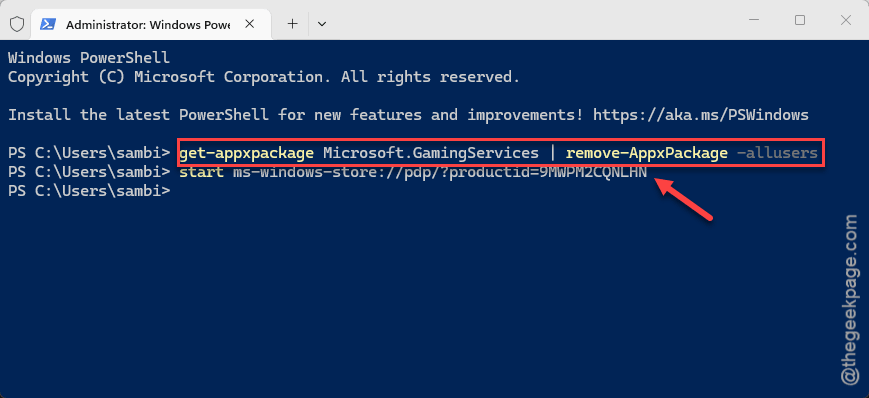
4 – Paste this command and press Enter:
get-appxpackage Microsoft.GamingServices | remove-AppxPackage -allusers
5 – Now paste this and press Enter:
start ms-windows-store://pdp/?productid=9MWPM2CQNLHN
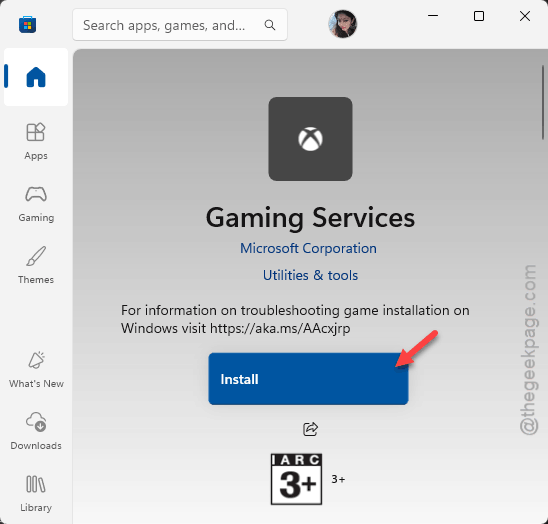
6 – The Microsoft Store opens to the Gaming Services page. Click Install.
7 – Restart your PC.
8 – Try installing the game again.
Fix 4 – Delete Corrupted Xbox Folders on the Target Drive
If you changed your install drive or had failed installs, leftover folders block new ones.
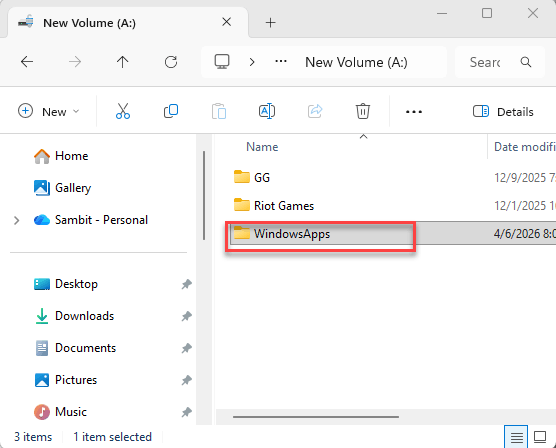
1 – Open File Explorer (press Windows + E).
2 – Go to the drive where you want to install games (for example, H: or D:).
3 – Look for these folders: WindowsApps, WpSystem, XboxGames.
4 – Try deleting them.
If you get “Access Denied“:
5 – Open PowerShell as administrator (same method as Fix 3).
6 – Type this command and press Enter (replace H: with your drive letter):
takeown /f "H:\WindowsApps" /r /d y
[where the H: is the drive where you install your Xbox games.]
7 – Then type this and press Enter:
icacls "H:\WindowsApps" /grant administrators:F /t
8 – Then type this and press Enter:
rmdir /s /q "H:\WindowsApps"
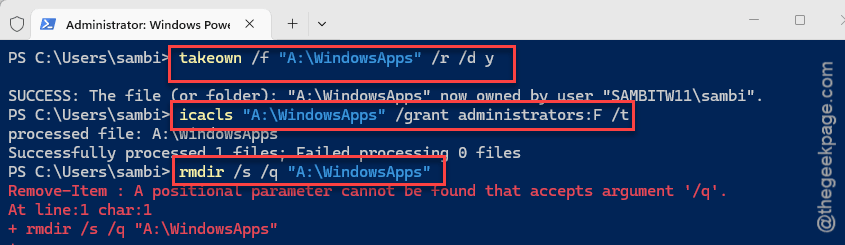
9 – Repeat steps 6–8 for WpSystem and XboxGames folders in the same drive.
10 – Restart.
11 – Try the game install again.
And yeah. These leftover folders from failed installs are the main reason this error keeps happening. Cleaning them up usually fixes it for good.
How to Prevent This
- Keep the Xbox app and Gaming Services updated.
- Don’t interrupt game installs. Let them finish completely.
- If you change install drives, clean up old folders first.
- Install games to an internal drive. External drives cause more issues.
People Also Ask
How to fix Xbox app not working on Windows 11?
Usually it’s an outdated app or broken Gaming Services. Update the Xbox app from the Microsoft Store first. If that doesn’t work, try Repair or Reset through the app settings. For persistent issues, reinstall Gaming Services via PowerShell.
How to fix code 0x80073CF3 in Microsoft Store?
Similar approach. Reset the Store cache with wsreset.exe, then reinstall Gaming Services via PowerShell. If you changed install drives, delete corrupted WindowsApps and WpSystem folders on the target drive first.
Does the Xbox app work on Windows 11?
Yes, but it can be buggy. Keep it updated through the Microsoft Store. If installs fail consistently, the Gaming Services component is usually what needs to be reinstalled. Most install errors come down to corrupted local folders.