Windows Hello pops up. You go to type your PIN. Nothing happens. Keyboard’s dead. Mouse moves but the prompt won’t take input. Locked out by your own login system.
Why This Happens
Here’s what’s really going on. When Windows Hello triggers — especially from a browser extension like 1Password — it’s firing the Shift key by accident. Or holding it. Either way, the keyboard state goes weird.
And until you “un-stick” Shift, no typing happens. Some users say it’s a 1Password bug. Some say it’s Windows. Honestly? It’s both. They don’t play nice.
On top of that, an outdated 1Password build was the original cause. Microsoft and AgileBits patched it. But not everyone has the fix yet. So the bug lingers.
Fix 1 – Tap the Shift Key (Yes, Really)
Quick fix. Sounds dumb but it works for 90% of people.
1 – When the Windows Hello prompt is stuck, tap the Shift key once.
2 – Try typing.
3 – If that didn’t work, hold Shift for 8 seconds. Wait for any popup. Dismiss it.
4 – Now type your PIN or password.
Done. The 8-second hold resets the Windows accessibility shortcut state. That clears whatever Hello broke.
Annoying that this is the workaround. But it works every single time.
Fix 2 – Update 1Password to the Latest Build
AgileBits patched this. If you’re on 8.12.0 or older? You’re seeing a known bug.
1 – Open the 1Password desktop app. Not the browser extension. The actual app.
2 – Click your account name or collection at the top of the left sidebar.
3 – Click Settings.
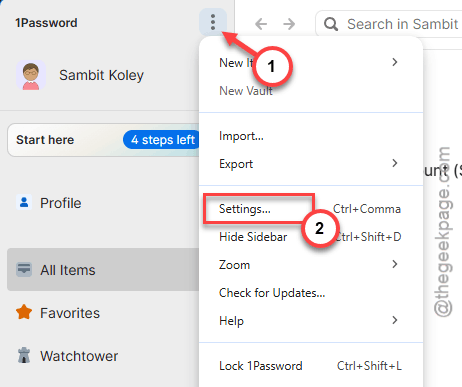
4 – On the left, click About.
5 – Click Check for Updates.
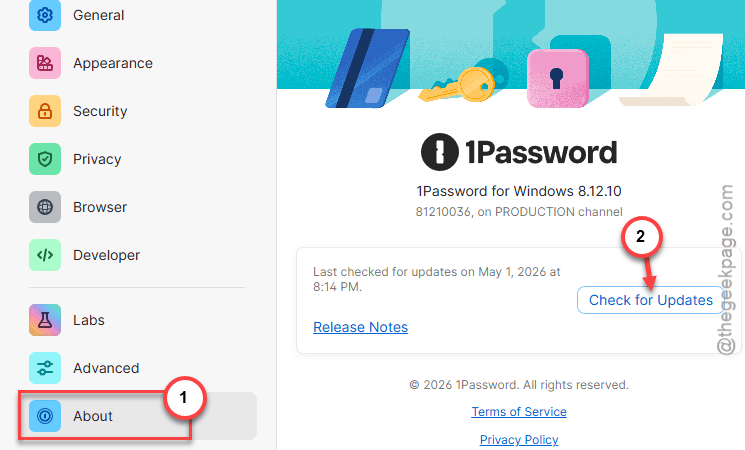
6 – If 8.12.1 or newer is available, install it.
7 – Restart 1Password.
And restart your browser too. Otherwise the extension keeps using the old build.
Fix 3 – Switch to the Nightly Channel
If 1Password says you’re already on the latest stable but you’re still getting the bug — try the Nightly. AgileBits ships fixes there first.
1 – Open 1Password. Unlock it normally (not via Windows Hello — use your master password).
2 – Click your account at the top of the sidebar.
3 – Click Settings.
4 – Click Advanced on the left.
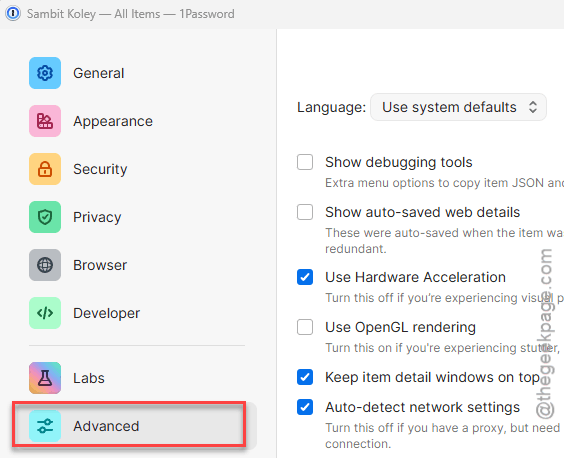
5 – Find Release channel. Change it from Stable to Nightly.
6 – Go back to About in Settings.
7 – Click Check for updates and follow the prompts.
8 – Restart 1Password.
Heads up — Nightly builds are less tested. If you hit a different bug, switch back to Stable from the same setting.
Fix 4 – Unlock the Desktop App Before the Extension
Workaround that just sidesteps the bug. The Hello prompt usually breaks when the browser extension triggers it. So unlock the app first.
1 – Open the 1Password desktop app from your Start menu.
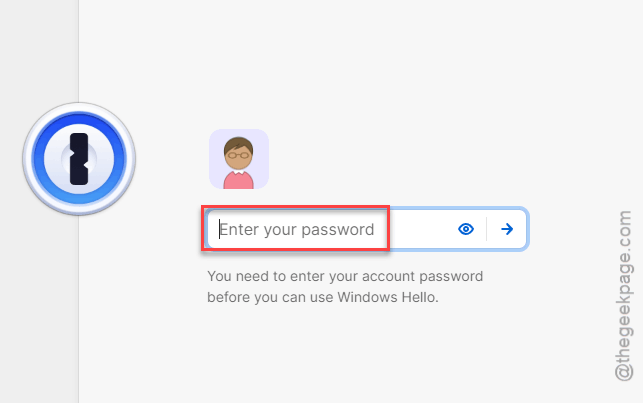
2 – Unlock it with Hello or your master password.
3 – Now go to your browser. The extension will pull credentials from the unlocked app — no Hello prompt needed.
Quick. Reliable. Doesn’t fix the bug, but you stop hitting it.
Fix 5 – Disable “Show Prompt Automatically”
If the auto-prompt is what’s breaking, turn it off. You can still use your password as a fallback.
1 – Open 1Password desktop app.
2 – Click your account at the top of the sidebar.
3 – Click Settings.
4 – Go to Security.
5 – Find the Windows Hello section.
6 – Disable Show prompt automatically.
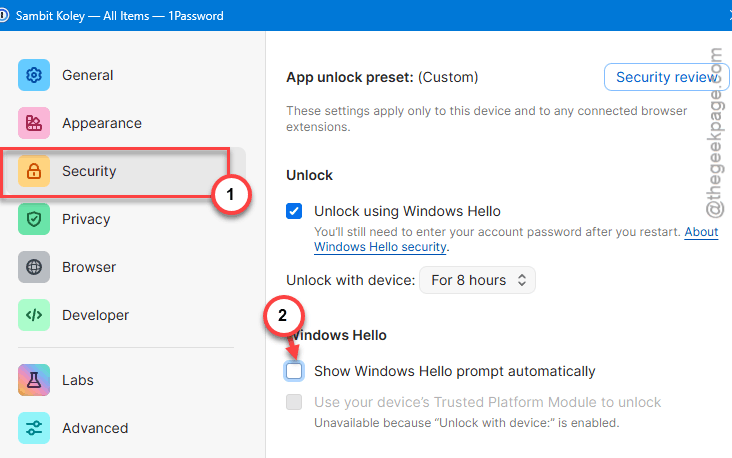
Now Hello won’t fire on its own. You manually type your master password when needed. Ugly but stable.
Fix 6 – Update Windows
Microsoft pushed Windows-side fixes for stuck-key behavior in Hello. Make sure you’re current.
1 – Press Windows + I to open Settings.
2 – Click Windows Update in the left sidebar.
3 – Click Check for updates.
4 – Install everything pending. Including optional updates.
5 – Restart your PC.
How to Prevent This
- Keep 1Password updated. Auto-updates are your friend here.
- Always unlock the desktop app first if your extension is acting up.
- Don’t use Hello for sensitive stuff if you’re hitting this bug repeatedly. Master password is fine.
- Run Windows Update regularly. Fixes for Hello show up in patch notes a lot.
People Also Ask
How to fix Windows Hello not working?
First, tap the Shift key — it’s often stuck after a Hello prompt and that blocks input. Then update 1Password to 8.12.1 or newer. If you’re on the latest stable, switch to the Nightly channel. Most cases come down to a known stuck-Shift bug between Hello and 1Password.
How do I unlock Windows Hello with 1Password?
Open the 1Password desktop app. You have to go to Settings > Security and enable Windows Hello from there. Next, you have to set up any of the Windows Hello security setup. The 1Password app then uses Hello to unlock your device.