Trying to sign into Office 365. And you get hit with this — “Something went wrong. Tag: 4usqa“. No real explanation. Just a vague error and a stuck login screen.
Why This Happens
Here’s what’s actually going on. The 4usqa tag means a specific Microsoft Entra ID app has been disabled for user sign-ins. Could be on purpose by an admin. Could be Microsoft’s own permissions check.
But it can also pop up from cached credentials gone bad. Or a firewall blocking the auth servers. Or Office files refusing to refresh tokens. The error tag is the same. The cause? Different every time.
And weirdly, the error message rarely tells you which one. So you have to try a few things.
Fix 1 – Ask Your Admin to Re-enable the App (Enterprise)
On a business account? Sometimes the admin disabled the specific Microsoft app the error references. Only an admin can fix this.
Send your admin these steps:
1 – Go to entra.microsoft.com and sign in.
2 – Click Identity > Applications > Enterprise applications.
3 – Click All applications, then Add filters.
4 – Filter by Application ID set to “starts with”. Paste the Application ID from the user’s error message.
5 – Open the app. Click Properties in the left sidebar.
6 – Toggle Enabled for users to sign-in? to Yes.
7 – Click Save.
Tell users to wait a few minutes, then sign in again.
Fix 2 – Clear the OneAuth Cache
Office stores auth tokens in a hidden cache. When that cache goes stale or corrupt? You get the 4usqa loop. Wipe it.
1 – Close all Office apps. Outlook, Word, Excel — all of them.
2 – Press Windows + R to open Run.
3 – Type this and press Enter.
%LocalAppData%\Microsoft\OneAuth
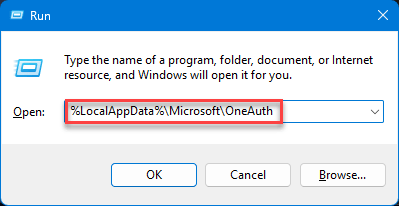
4 – Delete the IdentityCache folder.
5 – Delete anything else inside OneAuth too. Don’t worry — Office rebuilds these on next login.
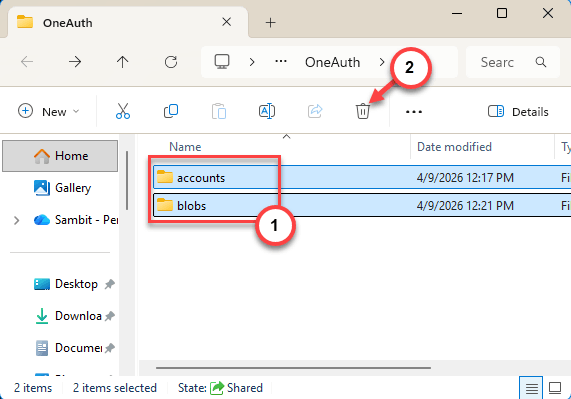
6 – Reopen Office. Sign in fresh.
And that fixes most cases. Stale tokens are the #1 cause.
Fix 2 – Wipe Saved Credentials
Windows Credential Manager hangs onto old Office logins. Sometimes it hands Office a credential that no longer works. Cue the 4usqa error.
1 – Open Control Panel (search “Control Panel” in Start).
2 – Click User Accounts > Manage your credentials
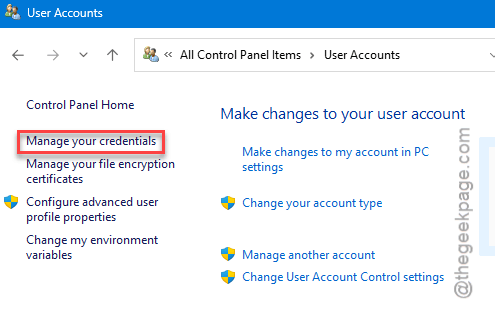
3 – Click Windows Credentials.
4 – Look for any entry with MicrosoftOffice, Outlook, or OneDrive in the name.
5 – Click each one. Hit Remove.
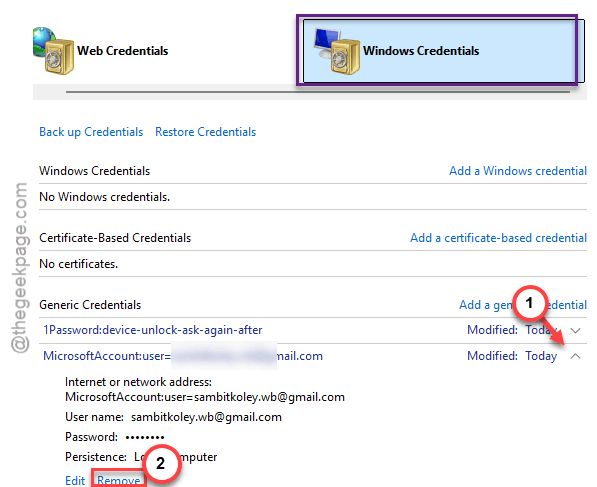
6 – Restart Office. Sign in again with your password.
Annoying step. But it works. Office will rebuild a clean credential set.
Fix 3 – Sign Out & then Sign In Inside Outlook
Quick fix. If the issue is just a stuck session, this often handles it.
1 – Open Outlook.
2 – Click File in the top left.
3 – Pick Office Account from the left sidebar.
4 – Click Sign out. Confirm.
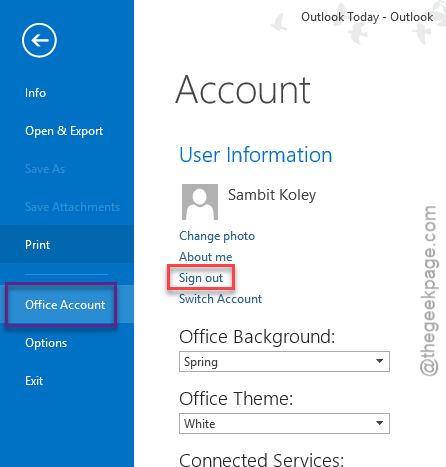
5 – Close Outlook completely.
6 – Reopen and sign back in.
Done. Sometimes that’s all it takes.
Fix 4 – Check Firewall and Auth URLs
Some firewalls — corporate or third-party — block Microsoft’s auth servers. Office can’t reach them. So you get a generic 4usqa.
Make sure these URLs are reachable on your network:
-
login.microsoftonline.com -
login.windows.net -
login.microsoft.com -
secure.aadcdn.microsoftonline-p.com -
aadcdn.msauth.net -
aadcdn.msftauth.net
On a corporate network? Send this list to IT. They need to whitelist all of them. Block one and you get this exact error.
Fix 5 – Repair Office
Nuclear option. But if cache and credentials don’t help, the Office install itself might be broken.
1 – Press Windows + I to open Settings.
2 – Go to Apps > Installed apps.
3 – Find Microsoft 365 or Microsoft Office in the list.
4 – Click the three dots (⋯) next to it. Pick Modify.
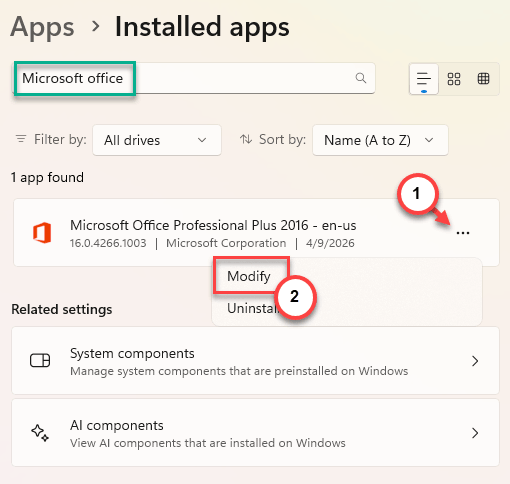
5 – Choose Quick Repair first. Click Repair.
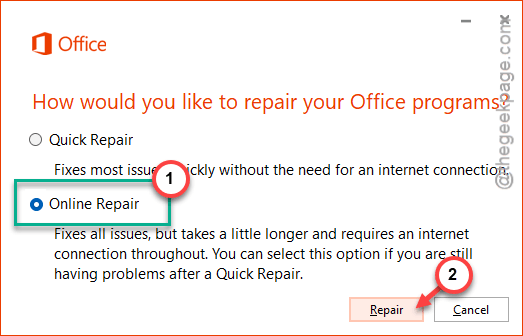
6 – Wait. This takes 5–10 minutes.
7 – If Quick Repair doesn’t fix it, run Online Repair next. Slower but more thorough.
How to Prevent This
- Don’t sign into Office on shared PCs without signing out after. Stale credentials cause this.
- Keep Office updated. Old builds have known auth bugs.
- On corporate networks, ask IT to whitelist all the Microsoft auth URLs upfront.
- Avoid using VPNs that intercept SSL traffic when signing into Office.
People Also Ask
How to fix 4usqa error in Outlook?
Start by clearing the OneAuth cache at %LocalAppData%\Microsoft\OneAuth — delete IdentityCache. Then wipe Office credentials in Credential Manager. If you’re on a corporate account, your admin may need to re-enable the Microsoft Entra app referenced in the error. The cache fix alone solves most home cases.
How to fix Microsoft 365 login problem?
Sign out from inside Outlook first. Then close all Office apps. Clear the OneAuth folder under AppData. If that fails, run Office Quick Repair. And if you’re on a work network, get IT to check that login.microsoftonline.com and the other auth URLs aren’t blocked. That’s usually it.
How to fix error tag 4vt9f in Outlook?
Same approach as 4usqa, honestly. Microsoft’s tag system covers a bunch of related auth issues. Clear OneAuth cache, wipe Credential Manager entries for Office, and re-sign in. If that doesn’t work, repair Office. The fixes overlap because the underlying problem is usually a cached token.