You’re mid-scan, or halfway through a render. The viewport locks up. The whole app goes white and stops responding.
Heavy 3D work pushes a PC hard. And Windows 11 has a few habits that make it worse — grabbing the wrong graphics chip, running out of memory, throttling your CPU at the worst moment. Let’s fix each one.
Why This Happens
Basically? Your PC keeps making the cheap choice when it should be making the powerful one.
3D scanning suites are demanding. But Windows often points them at the weak integrated graphics instead of your real GPU. So the moment you load a dense point cloud, it chokes.
Memory’s the other big one. These apps eat RAM fast. When they hit the ceiling, Windows leans on the pagefile — a chunk of your disk pretending to be RAM. If that’s too small, the app just freezes.
And there’s the CPU. Windows 11 splits work across strong and weak cores. Sometimes it dumps a heavy compute job onto the weak ones. Not ideal. The result is a stall right when you need speed.
Fix 1 – Force the App Onto Your Real GPU
This is the big one. You’re telling Windows to always run your 3D app on the powerful graphics card, not the built-in chip.
1 – Open Settings, go to System, then Display, then Graphics.
2 – Click Browse and find your software’s launch file — for example, bin\artecstudio.exe. Click Add.
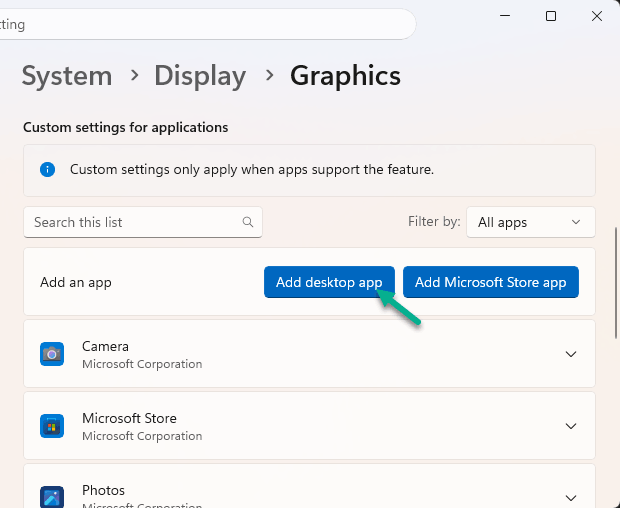
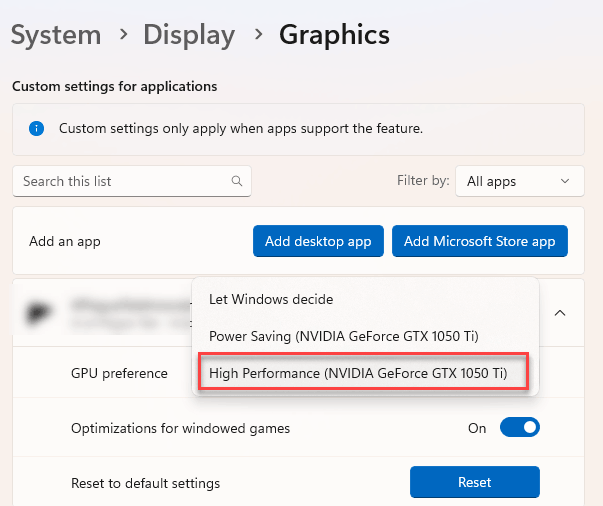
3 – Click the app in the list, then click Options.
4 – Pick High performance — that’s your dedicated GPU — and click Save.
If you have an NVIDIA card, go one step further:
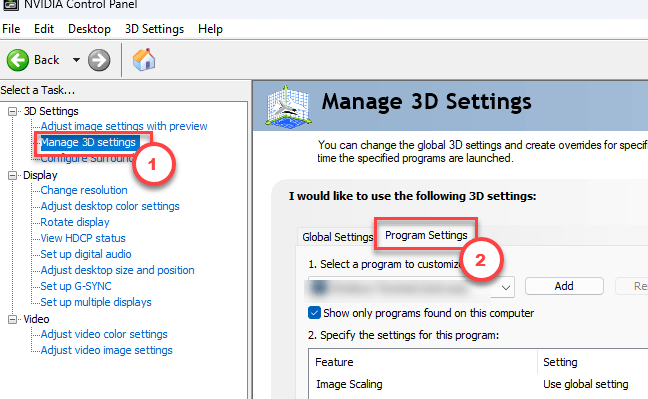
5 – Open the NVIDIA Control Panel, go to Manage 3D Settings, then Program Settings, and select your 3D app.
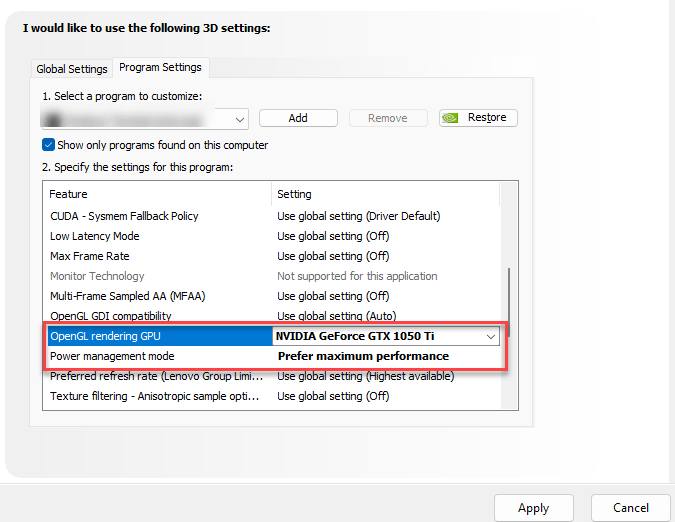
6 – Set Power management mode to Prefer maximum performance.
7 – Set the OpenGL rendering GPU to your dedicated card, not Auto.
Now the app can’t fall back to the weak graphics. That fixes most viewport freezes on its own.
Fix 2 – Give Windows a Bigger Pagefile
If the freeze hits when a scan gets dense, you’re running out of memory. Bumping the pagefile — the disk space Windows uses as backup RAM — buys you headroom.
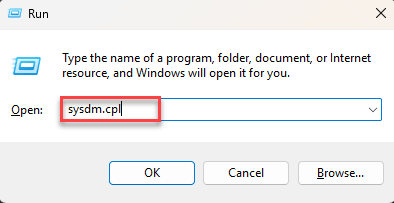
1 – Press Windows + R, type sysdm.cpl, and press Enter.
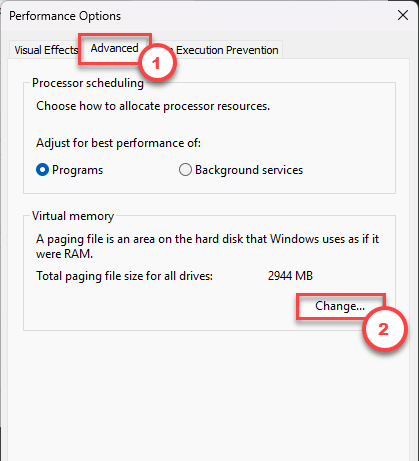
2 – Go to the Advanced tab. Under Performance, click Settings.
3 – In the new window, open the Advanced tab again, then click Change under Virtual Memory.
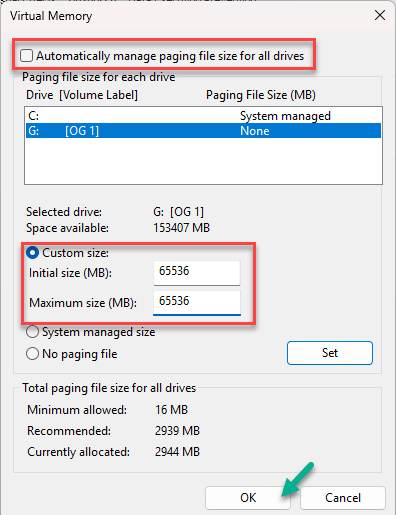
4 – Uncheck Automatically manage paging file size for all drives at the top.
5 – Click your fastest drive — an NVMe SSD if you have one — and pick Custom size.
6 – Set both Initial size and Maximum size to 65536 (that’s 64 GB), or match your physical RAM.
7 – Click Set, then OK, and restart.
Put it on your quickest drive. A pagefile on a slow disk helps, but not much.
Fix 3 – Keep the App Off the Weak Cores
If freezes come and go under load, Windows might be running the heavy job on efficiency cores. You can lock the app to the strong ones instead.
1 – Launch your 3D app first, so it’s running.
2 – Press Ctrl + Shift + Esc to open Task Manager.
3 – Go to the Details tab.
4 – Right-click your app’s process and choose Set affinity.
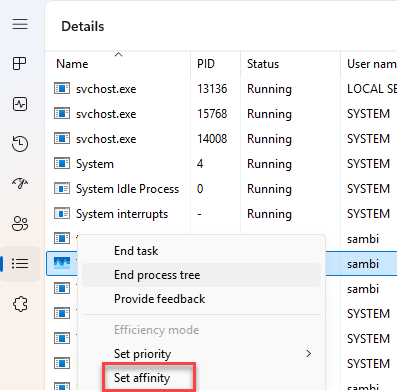
5 – Uncheck CPU 0 and any low-power efficiency cores. Leave the main performance cores ticked.
6 – Click OK.
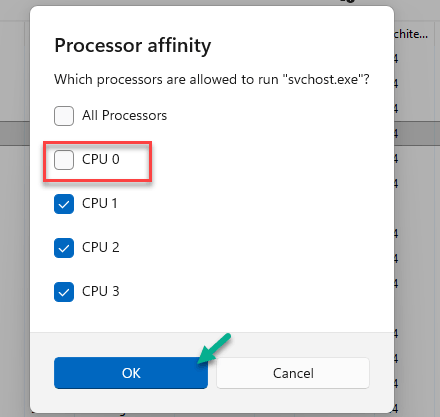
Heads up — this resets when you close the app. You’ll redo it each session, or script it if you do this daily.
Fix 4 – Switch On the Ultimate Performance Plan
Quick one. Windows hides a power plan built for exactly this — it keeps your clocks steady instead of dipping to save energy.
1 – Open Command Prompt (Admin) and run this code:
powercfg -duplicatescheme e9a42b02-d5df-448d-aa00-03f14749eb61
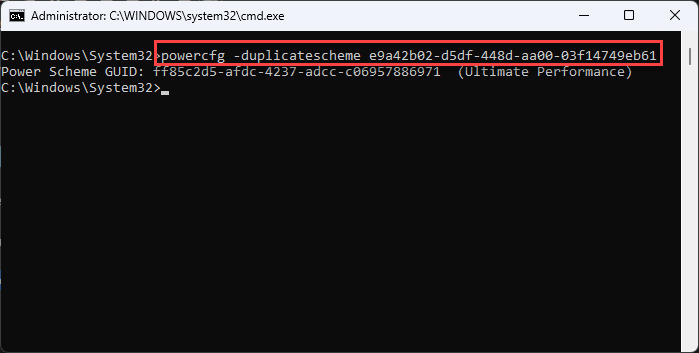
2 – Then go this way-
Settings > System
3 – After this, go to the Power section.
4 – Then, pick Ultimate Performance.
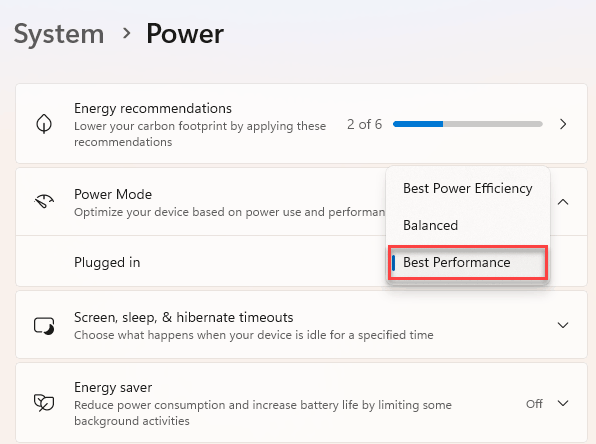
Your hardware stops throttling mid-task.
Fix 5 – Exempt the App From Control Flow Guard
Still locking up? A Windows security feature called Control Flow Guard (CFG) can clash with some rendering engines. You can switch it off for just that one app, not your whole system.
1 – Open Windows Security.
2 – Go to App & browser control.
3 – Scroll down and click Exploit protection settings.
4 – Open the Program settings tab and click Add program to customize, then point it at your 3D app’s exe.
5 – Find Control flow guard (CFG), tick Override system settings, and switch it Off.
6 – Click Apply.
This only affects that single program, so the rest of your system stays protected.
How to Prevent This
– Set the High performance GPU for every heavy app the day you install it.
– More RAM beats every tweak here. If you scan large objects daily, 64 GB isn’t overkill — it’s the real fix.
People Also Ask
Why does my 3D scanning app keep freezing on Windows 11?
Usually Windows is running it on the weak integrated graphics or running out of memory. Force the app onto your dedicated GPU under Settings > System > Display > Graphics, set it to High performance. Then raise your pagefile size on your fastest SSD. Those two changes stop most freezes.
How do I update Artec Studio?
Open Artec Studio, go to the Help or account menu, and check for updates there — it pulls the latest build from Artec’s servers. Keeping it current matters, since updates often fix crashes and freezing tied to newer Windows 11 builds. Make sure your GPU driver is current too.