Right-click a zip file. Pick Extract All. Things look fine for a second. Then — error. The extraction was not completed. Error 0x8096002A.
And the file just sits there. Half-extracted. Or not extracted at all.
Why This Happens
Basically? Windows 11’s built-in extraction tool is fragile. It struggles with anything beyond simple zips.
And 0x8096002A is one of those generic error codes Microsoft throws when extraction fails. The actual cause is usually one of a few things. The archive is corrupted. Or your antivirus is locking the files mid-extract.
Why is the built-in tool so bad? Honestly, no idea. Microsoft added 7-zip and RAR support recently, but the extraction engine still chokes on anything complex. Annoying.
On top of that — corrupted system files can break extraction. So can missing Visual C++ runtimes that some installers depend on. Multiple paths to the same error.
Fix 1 – Use 7-Zip or WinRAR Instead
Quickest, most reliable fix. Skip the built-in tool entirely. Third-party extractors handle pretty much everything Windows can’t.
1 – Open your browser. Go to 7-zip webpage or win-rar.com.
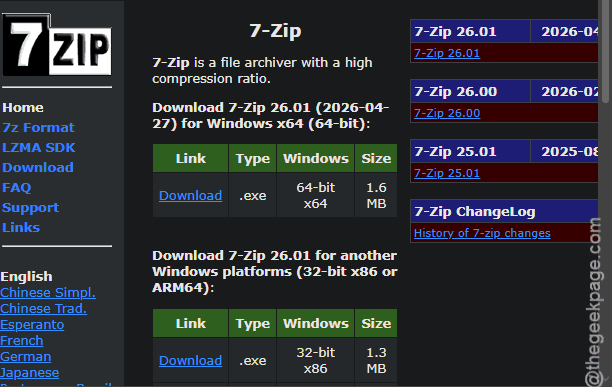
2 – Now, download the latest version of the installer. You can choose between portable or regular msix installer packages.
3 – Run the installer. Click through the prompts.
4 – Once installed, go to your zip file in File Explorer.
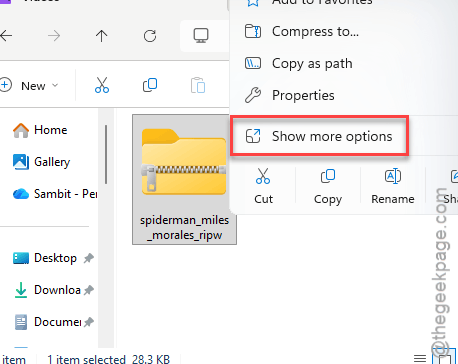
5 – Right-click the file. Click Show more options (Windows 11 hides extras under this).
6 – Hover over 7-Zip or WinRAR. Pick Extract to [folder name].
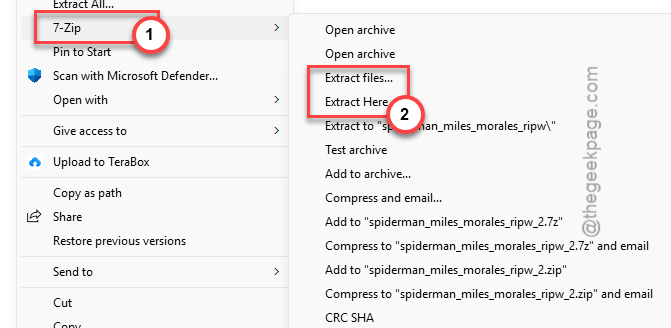
Done.
Fix 2 – Run DISM and SFC
If your system files are corrupted, the extraction engine itself can fail. DISM and SFC fix that.
1 – Click Start. Type cmd.
2 – Right-click Command Prompt. Pick Run as administrator. Click Yes at the UAC prompt.
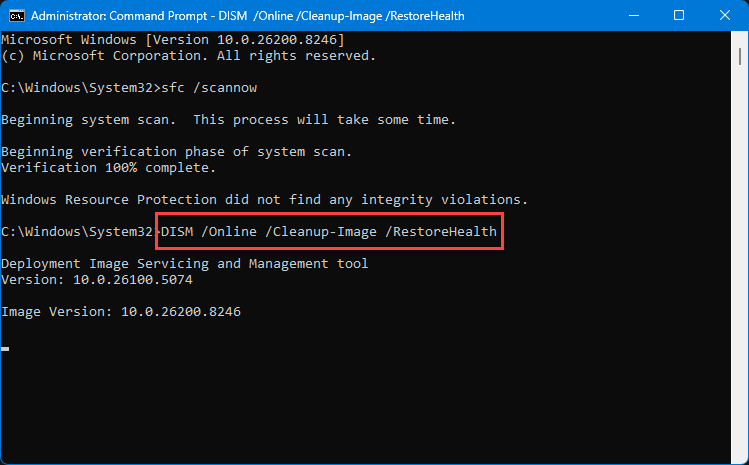
3 – Copy this and paste it into the window:
DISM /Online /Cleanup-Image /RestoreHealth
4 – Press Enter. Wait.
5 – Once that finishes, run:
sfc /scannow
6 – Let it run to 100%.
7 – Restart your PC.
8 – Try extracting your file again.
Fix 3 – Move the Archive Closer to the Root
Quick one. File path too long? Windows extraction breaks. Move the zip to a shorter path.
1 – Cut the zip from wherever it is — Ctrl + X.
2 – Paste it directly to C:\ or your Desktop.
3 – Right-click. Extract All.
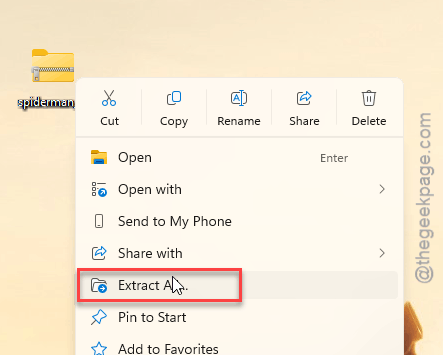
4 – Set the destination to somewhere short — like C:\Extracted instead of nested folders.
Worked? Otherwise, go for the next solution.
Fix 4 – Disable Antivirus Temporarily
When your antivirus is doing a real-time scanning some times it lock files in the middle of the extraction process itself. Mostly with executables or installers.
1 – Click the up arrow in your taskbar. Right-click your antivirus icon.
2 – Pick Disable (most third-party antivirus). Choose 15 minutes or until restart.
3 – If you are using Windows Security as the dedicated third-party antivirus program, go this way –
Settings > Privacy & security > Windows Security > Virus & threat protection
4 – Tap the Manage settings button. Next, toggle the Real-time protection off.
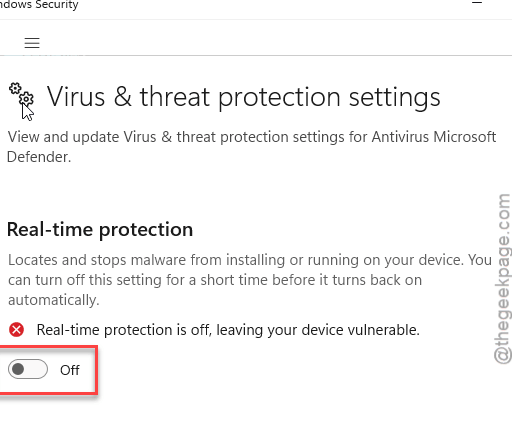
5 – Try extracting the files again. Re-enable antivirus immediately after.
Worth saying — only do this for files from sources you trust. Don’t extract sketchy stuff with antivirus off.
Fix 5 – Repair the Archive
If the zip itself is partially corrupted, WinRAR can repair it.
1 – Open WinRAR from the Start menu.
2 – Browse to your archive in WinRAR’s file view.
3 – Click the archive once to select it.
4 – Click Tools at the top. Pick Repair archive.
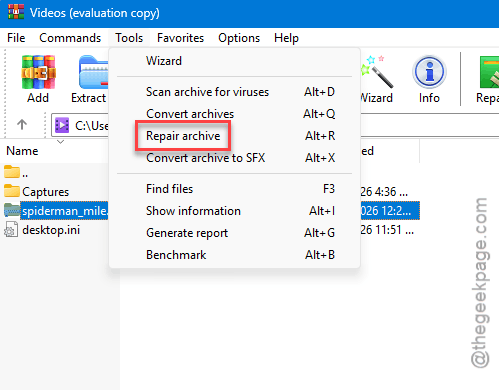
5 – Choose where to save the repaired version. Click OK.
6 – WinRAR creates a new file starting with rebuilt. or fixed.
7 – Try extracting that one instead.
Fix 6 – Re-Download the File
Honestly? Sometimes the file just downloaded badly. Common cause people overlook.
Go to wherever you got the file. Download it again. Preferably with a download manager if it’s a big archive — they handle interruptions better than browsers.
Try extracting the new download. If it works, your first download was just incomplete.
Fix 7 – Run a Disk Check
Bad sectors on your drive can corrupt files mid-extraction. Worth a check.
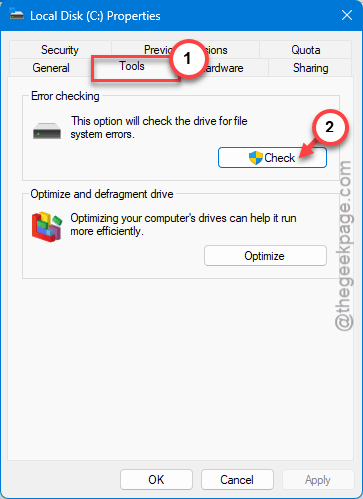
1 – Open File Explorer. Right-click your C: drive. Pick Properties.
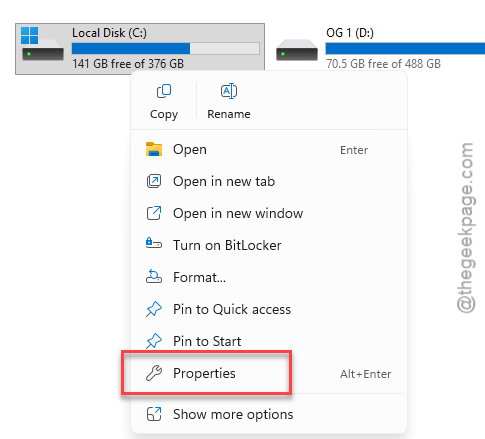
2 – Click the Tools tab.
3 – Under Error checking, click Check.
4 – Click Scan drive.
5 – Let it run. If it finds errors, follow the prompts to repair.
On older HDDs, this matters more than on SSDs. But still worth running on either.
How to Prevent This
- Install 7-Zip and use it by default. Forget the built-in extractor exists. It’s just less reliable.
- Keep your file paths short. Avoid extracting deep into nested folders or onto OneDrive paths.
- After downloading large archives, verify with a checksum if the source provides one. Bad downloads cause half these errors.
- Run DISM and sfc /scannow every few months. Catches creeping system corruption before it hits real problems.
People Also Ask
How do I solve “the extraction operation was not completed”?
Move the archive to a short path first — Desktop or C:\ root. Long file paths break Windows extraction. Try again. If you are still getting the same error message, you should use the 7-zip tool.
Why can’t Windows complete the extraction?
Could be a few things. Path is too long. Archive is partially corrupted. Antivirus is locking files. System files are damaged. Or your drive has bad sectors.